
Context
Below we outline how to onboard a new employee and offboard an employee leaving your company via the Zip console. Being able to do this quickly and easily is both helpful from a management perspective (as you can do this in just a few clicks!), and also helps you maintain an up to date fleet of devices. From a security perspective this is extremely important, as delays in removing accesses and permissions for offboarders poses a major risk to misuse of information, and potential breaches.
Onboarding a New Employee
If you have a new employee join your organization, as soon as they have an account registered with your IdP, they will be discoverable in the Zip console.
- In the Zip console, on the ‘overview’ home page, scroll down to see a table of all users:
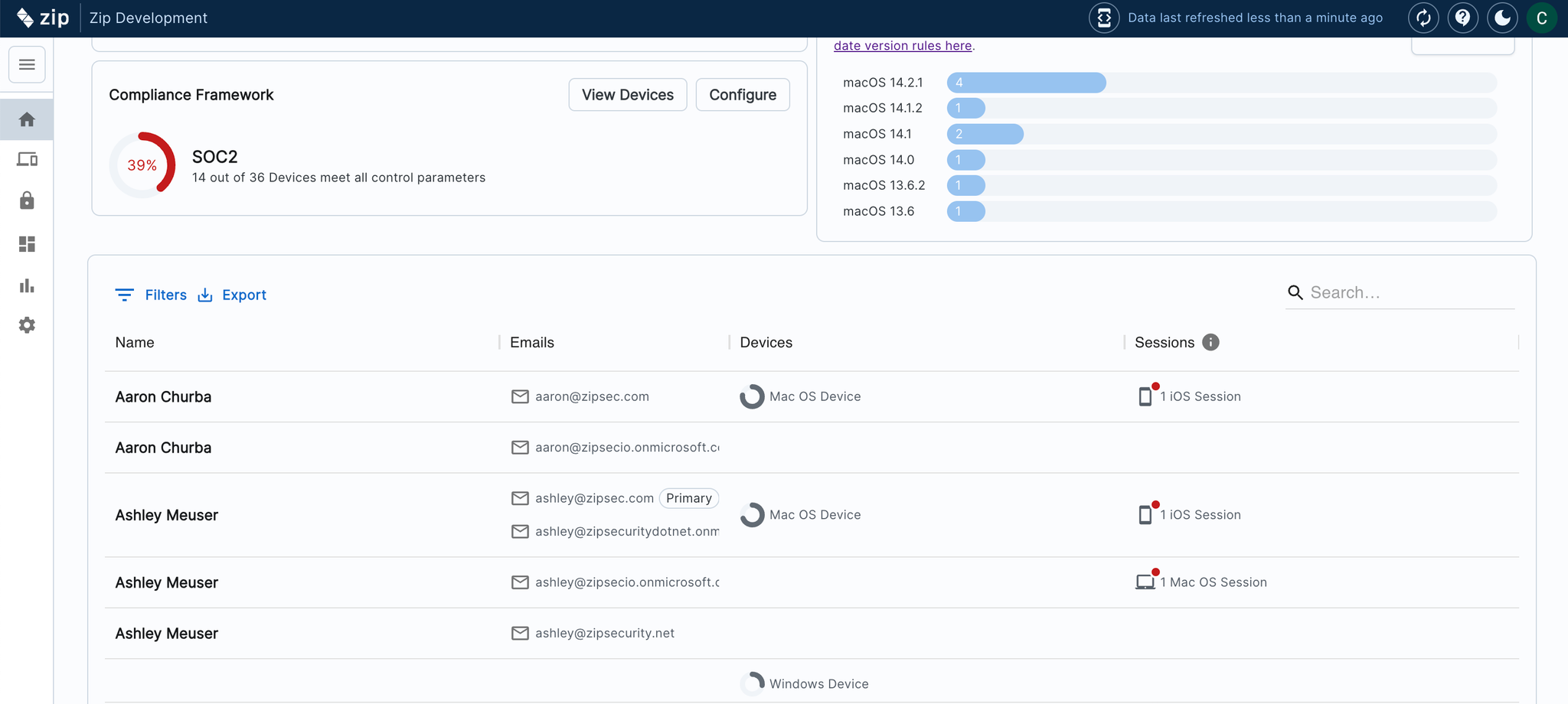
- Here you can see the name of every account that exists for your organization, and the devices that account is logging into.
Sending out Device Enrollment Instructions to a new joiner
The main step you need to take for a new employee is getting their device(s) enrolled, so follow the below steps:
When you enable “device management” controls, the Zip Console will be set by default to enforce some helpful settings in your Intune. Specifically, it will make sure that the Windows devices in Intune are all “Corporate” owned, so that you can manage them. It does this by checking every night at 4am EST for “Personal” devices, and changing their ownership to Corporate. If you would like to turn this feature off, you can do so by navigating to the Device Enrollment Control Configuration tab and toggling “mark Windows devices as Corporate” off.
- Navigate to the “Controls” tab: https://zipsecinc.cc/modules
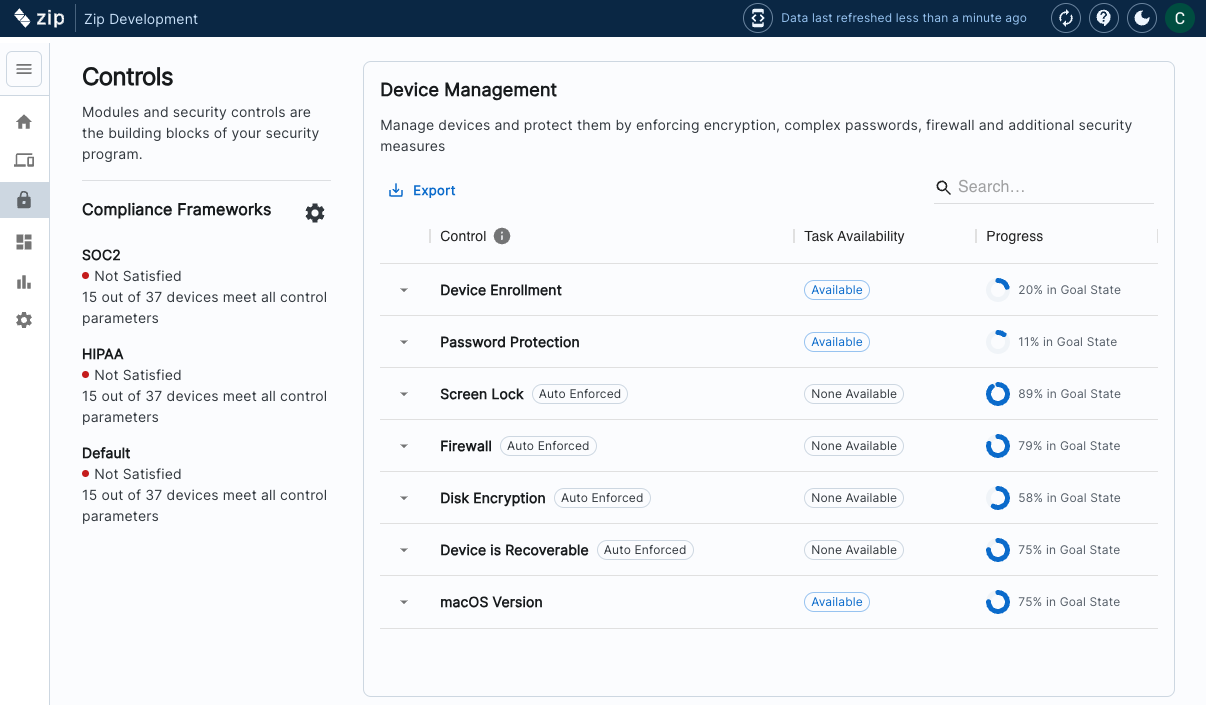
- Under the ‘Device Management’ Section, click on the control ‘Device Enrollment’
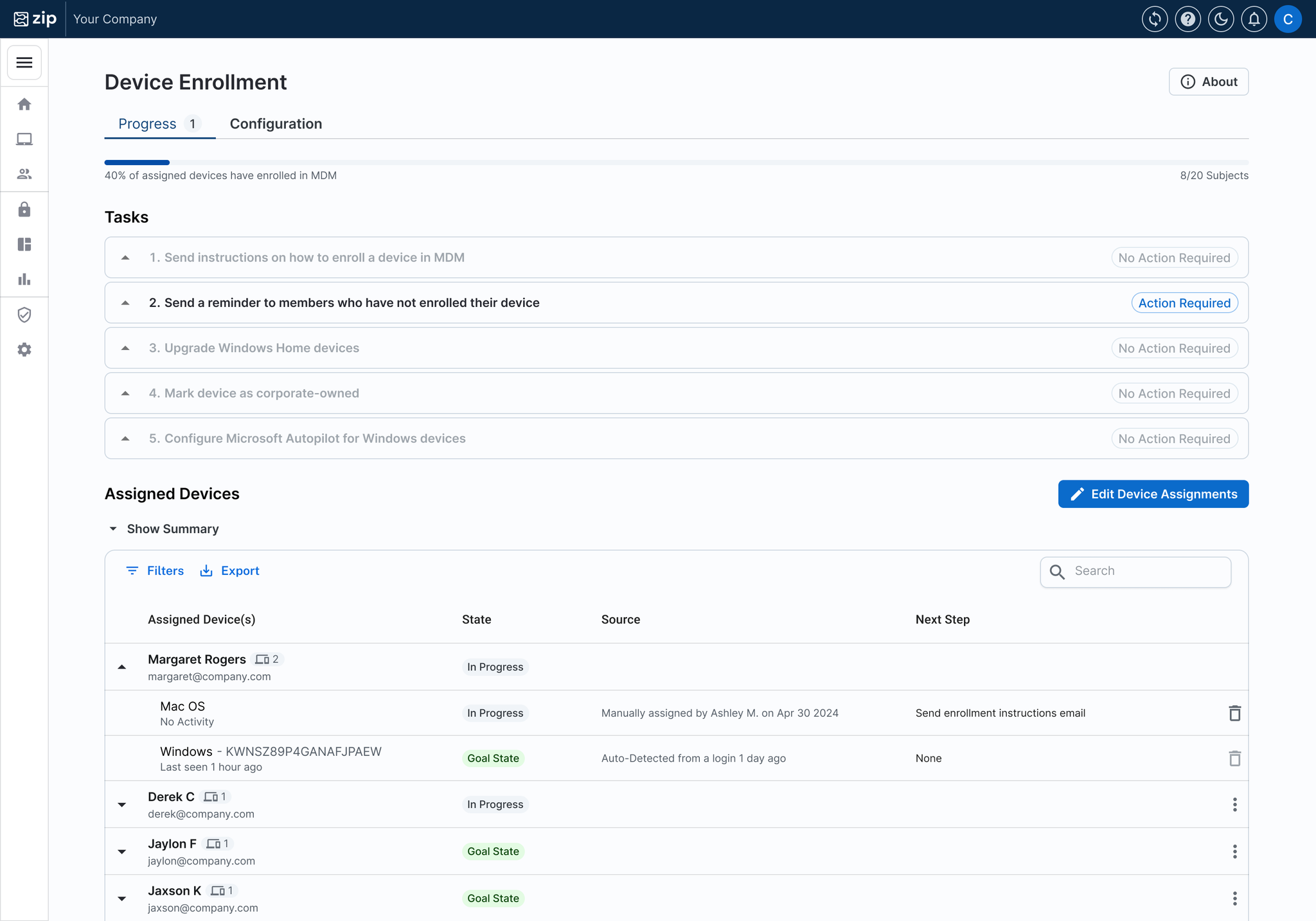
- Under the ‘Tasks’ section, follow the steps to send email instructions for device enrollment to your employees. Click into each task to review the email comms, and confirm who will receive the email.
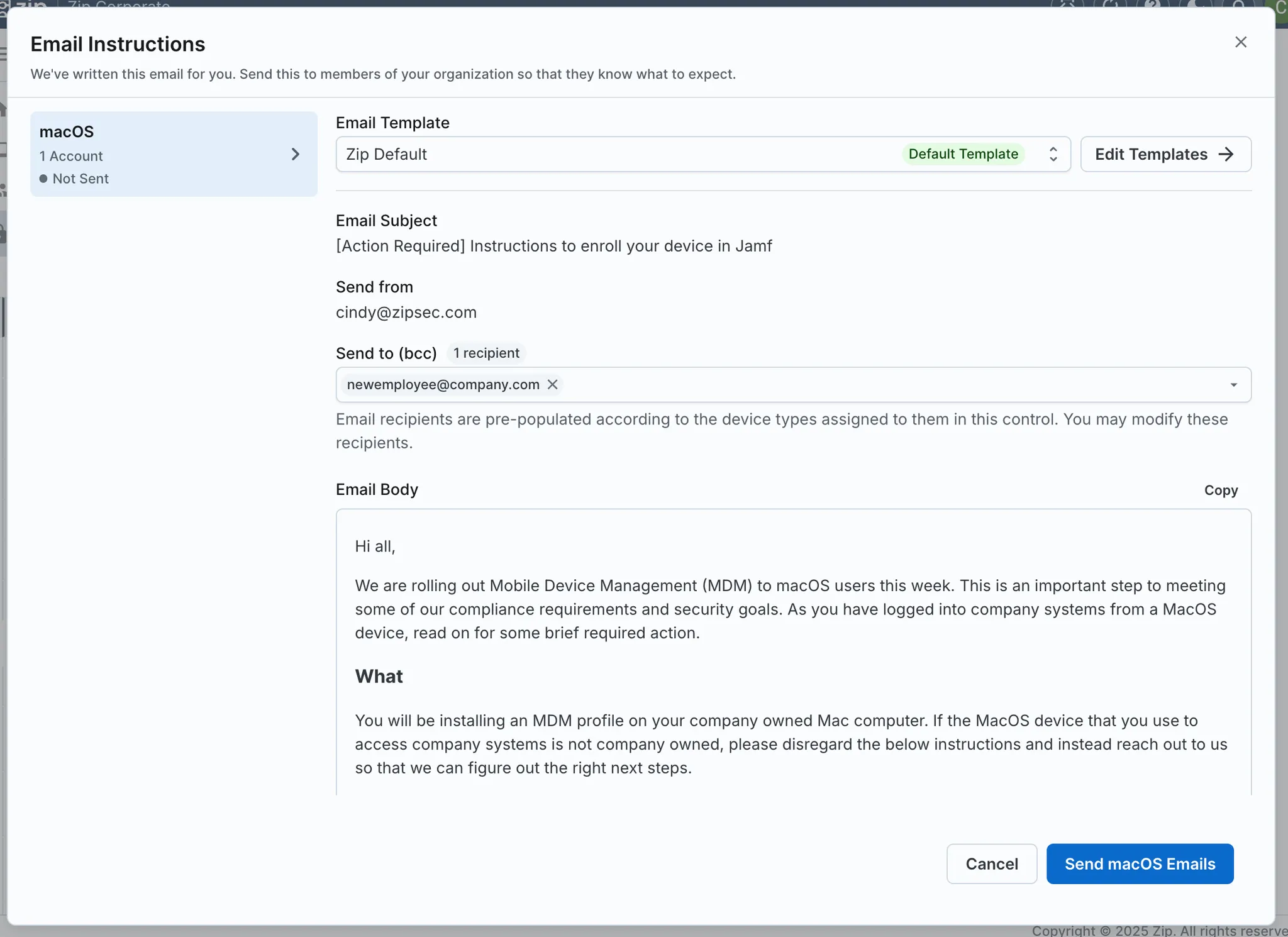
- You will see there may be multiple email options to send, for macOS and Windows device enrollment. Toggle between the tabs on the left hand side to view each email.
- Important Note: The “Send to” recipients for each email are pre-populated with all email addresses of unenrolled devices automatically, but this too can be edited by adding or removing email addresses.
- Review the email content, subject, and recipients. If you would like to change anything, you can make edits by clicking Edit Templates and creating a new template.
- Hit ‘Send’ in the bottom right hand corner to send the emails. This will only send the currently selected email type. Repeat this for all required email types.
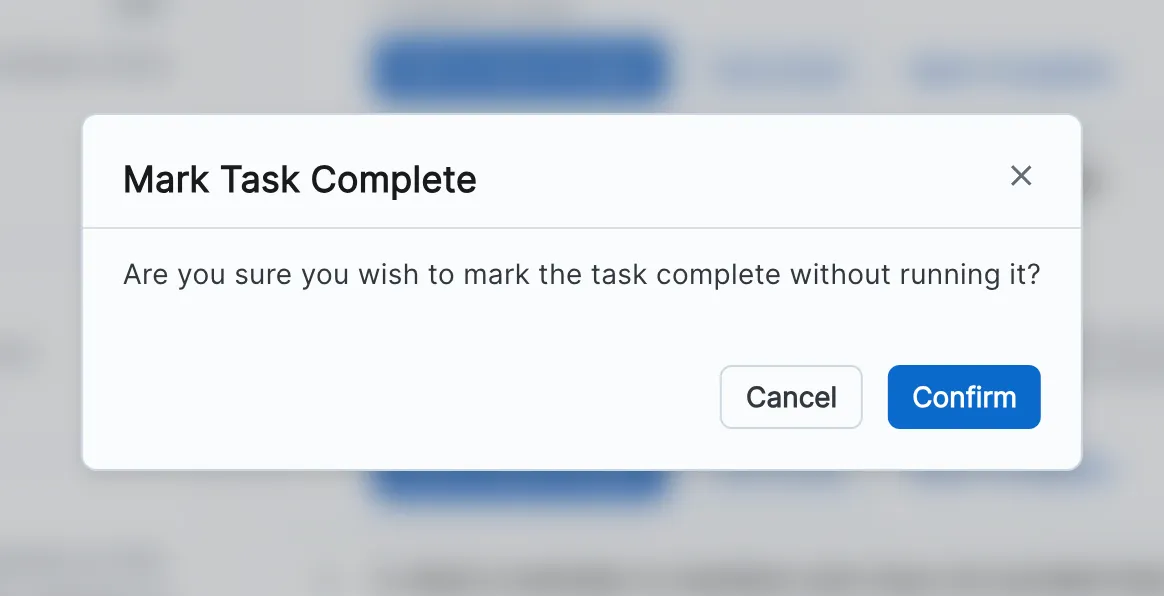
- Helpful tip! You have the option to skip sending out emails for each task by selecting the ‘Mark Complete’ button:
- The Send instructions on how to enroll a device in MDM email contains the instructions for device enrollment, so unless this information is being shared any other way, you must send this email in order to get users to enroll their devices. Generally, we recommend you send this one!
Offboarding an Employee
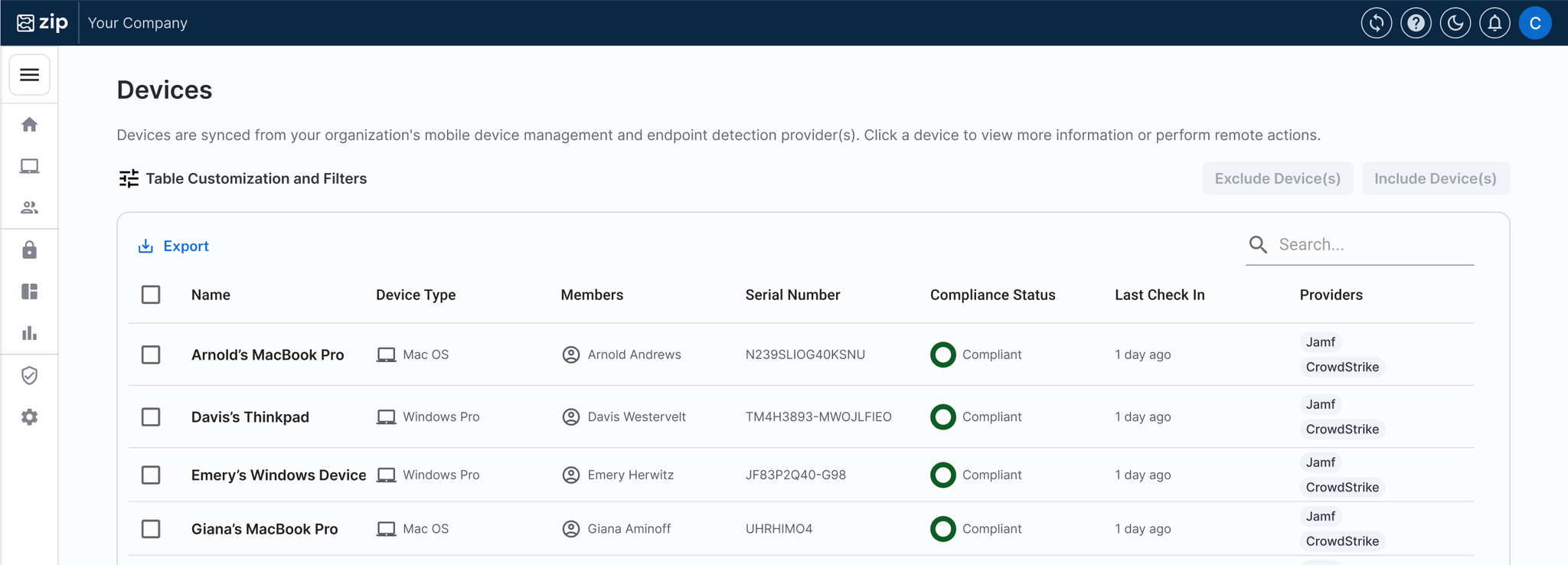
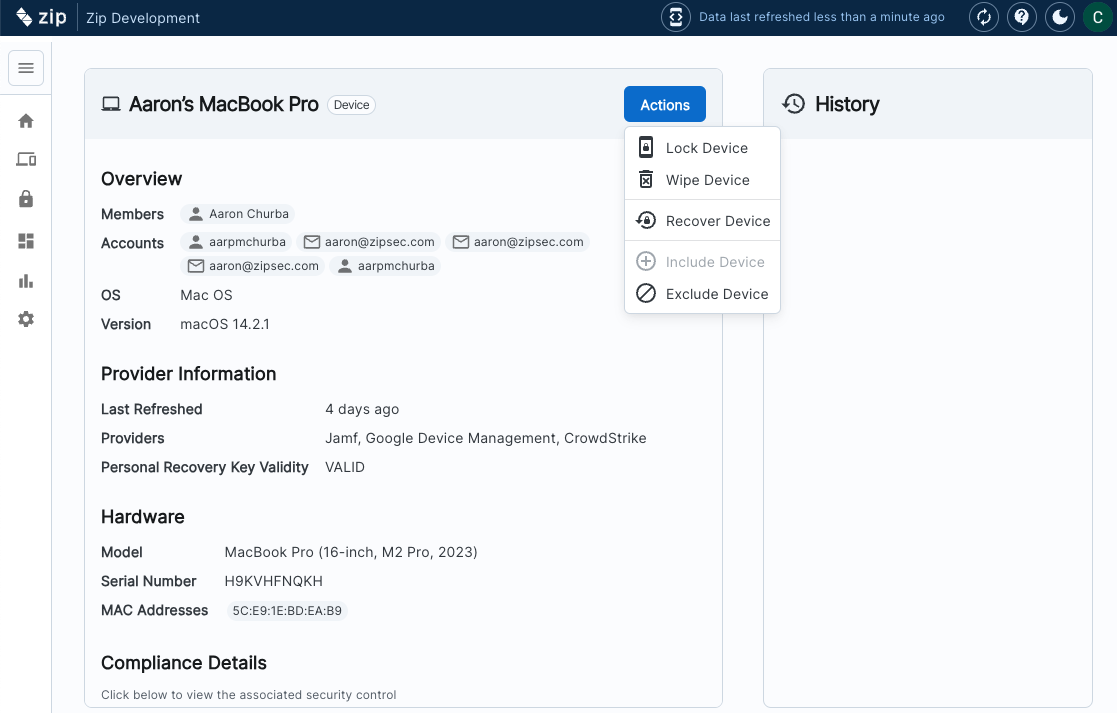
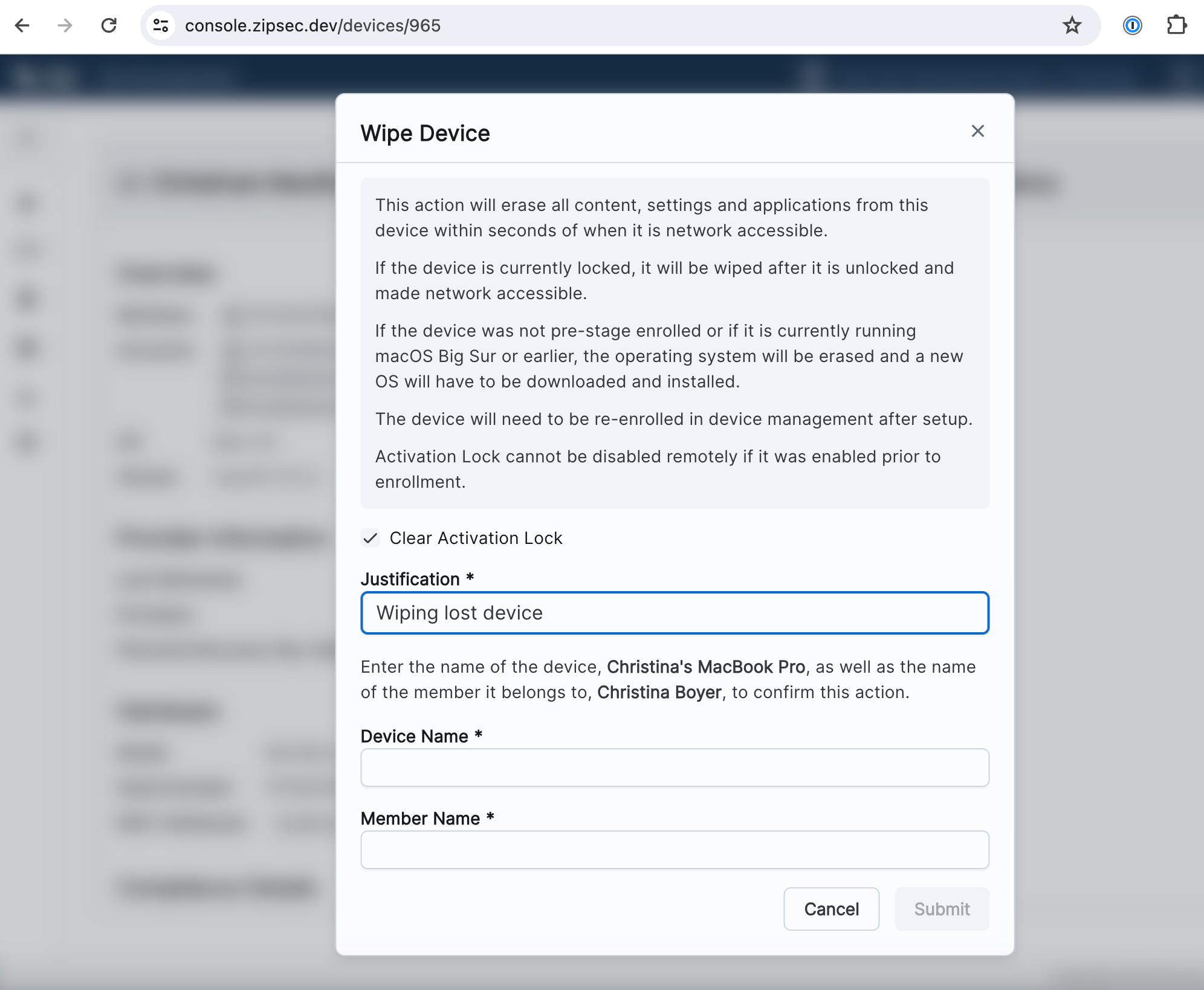
It’s important any leavers are offboarded in a timely manner to ensure no unathorized access to data and systems of your organization. Following the below steps will ensure the device is fully wiped.
Account Offboarding
Device Offboarding
Checklist for Rotating Zip Administrators
When an employee who acted as an administrator leaves your organization, there are a few steps to take to ensure your company maintains access to the Zip Console as well as the Connected Providers. If you are unsure of how to carry out these steps, please reach out to info@zipsecinc.cc.
- Zip Console Accounts: Confirm that you have additional Zip Console users by navigating to the
Organization Settings→Teamtab. There you will see all active accounts listed. To grant a new account access, click theInvitebutton and enter in the new administrator’s email to invite them to the console. - Once the new Zip Console user is added (or you confirm there are other existing Zip Console users), remove the separated employee’s Zip access by clicking the checkbox next to their name and clicking the
Deletebutton.
- Admin Accounts for Connected Providers: verify that your organization maintains Administrator access to your connected Identity Provider, Device Management Solution, and/or Endpoint Threat Protection provider. The linked instructions below detail how to grant administrator privileges within those providers.
- Identity Providers
- Google Workspace: ensure your organization has at least one account with the Super Administrator role belonging to an active employee.
- Entra ID: ensure that your organization has at least one account with the
Global Administratorrole at all times or you may be locked out of your Microsoft Environment. - Update any saved payment information in your Microsoft environment to ensure no ongoing payments to Microsoft are declined. You may need to assign the Billing Administrator role to the new administrator.
- Okta
- Device Management
- Jamf Pro
- If you do not have a Jamf Pro account, reach out to info@zipsecinc.cc and we can help understand what changes you may need to make to your existing accounts and roles, if any.
- Microsoft Intune: covered in the steps for Entra ID above.
- Crowdstrike
- Log into the Crowdstrike portal and click on the Menu button on the top left of the screen. Navigate to
Host Setup and Management→Falcon Users→User Management. Click theCreate Usersbutton, enter in the new admins details and assign the role ofFalcon Administrator. - Remove the separated employees account from this same page, clicking on the three dots at the row for the account and selecting
Delete User. - Crowdstrike Notifications: return to the menu and navigate to
Support and Resources→General Settings→Notifications. Ensure any new administrators are added and separated employees are removed from notifications.
- Re-authorize Connected Providers: administrator accounts are used to connect the Zip Console to your providers, which can become deactivated when an administrator leaves and their connecting account is deactivated. To update these connections, navigate to the Connected Providers page, check the box next to a provider, and click the
Editbutton in the top right of the table. Follow the instructions to provide updated details. Complete walk throughs for each provider type are available here.
- Billing/Contracting: if the separated employee was also a billing or contract point of contact for Zip Security, please e-mail us at info@zipsecinc.cc to ensure account details are sent to the correct person going forward.
FAQs
What if an offboarder wants to keep the device they were working from?
If a former employee has the option to keep their work device, or buy the device, this is possible! As long as you have completed the device wiping steps as above, the laptop can be used for future use - either for the former employee, or it can be recycled within your company for another purpose or future employee.
If the device was previously enrolled in Apple Business Manager or Microsoft Autopilot, you will need to remove the device’s record from the respective service if it will be redeployed outside of your organization