Device recovery (revealing bitlocker or filevault keys) helps you get users back into their device even if they are locked out or forgot their password.
Recovering a device
For macOS users, device recovery can be used if a user forgot their device password and is locked out via FileVault encryption.
For Windows users, this recovery action can help a user get back into their device in the case of a disaster or BSOD (blue screen of death) via BitLocker encryption.
Prerequisites
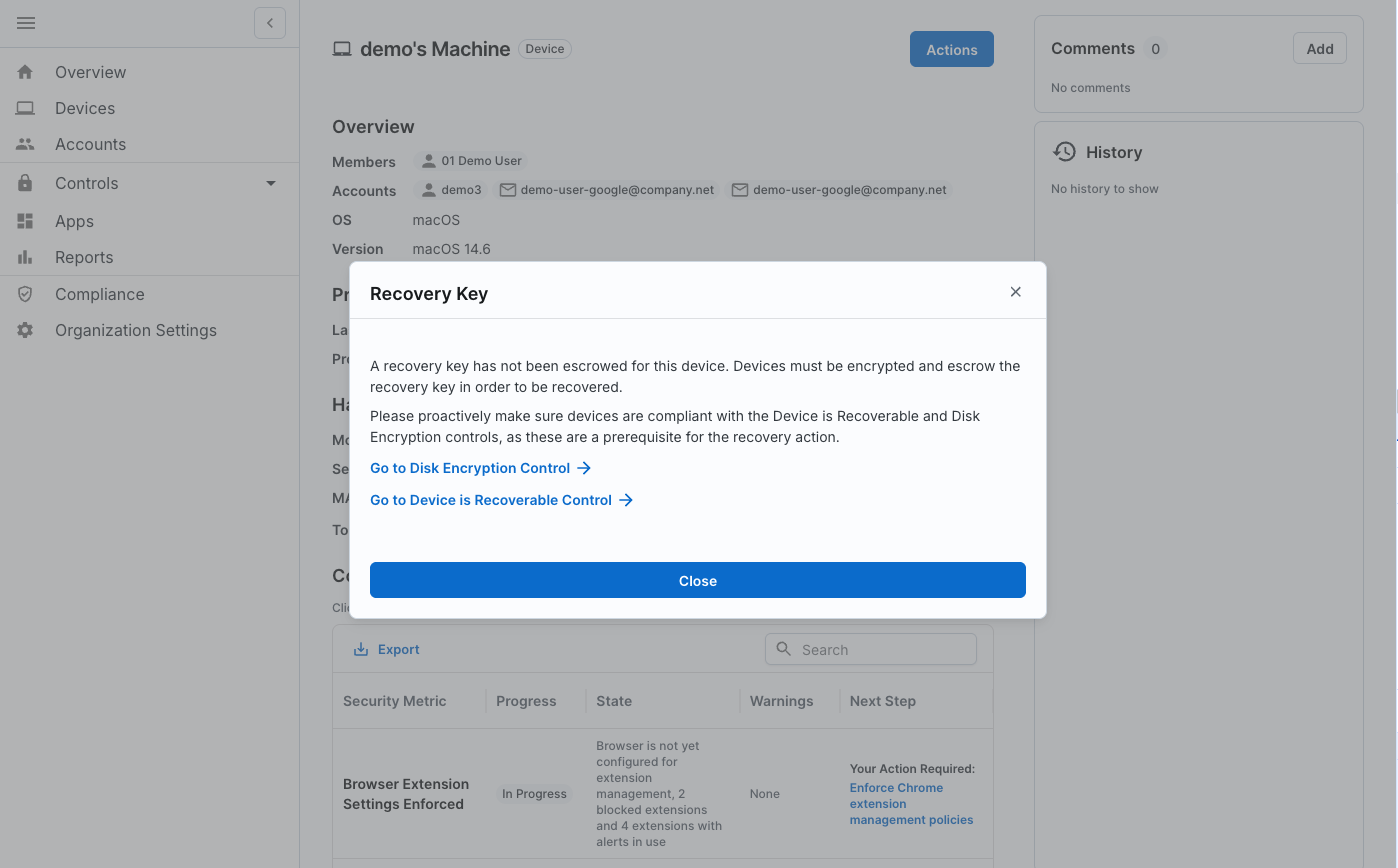
First, the device must be compliant with the Disk Encryption control and the Device is Recoverable control. This means the device is encrypted and the encryption key is escrowed.
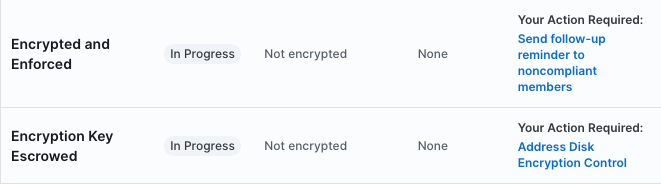
If not, you will see the message below when you try to recover the device. Follow the steps in each control to ensure that devices are all compliant.
Bitlocker + FileVault Key Recovery
As long as the device is encrypted and recoverable, you can proceed with the following steps to get the user back into their device:
- Navigate to the ‘Device’ tab on the left sidebar
- Select the impacted device from the table
- Click the ‘Actions’ button on the right hand side
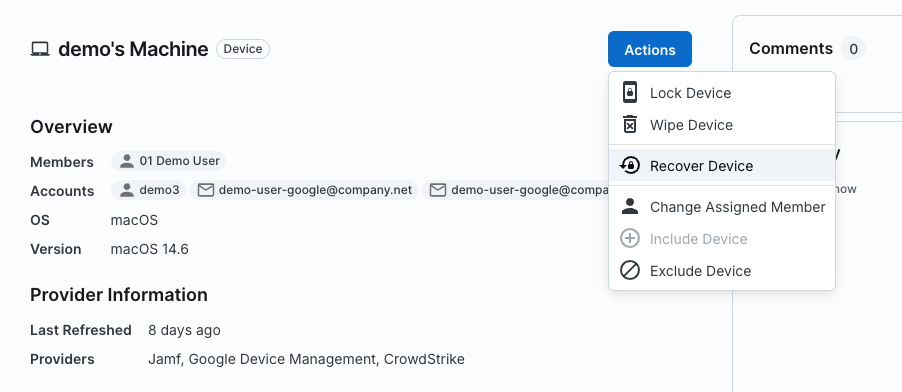
- Select ‘Recover Device’
- This will reveal the encryption key. Copy it, and share it with the user. Make sure you are sharing with the correct person over a trusted communication channel.
- To use the key to regain access to the device,
- macOS: The user will need to start their macOS device in recovery mode (https://support.apple.com/en-us/HT201255) and then paste the recovery key during login.
- Windows: The user will need to enter the 48-digit key where prompted for BitLocker recovery.
Resetting the password for a Microsoft Entra account
Microsoft Entra accounts are used to access Microsoft O365 applications & can be used as the login credentials for an enrolled Windows laptop.
The password for these accounts can be easily reset within Zip Console.
Highly privileged Microsoft Entra accounts, such as Global Administrator accounts, are protected & must use Microsoft’s self-service password reset functionality.
- Navigate to the ‘Accounts’ tab on the left sidebar
- Select the impacted AzureAD account from the table
- Click the ‘Action’ button on the right hand side
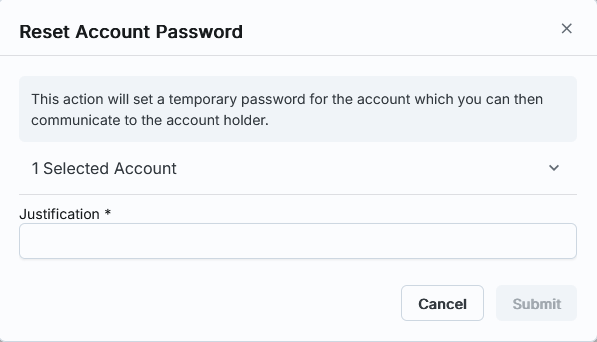
- Select ‘Reset Password’
- This will generate a temporary password that you should share with the impacted user over a trusted communication channel.
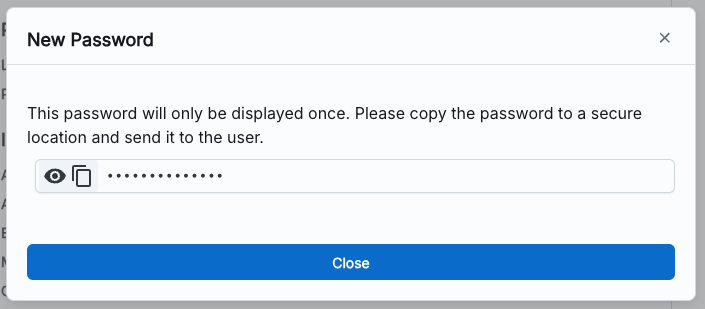
- Remind the user to reset their password to something secret once they regain access to their account.
Resetting the local account password for a Windows User
Another option for Windows users is to reset the local account password.
This will allow them to log back in with a temporary password and then change their password to something only they know and remember. To do this:
- Navigate to the ‘Devices’ tab on the left sidebar
- Select the impacted Windows device from the table
- Click the ‘Action’ button on the right hand side
- Select ‘Reset Local Account Password’
- This will generate a temporary password that you should share with the impacted user over a trusted communication channel.
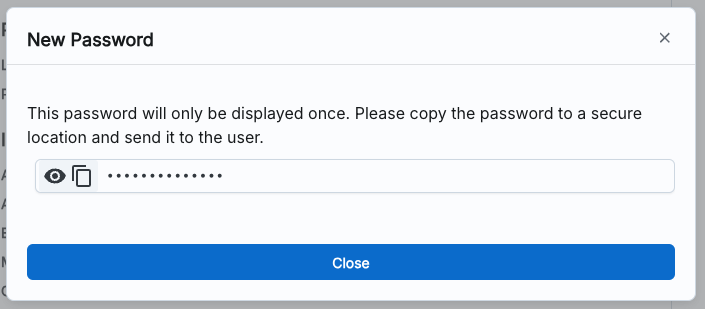
- Remind the user to reset their password to something secret once they regain access to their account.
FAQs
A Windows device is stuck as “In Progress” for Disk Encryption. How do I get it encrypted?
To manually enable BitLocker encryption,
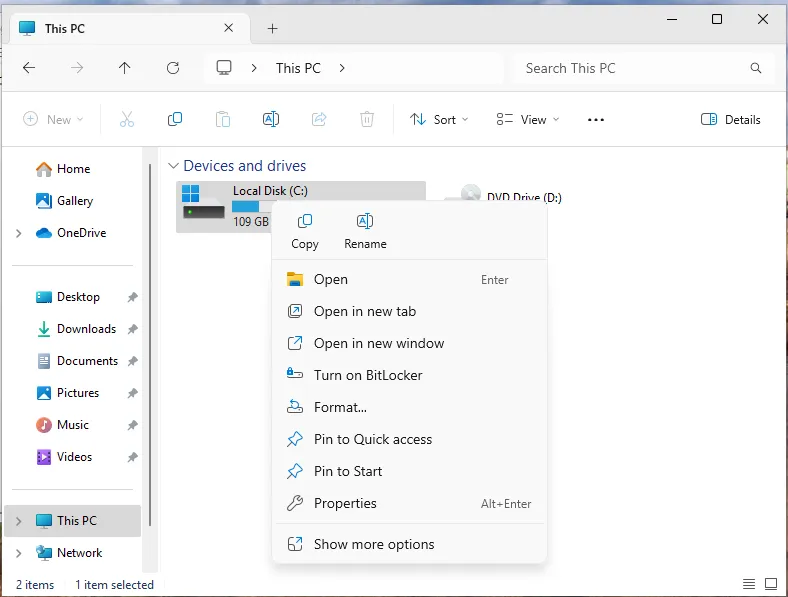
- Open File Explorer and navigate to the main "This PC" section.
- For a quick visual check, the
Local Disk (C:)drive should have a lock icon if Bitlocker is enabled.
- Right-click the C: drive and select "Turn on BitLocker".
- You should see a popup asking “How do you want to back up your recovery key?”. Select “Save to your AzureAD account”. This ensures that your recovery key will be accessible in case there’s ever a problem with your PC.
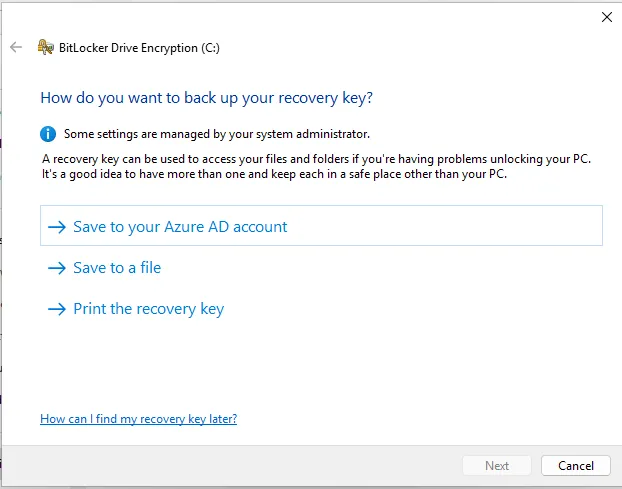
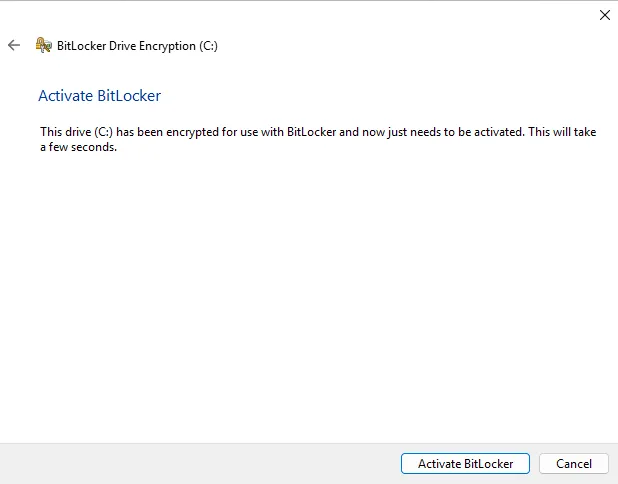
- Confirm on the next page to Activate BitLocker.
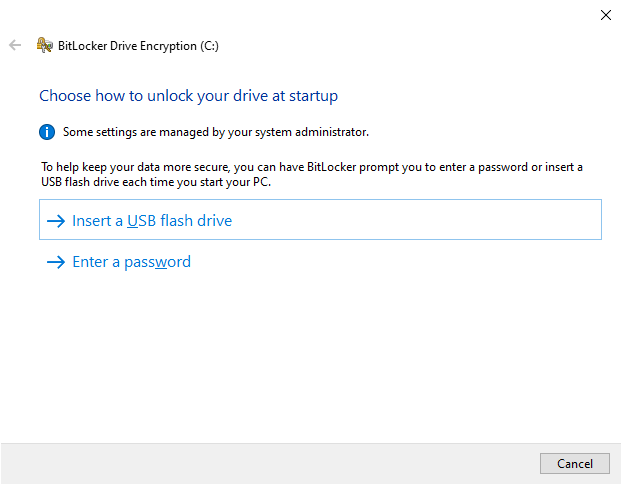
If you see an unexpected message such as a page to “Choose how to unlock your drive at startup” (screenshot below), do not proceed. The likely cause is that the Trusted Platform Module (TPM) security chip is not enabled.
Follow the article from Microsoft Support here to
- Check if TPM is enabled
- Find instructions for enabling the TPM specific to your device’s manufacturer.
Then, you can follow the steps above to turn on BitLocker encryption.