
Troubleshooting Jamf <> Google SSO Set Up
Some times, when testing your first device through enrollment, it is possible that SSO login will fail. There are a couple possible reasons for what causes this, so follow the below troubleshooting steps to help you get this resolved quickly!
Step 1: Confirm the correct enrollment flow is being followed
This may sound simple(!), but make sure the test enroller is following the correct instructions sent to them via email from the Device Enrollment Control (device enrollment instructions).
- The enrollment link should be in the format {{yourdomain}}.jamfcloud.com/enroll where yourdomain = company name, one word with no spaces or punctuation.
- Make sure the test enroller’s device is connected to a stable internet connection.
Step 2: Confirm that everything is correctly configured in Google Workspace
Log into Google Workspace and re-check the Jamf <> Google SSO Integration Instructions have been followed correctly in Google Workspace . Look out particularly for:
- Confirm the Jamf Pro app has been configured corrected:
- Navigate to https://admin.google.com/u/1/ac/apps/unified
- Click into Jamf Pro application > click into service provider details
- Double check the ACS URL and Entity ID match the instructions
- Confirm signed response = checked
- Name ID format = email
- Take a screenshot
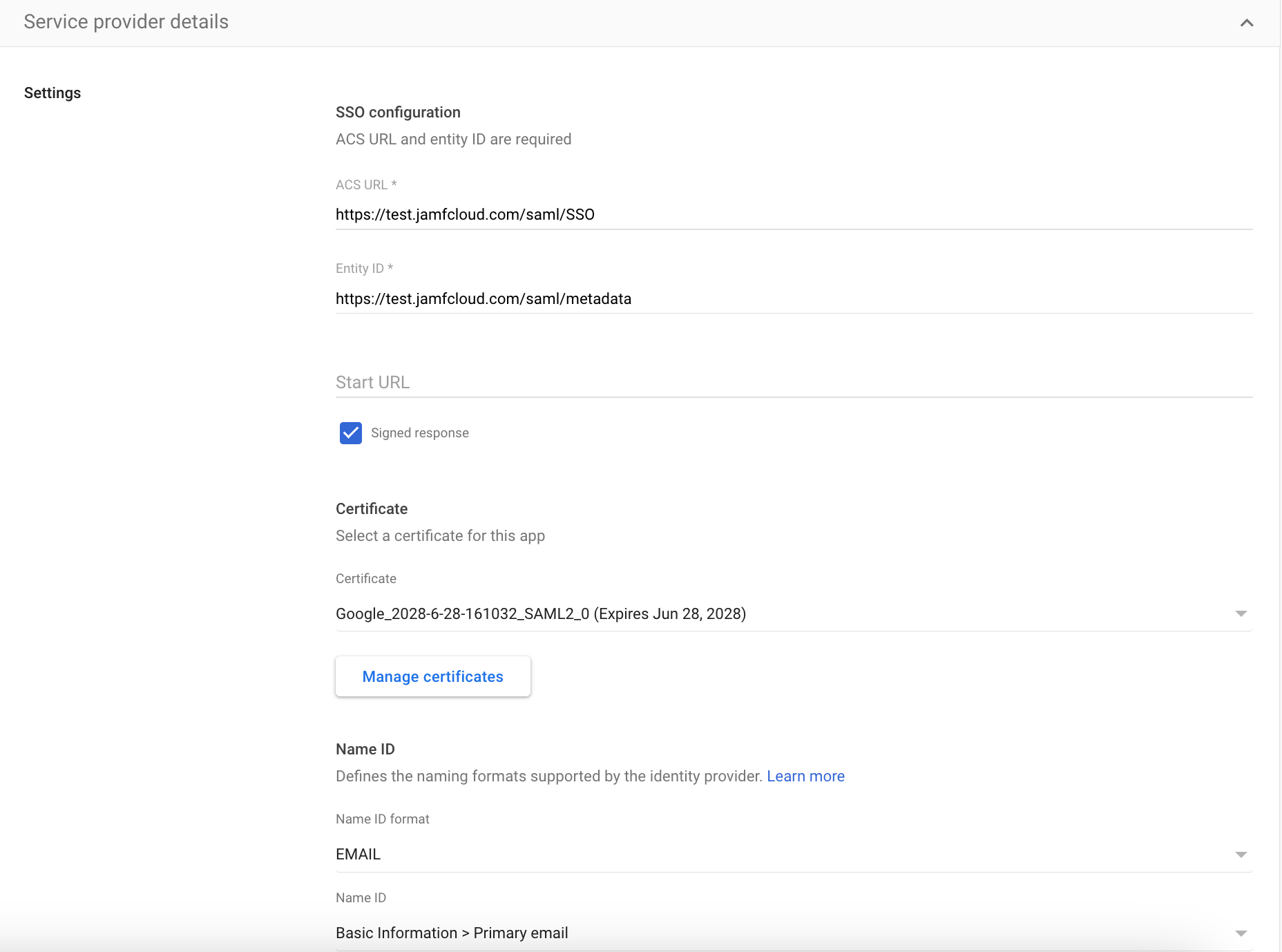
- Confirm that User Enablement Toggled ON:
- Navigate to https://admin.google.com/u/1/ac/apps/unified and confirm user access column shows ‘ON for everyone’
- If it is not toggled on:
- Click into Jamf Pro application > user access > service status = ON for everyone
- Take a screenshot.

Step 3: Ensure you are testing the enrollment link the the correct browser profile:
- It is important that the enrollment link is tested in a browser that you are logged into your corporate account. If you are logged into a personal browser window, the SSO login will fail.
- To help troubleshoot, try the enrollment link in an incognito/private browser window.
- Please take a screenshot of any error messages you see.
Step 4: Reach out to Zip for support.
Once the above steps have been completed, please reach out to info@zipsecinc.cc with:
- Screenshots of your Google Workspace from step 2.
- Screenshots of the error messages you encountered from step 3.
Zip will then investigate further, and if necessary, reach out to schedule a troubleshooting call.
Troubleshooting Jamf <> Entra SSO Set Up —
I enrolled my device by it’s not showing up as enrolled?
- It’s important that user’s devices remain connected to the internet for the duration of device enrollment. There is a risk that if a user enrolls their device and immediately shuts the laptop or disconnects it from the internet, that all configuration profiles