
A CrowdStrike Falcon sensor is not reporting. How do I fix this?How do I install CrowdStrike on Windows without MDM?How do I install CrowdStrike on macOS without MDM?CrowdStrike is making my Macbook slow, what should I do?Gathering logs from CrowdstrikeMac OSWindows
A CrowdStrike Falcon sensor is not reporting. How do I fix this?
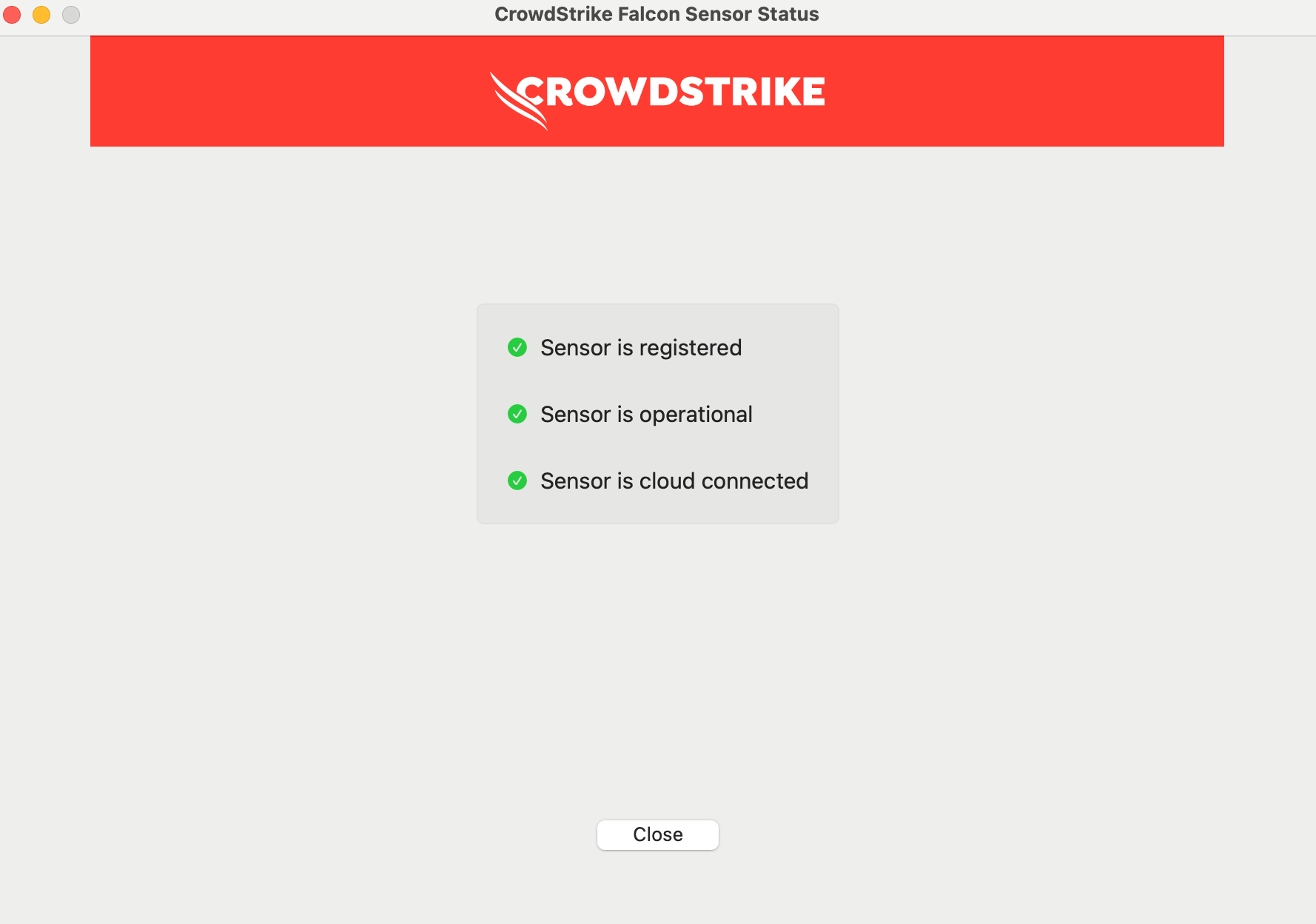
Search for the Falcon application on the device and open it. Falcon can be found in the Applications folder in the file system, or it can be found by typing ‘Falcon’ into Spotlight Search on Macs. If the sensor is fully operational, you should have the view below.
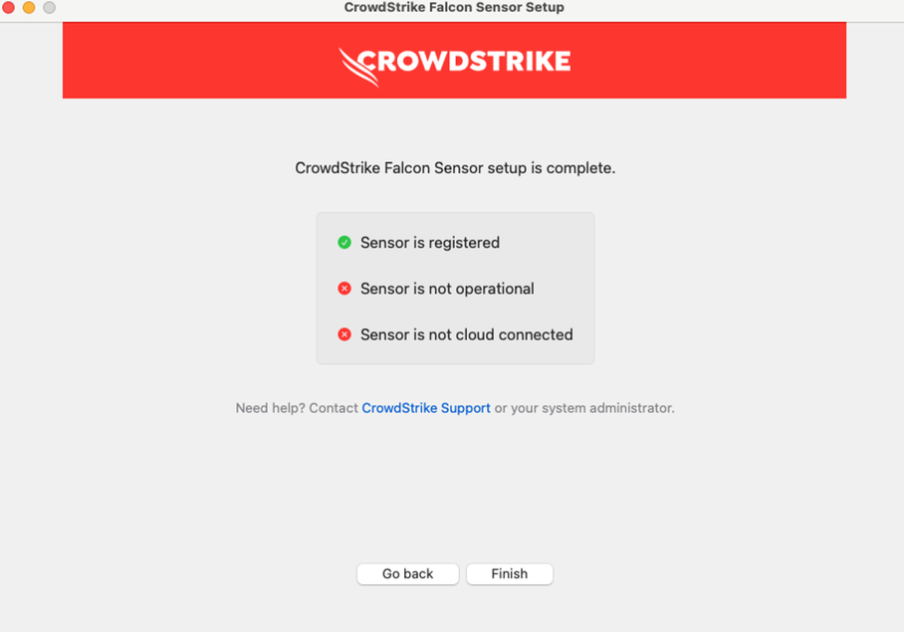
If it is not operational, you may instead see:
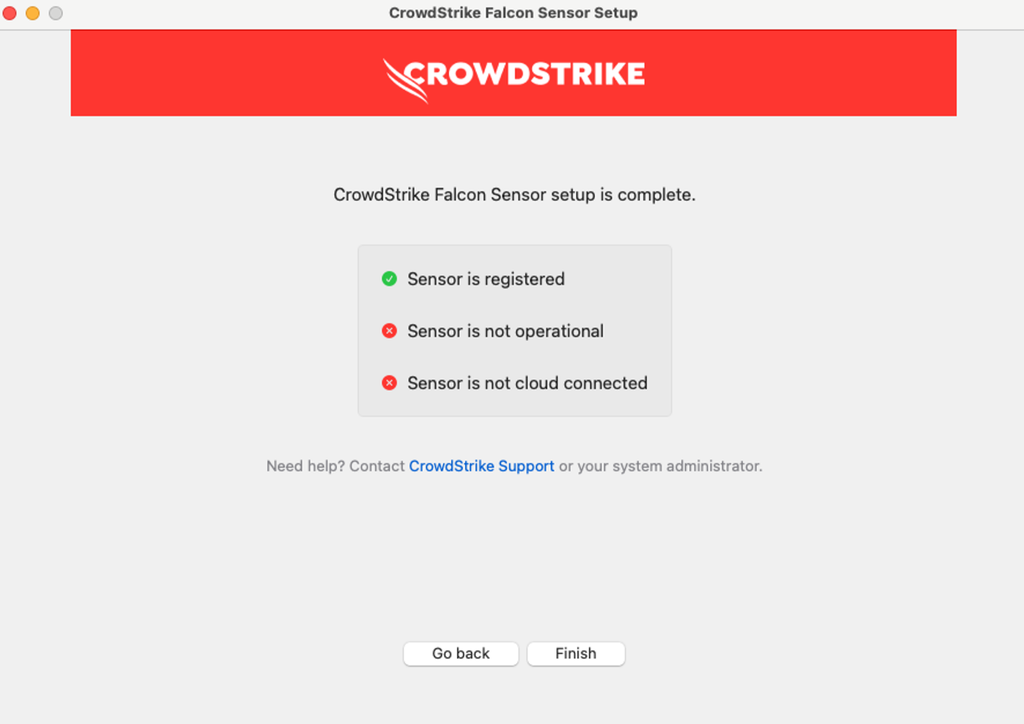
Click the “Go back" button and walk through the steps to allow the CrowdStrike sensor full disk access.
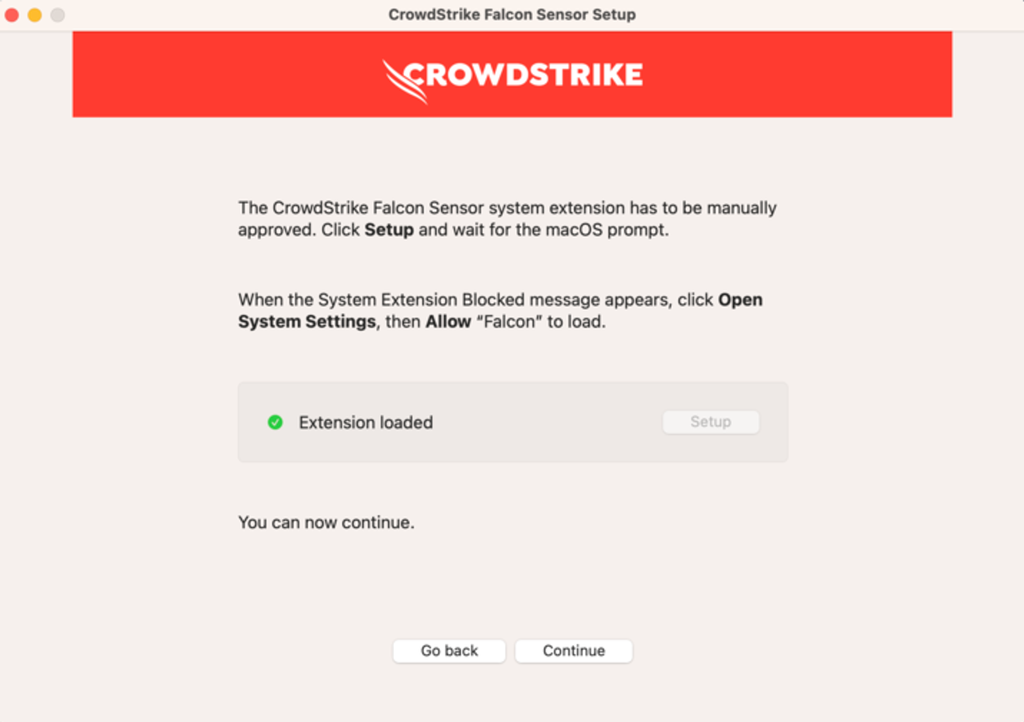
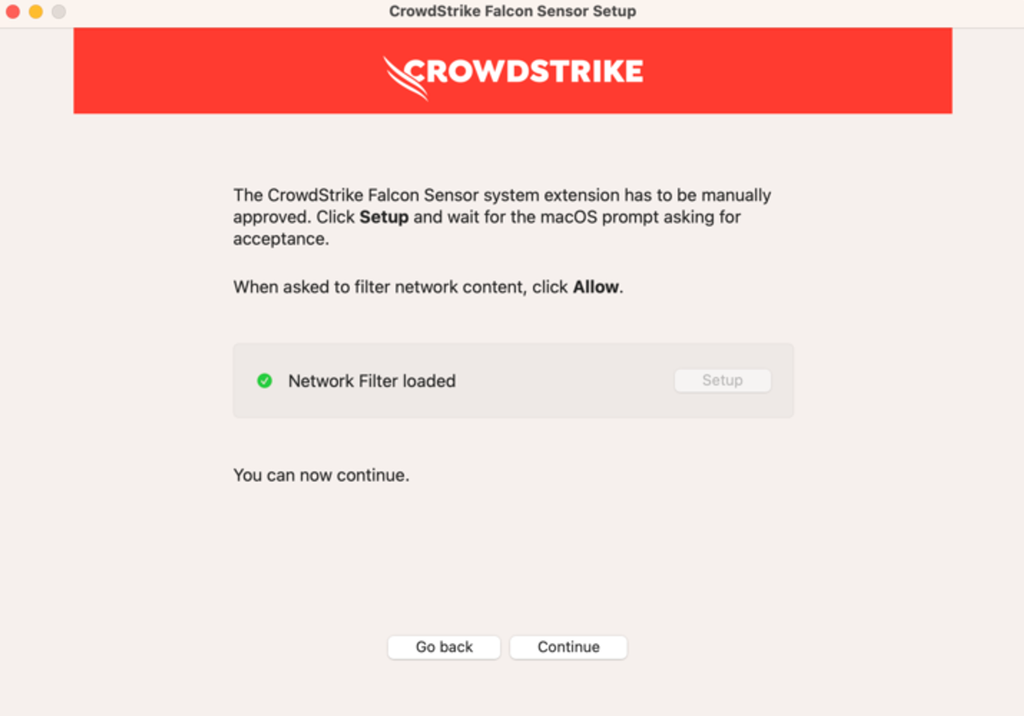
The sensor should now resume checking-in.
How do I install CrowdStrike on Windows without MDM?
- Download the latest Windows sensor installer
- Option 1: Download the latest sensor for Windows from https://falcon.us-2.crowdstrike.com/hosts/sensor-downloads
- Option 2: Reach out to Zip Support, and we can send you a zip file with the installer.
- Get your CrowdStrike Customer ID checksum
- Option 1: Go to https://falcon.us-2.crowdstrike.com/hosts/sensor-downloads, and copy the CrowdStrike Customer ID checksum in step 2.
- Option 2: Zip support can send it to you along with the installer.
- Run the installer and click through the menu
- You can follow along the steps here with visuals, or in Crowdstrike’s documentaion.
- Accept the license agreement and enter your customer ID checksum.
- If your OS prompts to allow the installation, click Yes.
- When it prompts for Customer ID with Checksum, enter the value from step 2. An installation token is not required.
How do I install CrowdStrike on macOS without MDM?
- Download the latest macOS sensor installer
- Option 1: Download the latest sensor for macOS from https://falcon.us-2.crowdstrike.com/hosts/sensor-downloads
- Option 2: Reach out to Zip Support, and we can send you a zip file with the installer.
- Get your CrowdStrike Customer ID checksum
- Option 1: Go to https://falcon.us-2.crowdstrike.com/hosts/sensor-downloads, and copy the CrowdStrike Customer ID checksum in step 2.
- Option 2: Zip support can send it to you along with the installer.
- Run the installer and click through the menu. You can follow along with the instructions in CrowdStrike's docs, or continue below:
- Double-click to open the downloaded
.pkgfile. - When the installer opens, click Continue.
- Review the Privacy Policy and Terms of Use and click Continue.
- Click Install.
- When prompted, enter your administrative credentials and click Install Software.
- In the macOS dialog, click OK.
- In the installer window, enter your customer ID with checksum (CCID). You do not need to enter an installation token.
- Click Continue.
- Click Setup and when prompted, click Allow to allow network content filtering.
- Click Continue.
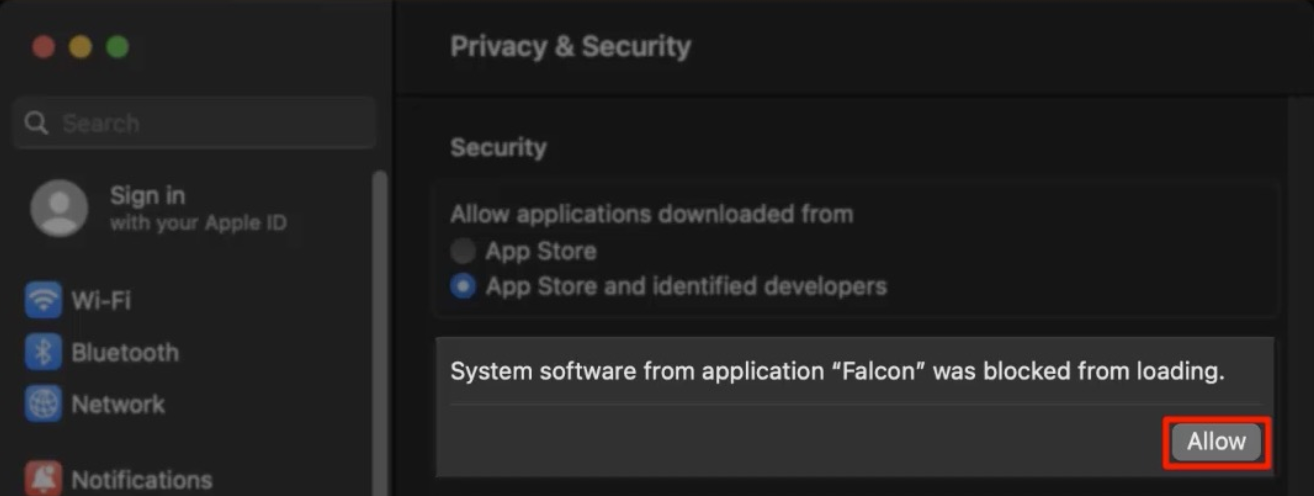
- Click Setup and when prompted, click Open System Settings. The macOS Privacy & Security system settings window will open.
- In the Security section, click Allow to allow system extension access.
- When prompted, enter your credentials and click Modify Settings.
- Close the macOS Privacy & Security system settings window and click Continue in the installer window.
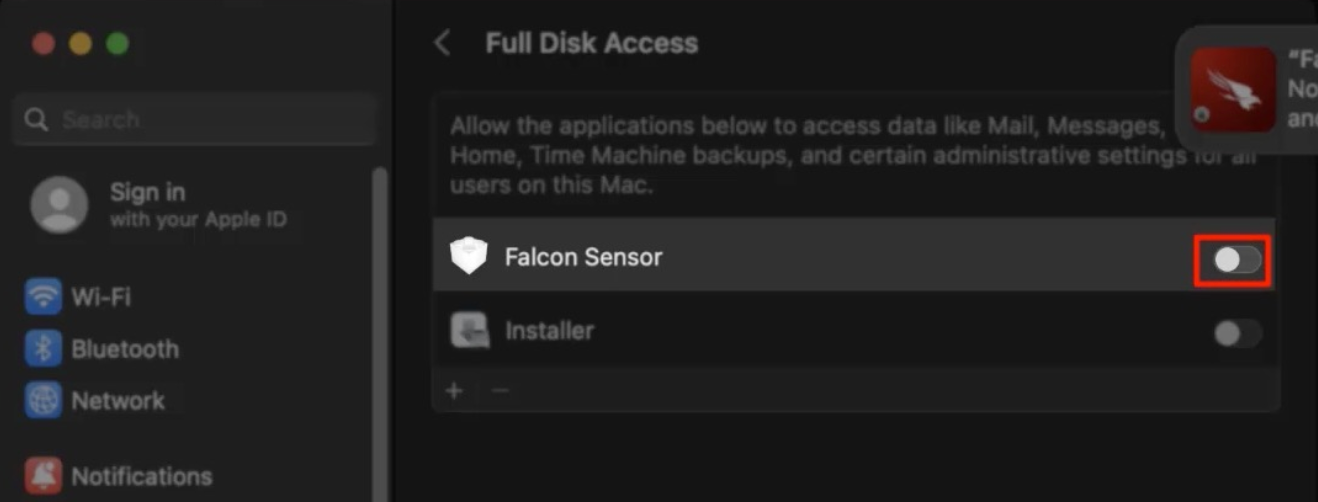
- Click System Settings in the installer window. The macOS Privacy & Security > Full Disk Access system settings window will open.
- In the Full Disk Access section, enable Falcon Sensor.
- When prompted, enter your administrator credentials and click Modify Settings.
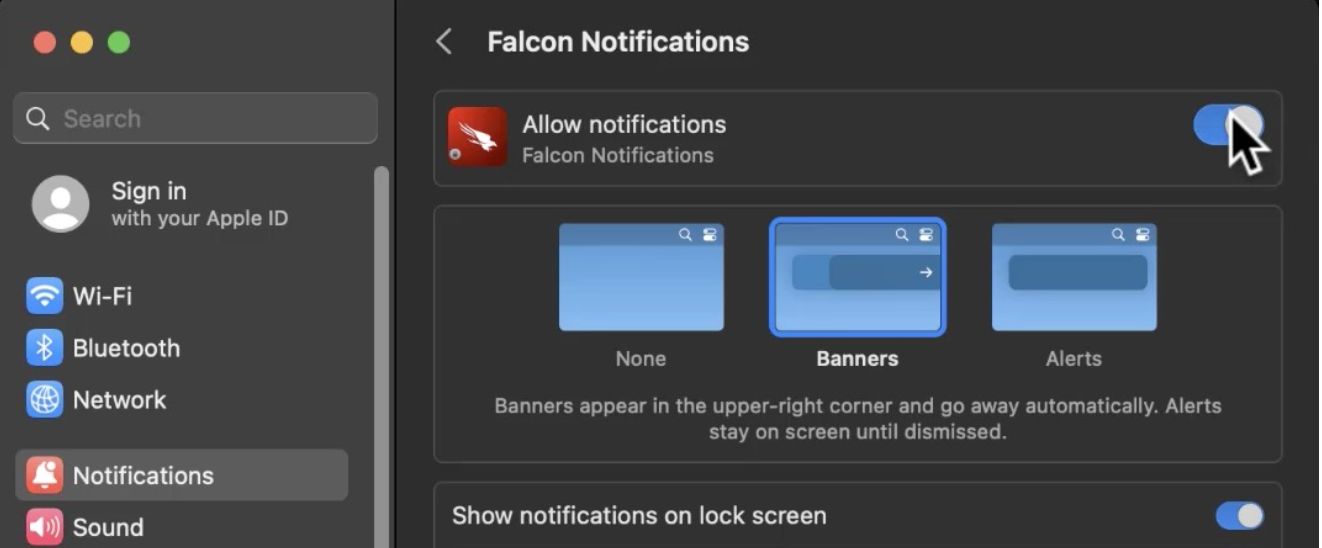
- Click the Falcon notifications banner. (Alternatively, you can click Notifications in the sidebar of the macOS System Settings window and under the Application Notifications section, find Falcon Notifications.)
- Enable to allow Falcon notifications.
- Close the macOS System Settings window and return to the installer:
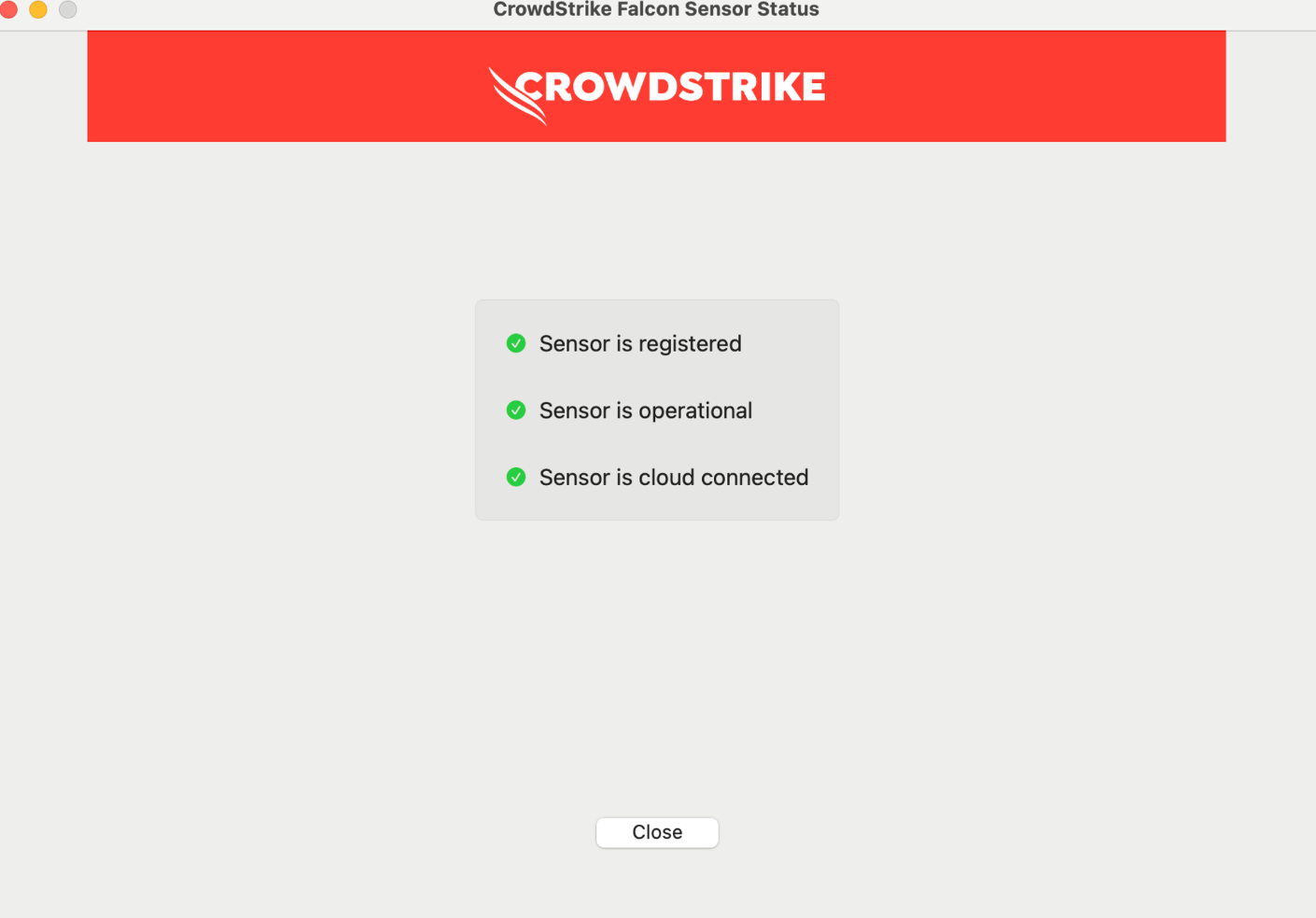
- A completed setup with three green checks indicates a successfully installed sensor that is registered, operational, and connected to the CrowdStrike cloud.
- If you run into issues or see a red cross , contact your system administrator or CrowdStrike Support for assistance.
- Click Finish.
- Click Close to exit the installer.

CrowdStrike is making my Macbook slow, what should I do?
To troubleshoot CrowdStrike performance issues, we recommend the following steps:
- Document the make, model, RAM, and storage specs for your computer.
CrowdStrike technically does not have any resource requirements, however, it can be hard to work generally on < 16GB of RAM or an older machine.
Especially for 8GB models or machines < 5 years old, we’ve seen computers struggle to run Chrome, Slack, and Teams at the same time, and usually CrowdStrike is not the root cause (although Activity Monitor may say otherwise)
- The next time you are experiencing the issue, you’ll want to collect information through the two following processes:
- Diagnose
sudo spindump -notarget 60 -o ~/Desktop/spindump.txt
1. Open a terminal
2. Run the command
$ sudo /Applications/Falcon.app/Contents/Resources/falconctl diagnose
you should see a progress bar like below:
3. Wait a few minutes for the command to generate all the logs (this will generate all network information, disk usage, etc. that could tell us what is interfering with the sensor).
4. The command will output a filepath, like this (the part that says Output available at:)

5. Run
sudo cp -r <filepath_copied_from_above> ~/Desktop6. Zip of the folder up (should now appear in the users Desktop!)
b. Spindump
- Send the information on your make, model, RAM, and the output of the two processes (diagnose and spindump) in a support ticket to info@zipsecinc.cc so we can get you sorted
