
In Zip, devices are automatically assigned to members (your users) based on who enrolled the device in MDM. However, there are instances where the enrolled by user is outdated or empty. Here’s a rundown of how to manually assign members to devices.
How Zip assigns members to devices
When members enroll their device with Zip, Zip is able to map the email used for enrollment back to the member automatically. However, there are some exceptions when Zip can’t always collect the email - for instance, if the member has only enrolled in CrowdStrike, Zip has no way to collect their email!
For exceptions where Zip can’t collect the email address, or a device needs to be re-assigned manually without unenrolling, it may be useful to assign the device to a different member. With member assignment in Zip, you can take control of your inventory list and keep things up to date without needing to pester your users.
How to assign members to devices
- Find the device you want to reassign by searching in the table here: https://zipsecinc.cc/devices
- Click on the row for the device you want to re-assign, which will take you to the device details page
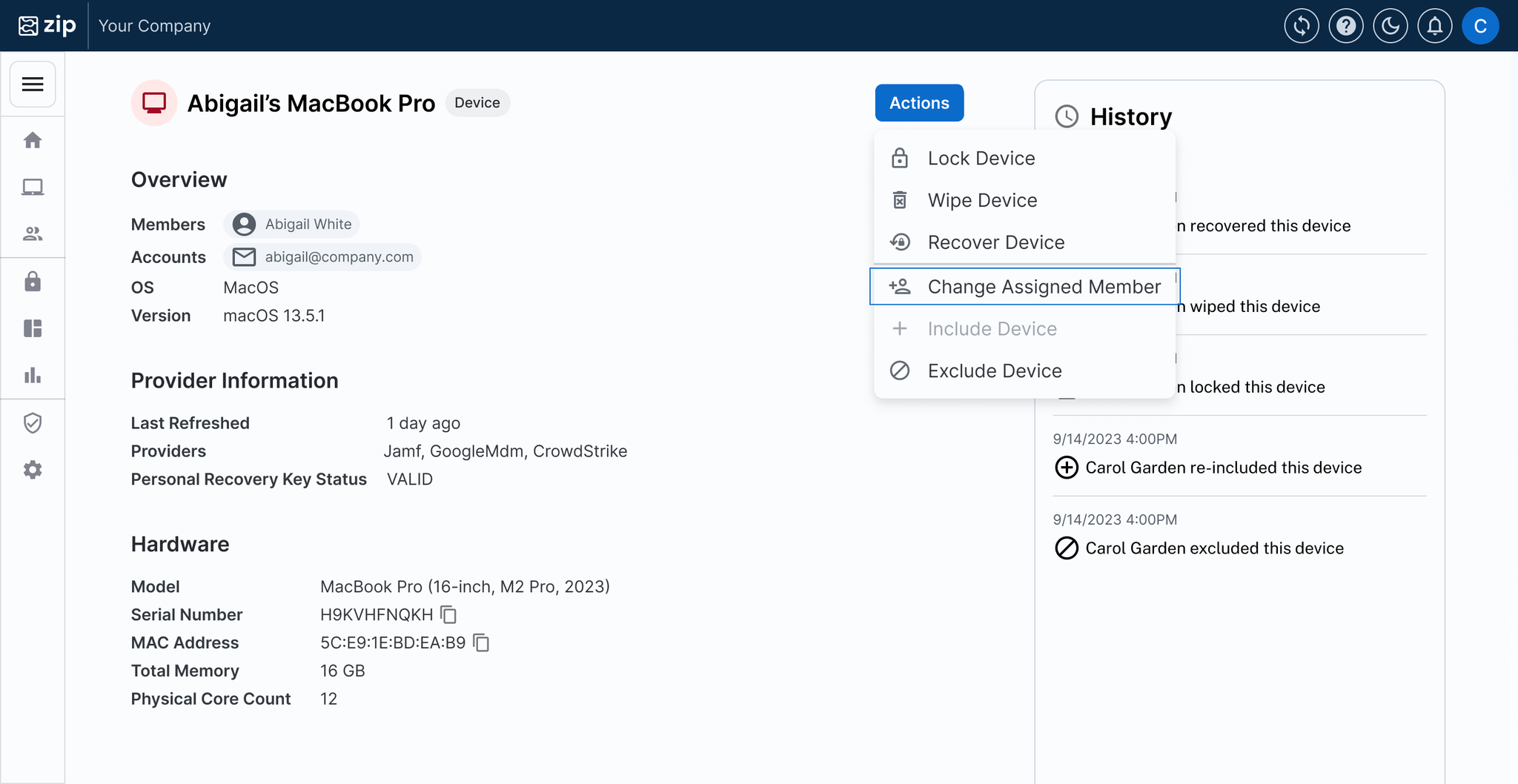
- In the device details page, open the Actions menu and select Change Assigned Member
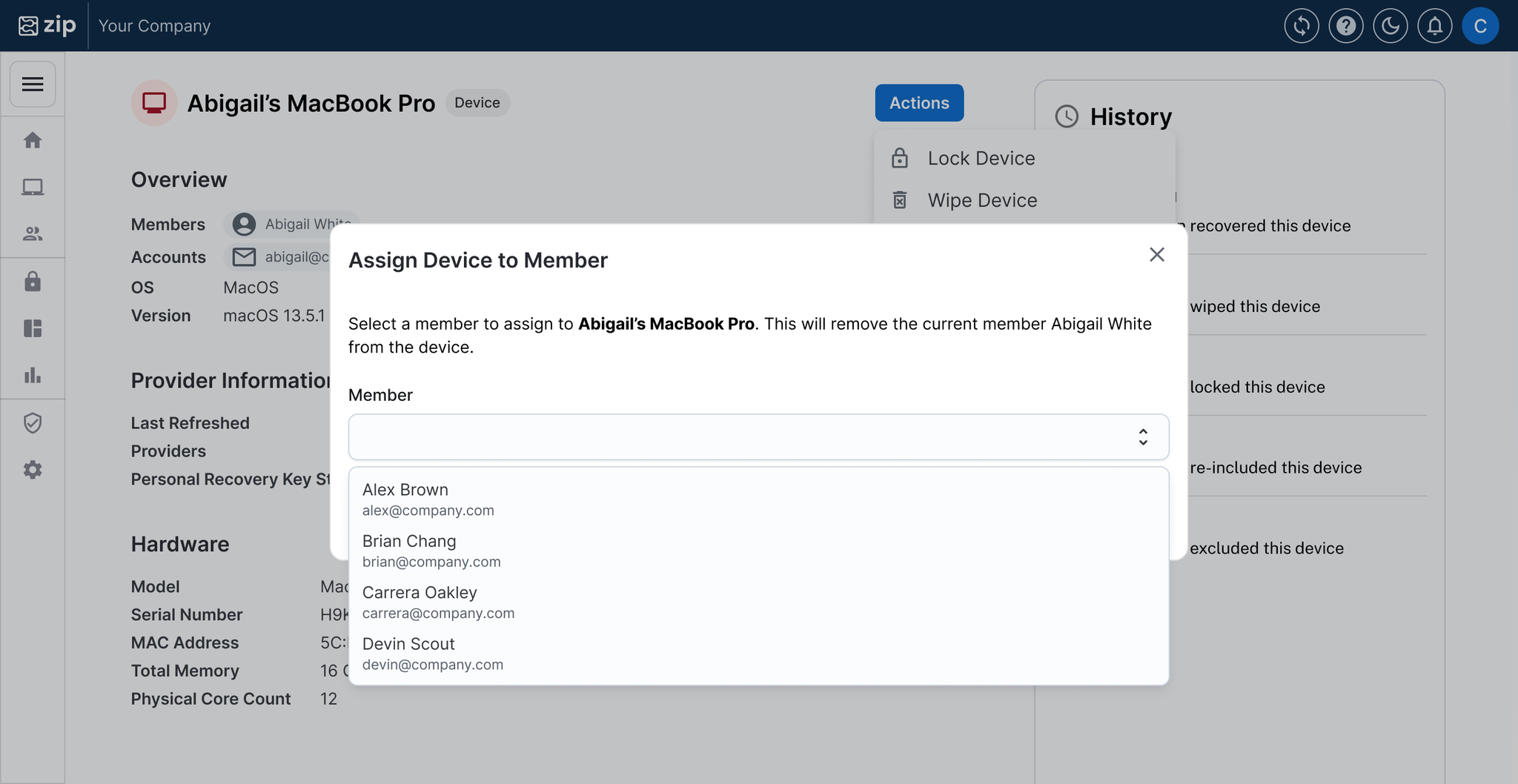
- Select the new member you would like to assign to the device
- Click Save
- You’re done! You should see the new member reflected under the “Members” line on this device.
Who can be assigned a device?
Whenever you assign a device in Zip, we try to also update the record in the underlying provider (Jamf, Intune, and CrowdStrike). There are some restrictions as to what types of devices can have their user modified.
- Jamf: All Jamf devices can have users assigned.
- CrowdStrike: All CrowdStrike devices can have users assigned
- Intune:
- Devices that are AD Joined can have users assigned.
- Some devices cannot have users assigned:
- Devices that are AD Registered cannot have users assigned, as there is no way to update the record in Microsoft, which could lead to confusion / inconsistency.
- Some users cannot be assigned to devices:
- Users that only have federated Entra accounts cannot be assigned to Intune devices. These accounts are automatically filtered out and will not show up as options when selecting a new member.
- Google Device Management: If Google Device Management is the only provider for a device, you cannot re-assign the member. Google MDM devices’ members are synced based on which accounts have logged in to the device, so there is not an equivalent concept of assigning the user.