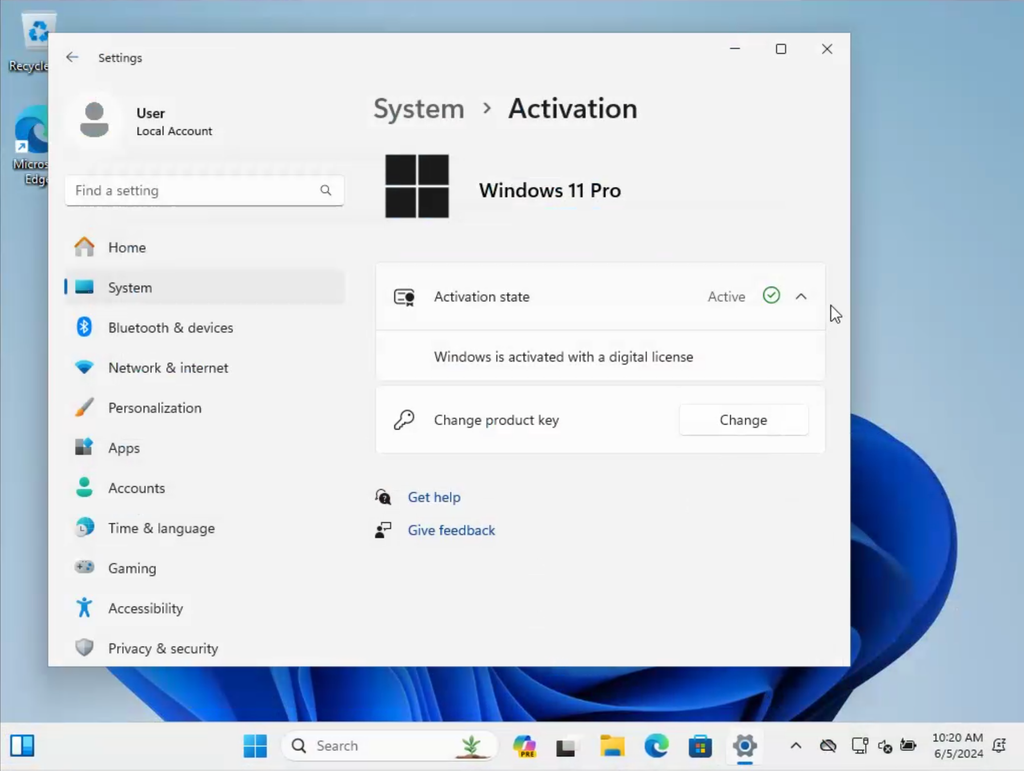
The below instructions provides guidance on how to upgrade a Windows 11 Home operating system to the Windows 11 Pro.
As a pre-condition every device that is being upgraded will require a product key. Refer to the guidance here on how to purchase a Windows Pro license key.
Steps
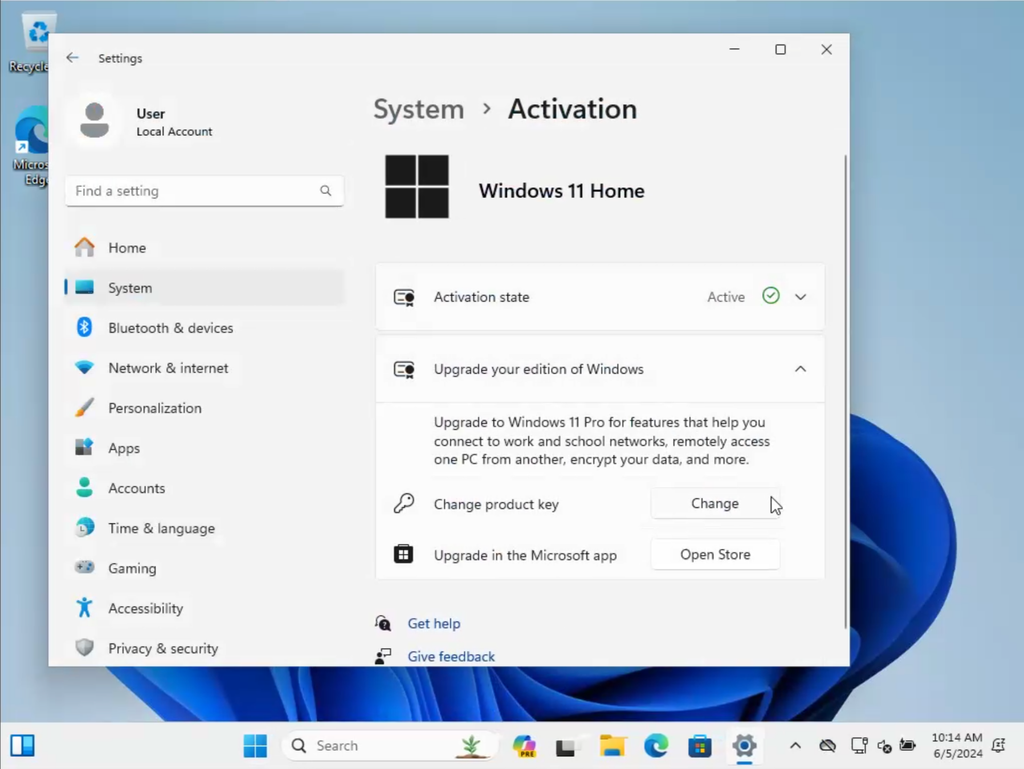
Open “Settings” > “System” > “Activation”
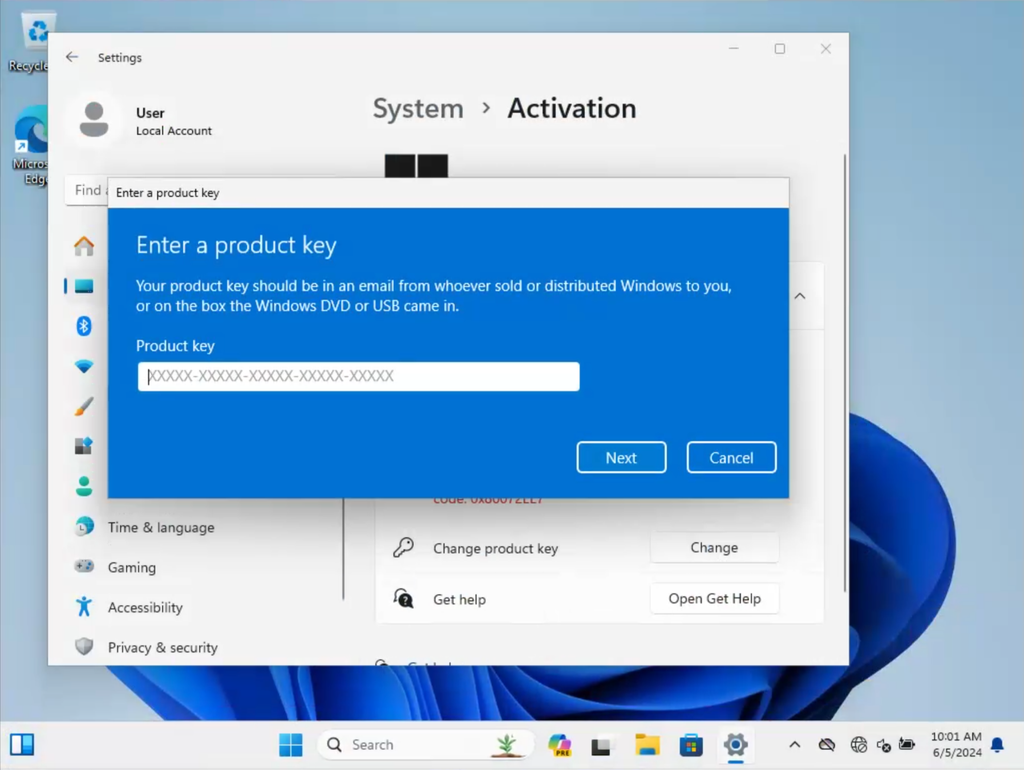
Press “Change” next to “Change product key”
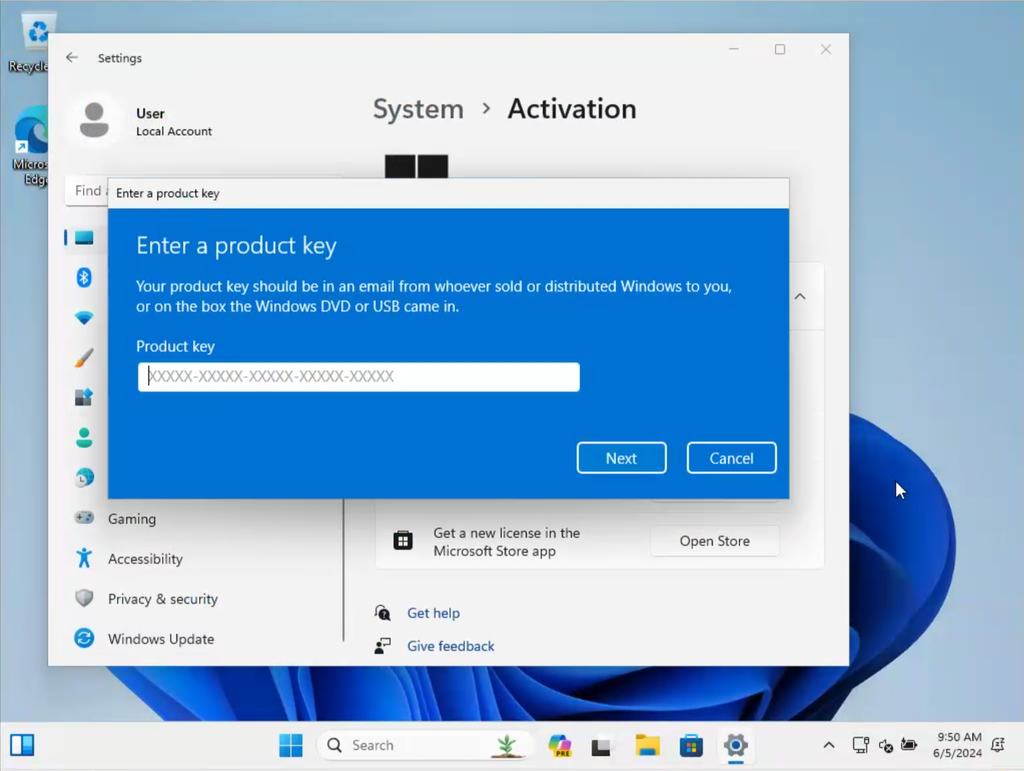
Enter this product key:
VK7JG-NPHTM-C97JM-9MPGT-3V66TThis is the public generic product key for Windows 11 Pro
Press “Next”
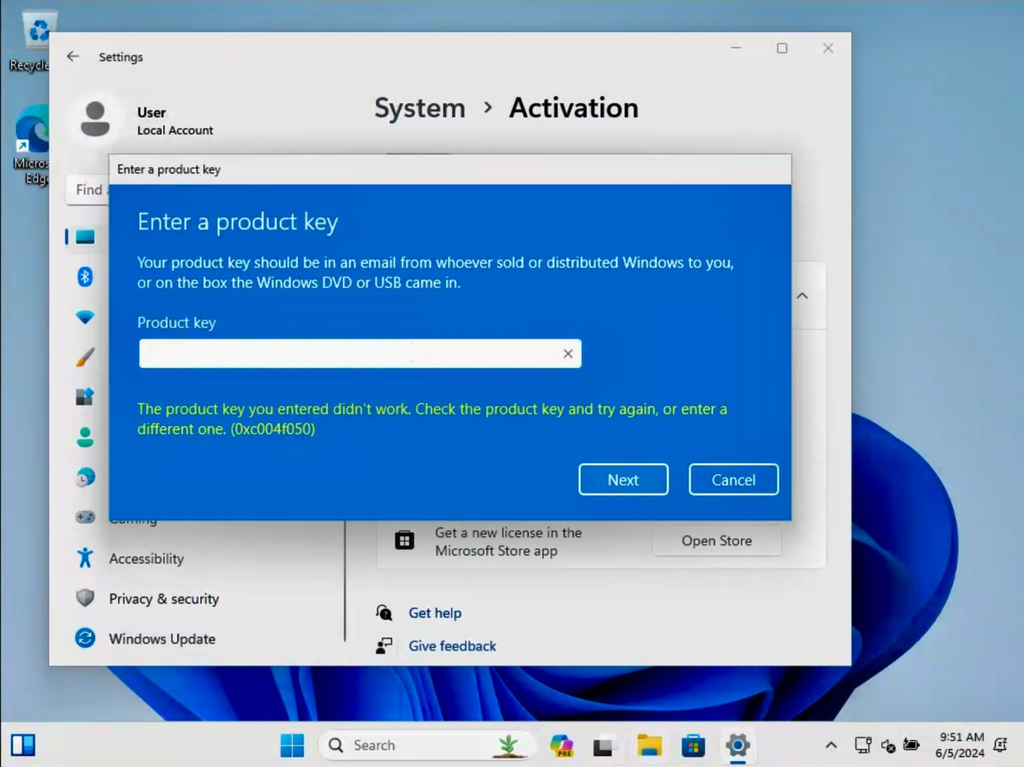
If you enter another key, you may see this error
If you encounter another issue at this stage, try disconnecting from the internet and try again
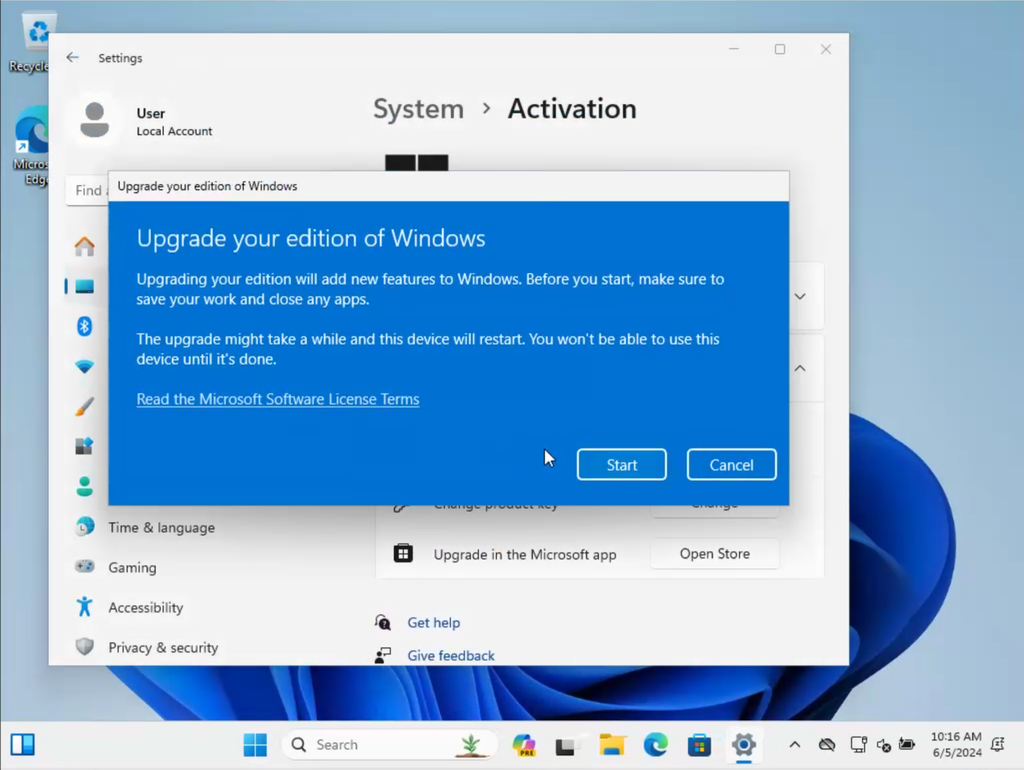
If you entered the generic key correctly, you should see this
Press “Start”
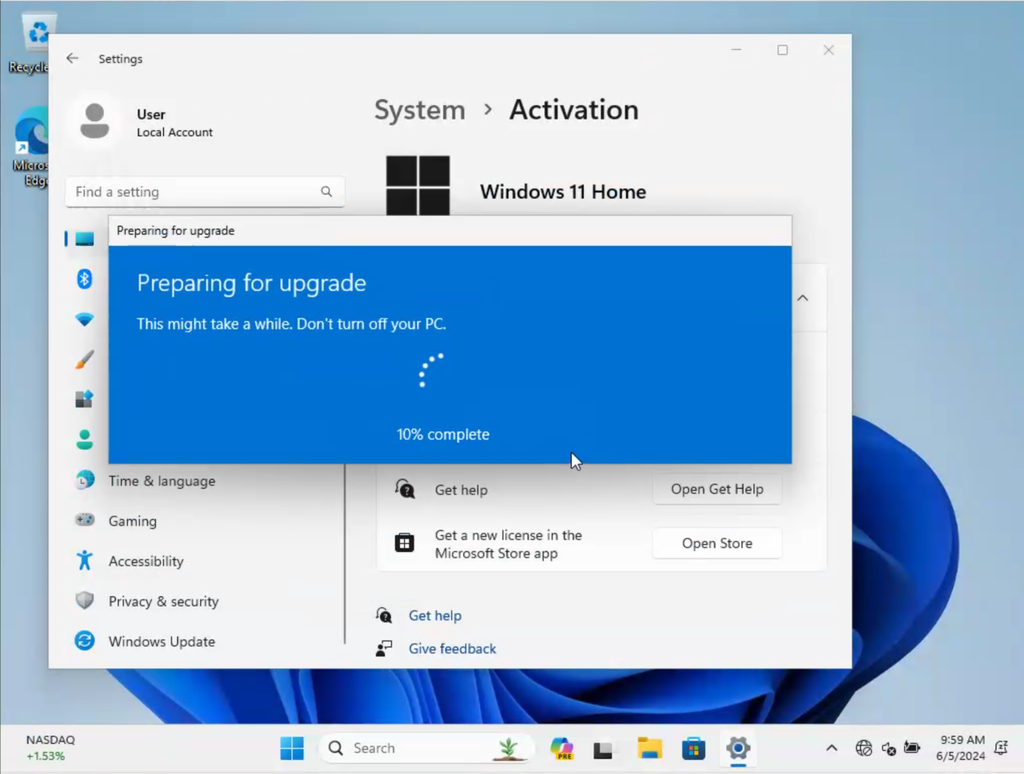
“Preparing for upgrade” will render
The device will eventually restart


Open “Settings” > “System” > “Activation”
Press “Change” next to “Change product key”
The device must be connected to the internet before proceeding
Enter the product key that was shared for this specific device
Press “Next”
Press “Activate”
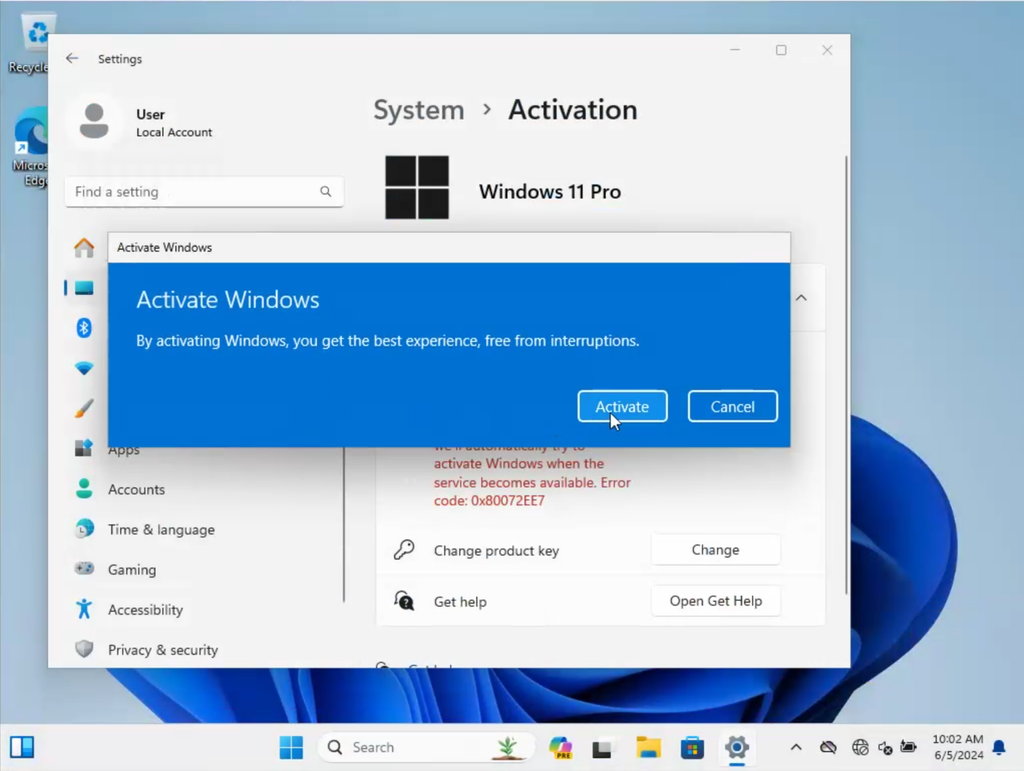
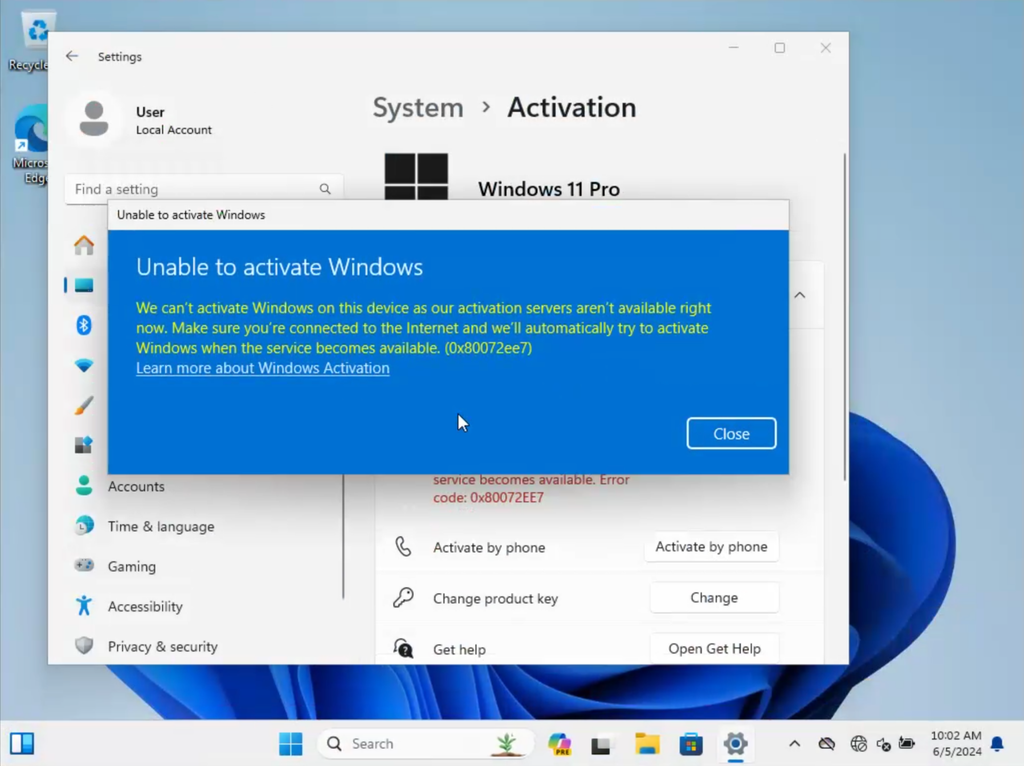
If you’re not connected to the internet, this is what you’ll see
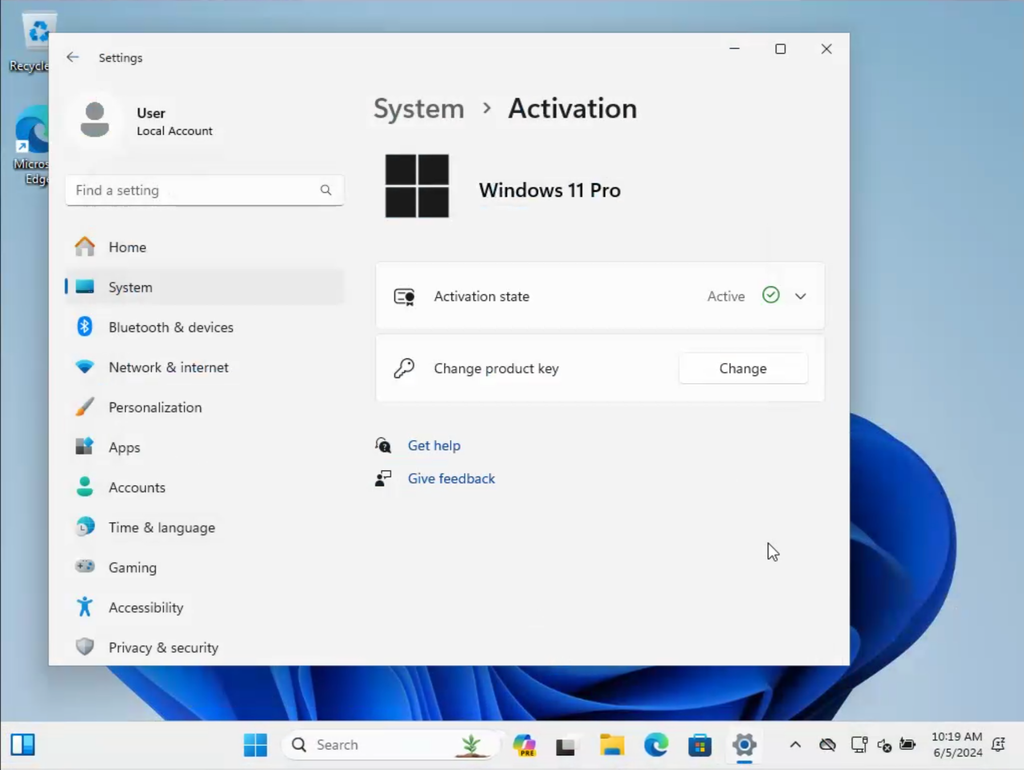
If the key was entered correctly, you should see this “Windows is activated” confirmation
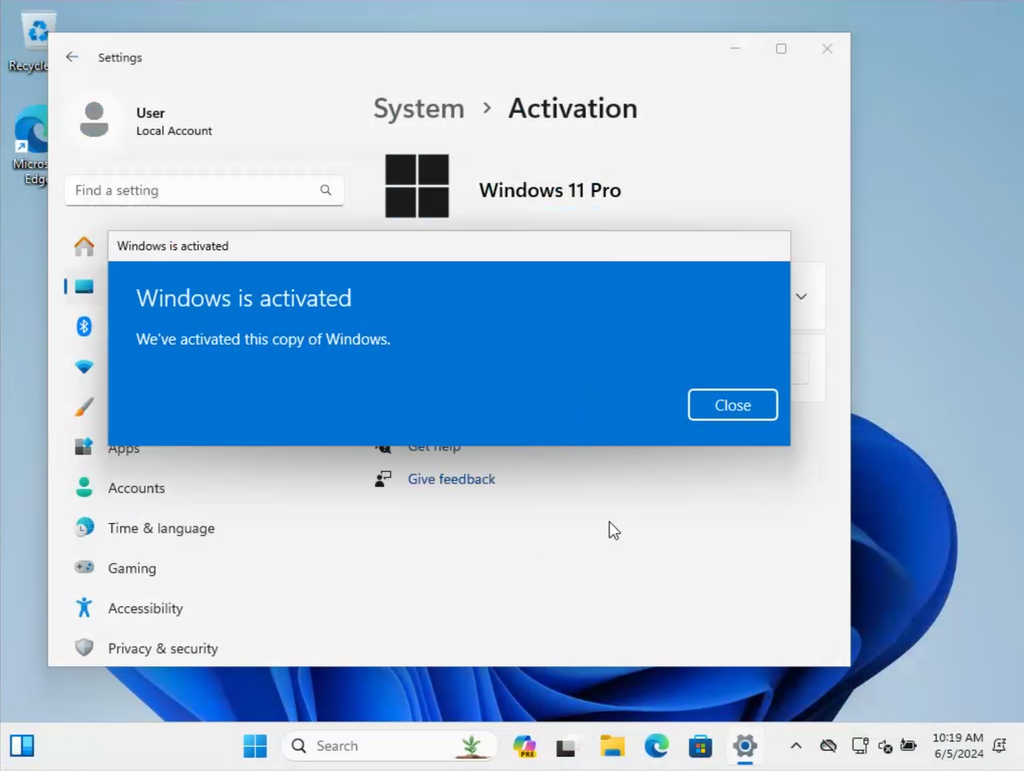
And then you’re done!
You should see this…