
Purchasing Microsoft Licenses
Microsoft Enterprise Mobility and Security E3 licenses can be purchased directly from the Zip Console.
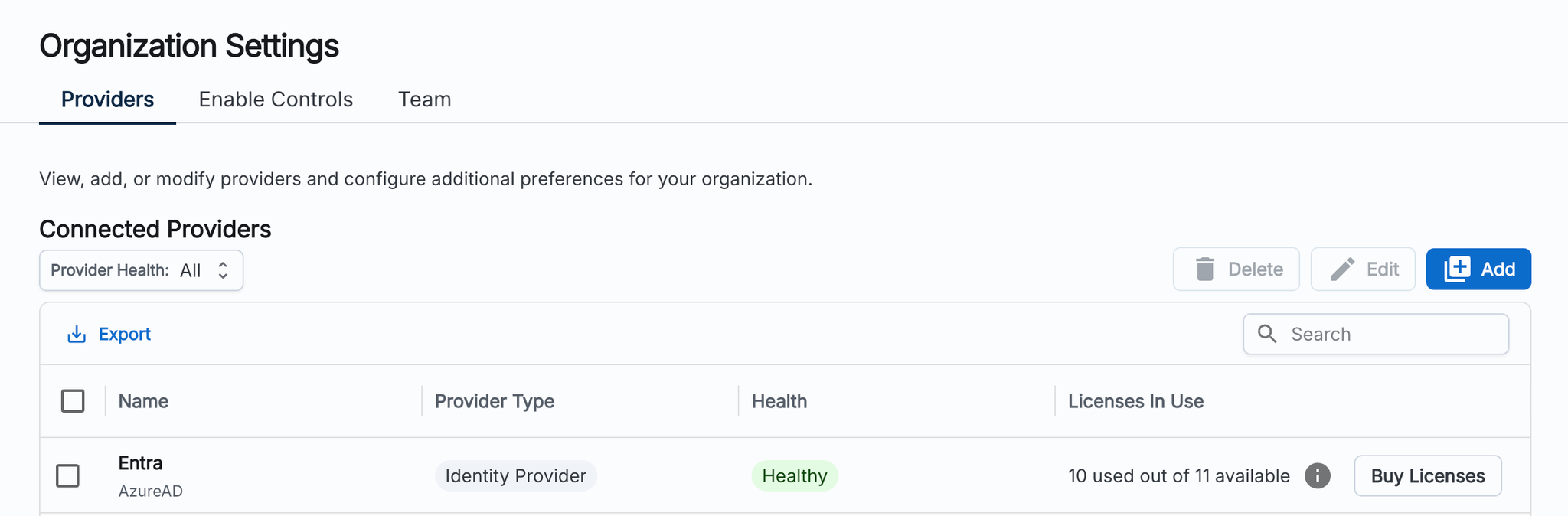
First, navigate to the Organization Settings page. Click on the “Buy Licenses” button in the Connected Providers table on the right side of the Entra provider’s row.
If you have not yet authorized Zip to be your Microsoft reseller, then you will be prompted to follow a link and grant that permission.
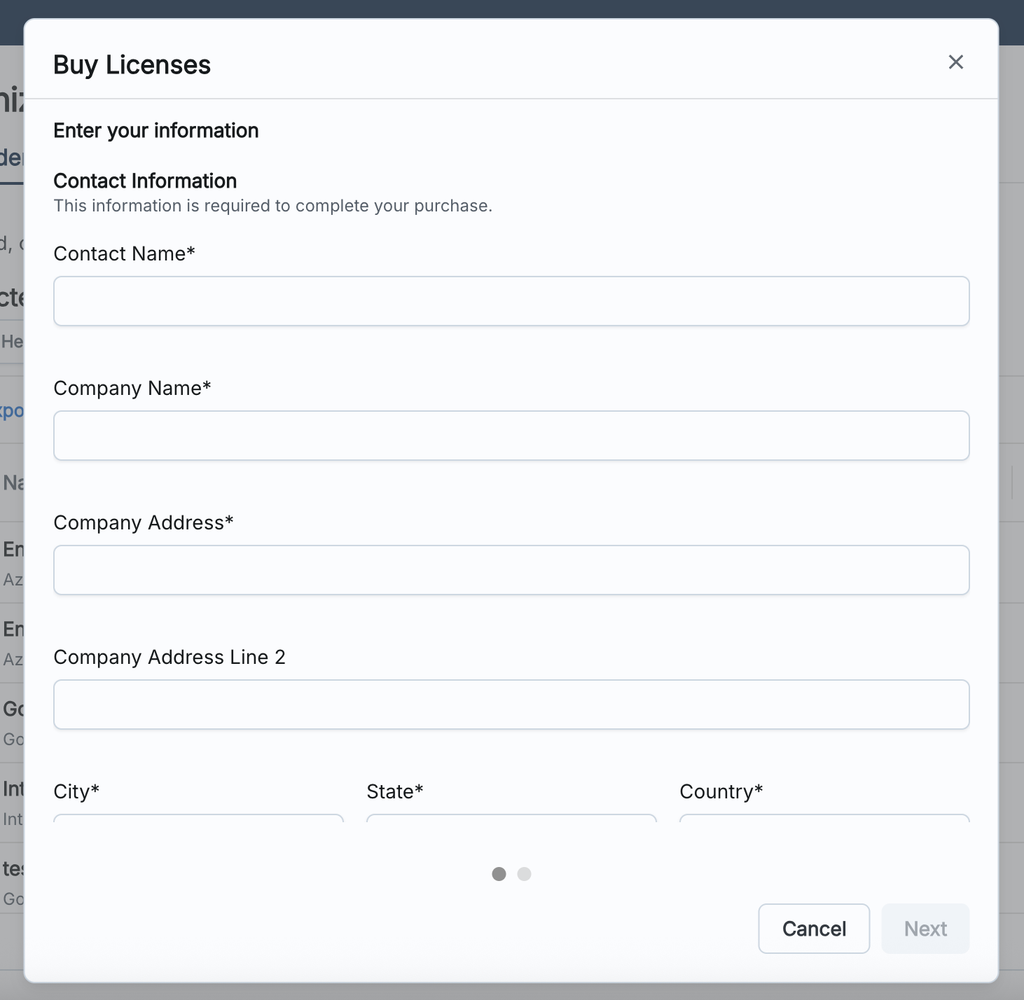
Once permission has been granted, you’ll be directed to enter your contact information.
Finally, you can select to purchase annual or monthly licenses, and enter the quantity.
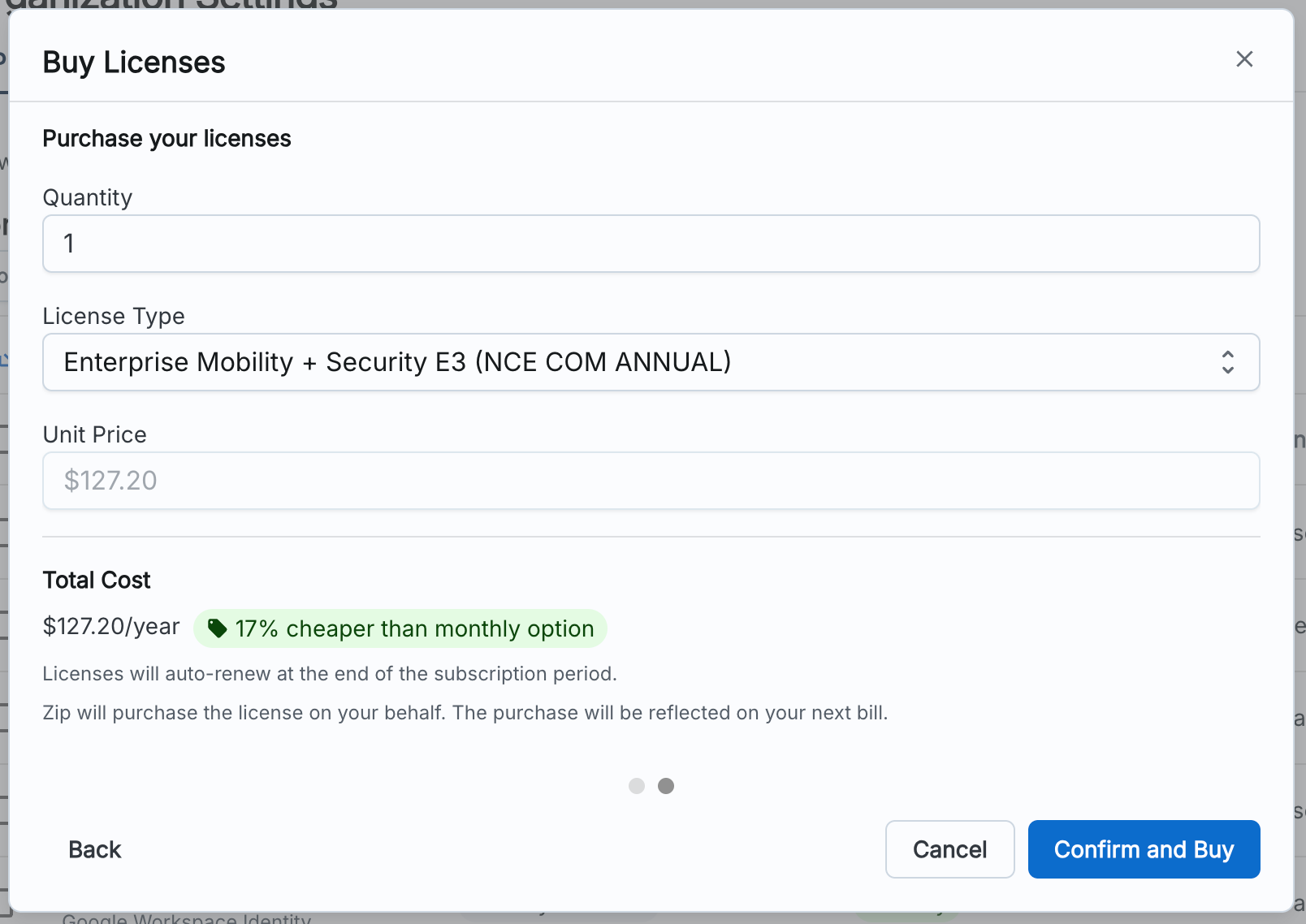
Once the licenses have been purchased, it may take 15-30 minutes for them to become available in your Microsoft tenant.
If Zip is my reseller for Security Licenses, can I still purchase additional Microsoft Licenses?
Yes! For the vast majority of our customers, we provide security licenses as your licensed reseller. if you would like to purchase additional licenses for your employees (e.g. PowerBI, Office 365), you are still able to purchase these directly from admin.microsoft.com.
Additionally, if you would like to use another reseller to purchase those licenses you can go ahead with that too. There is no interference between Zip being your reseller, and being able to engage another reseller or purchase directly.
Managing License Assignments
Licenses for an individual account can be managed from an individual account’s page, and bulk license management can be done from the accounts page.
Assigning Licenses
To assign licenses, go to the accounts page and click the checkbox next to the accounts you wish to assign licenses to. Next, click the Bulk Actions button → Assign License. Select the license type you wish to assign and then click Submit.
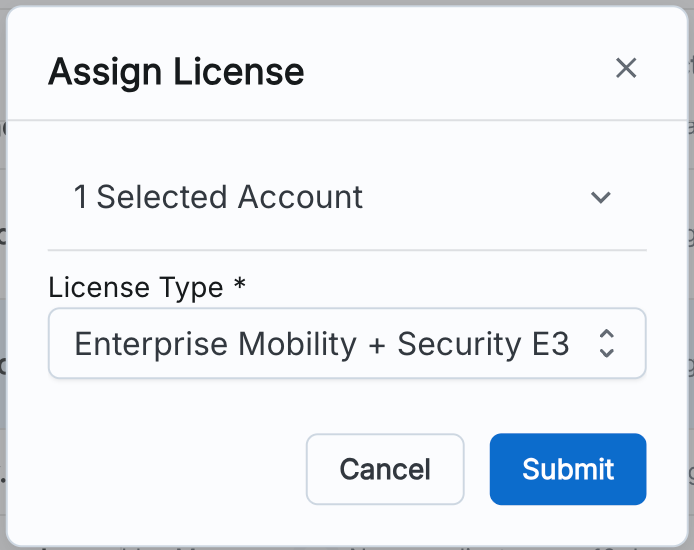
- You will be unable to click submit if you selected more accounts than there are licenses available. To remedy this, you can first purchase additional licenses following the steps above.
- If an account already has a given license directly assigned, then re-assigning the license to the account will have no effect.
- If an account has inherited a license assignment through a group, then directly assigning the license to the account will have no overall effect on available licenses, however, it would then let you remove the account from the group or remove the license assignment from the group without impacting the account’s license status.
Removing Licenses
To remove licenses, go to the accounts page and click the checkbox next to the accounts you wish to remove licenses from. Next, click the Bulk Actions button → Remove License. Select the license type you wish to remove from the accounts and then click Submit.
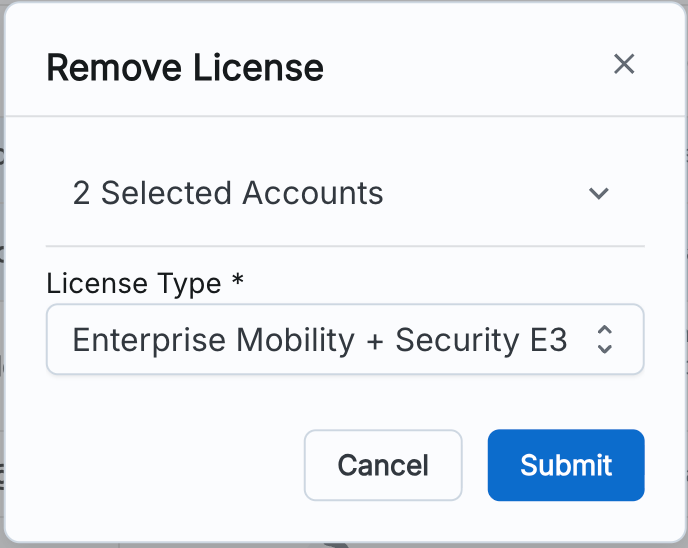
If a license is assigned to an account through group inheritance, then you will not be able to remove the license in the Zip Console. You can either remove the account from the group in the Microsoft Entra admin center or mange the group’s licenses in the Microsoft 365 admin center.