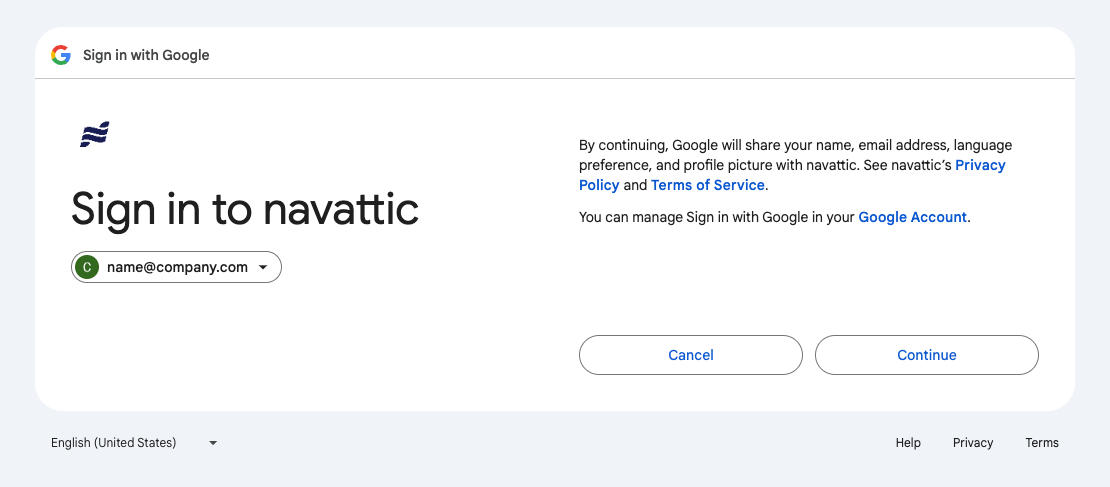
Employees often grant third-party applications access to their corporate accounts where their account provider will prompt them with a question like so:
The Third-Party Applications control gives you a clear view of all apps with user-granted permissions, helping you spot those with elevated or unnecessary read and/or write access to your company data. By reviewing flagged apps in the Watchlist and approving those verified as safe or essential, you can ensure that your company data remains secure and protected from unnecessary access.
Set up
Google Workspace
In order to use this feature, you will need to grant Zip two permissions in your Google Workspace integration:
1.
admin.directory.user.security 2.
admin.reports.audit.readonly The comprehensive list of permissions needed in Google is under “Granting Permissions to the Zip Service Account” section here.
Azure AD (Entra ID)
For Azure AD, you will need to grant Zip one of the two follow permissions:
Directory.ReadWrite.All or Directory.Read.All. You will likely already have one of these granted from your initial Azure setup, but if needed, our docs are here.Notifications
We also highly recommend you enable External Notifications to get notified about new apps to review directly in your email and Slack inbox — that way, you’ll only need to check Zip when something has changed.
Reach out to info@zipsecinc.cc if you have any questions!
Third-Party Applications Control
This control gives you a birds-eye view of all applications connected to your corporate accounts, with a Watchlist consolidating the apps that need review. The Watchlist will be populated based on the following settings in the Configuration tab of the control. If an app meets one of the conditions you have set, it will be marked as Watchlist and trigger a notification.
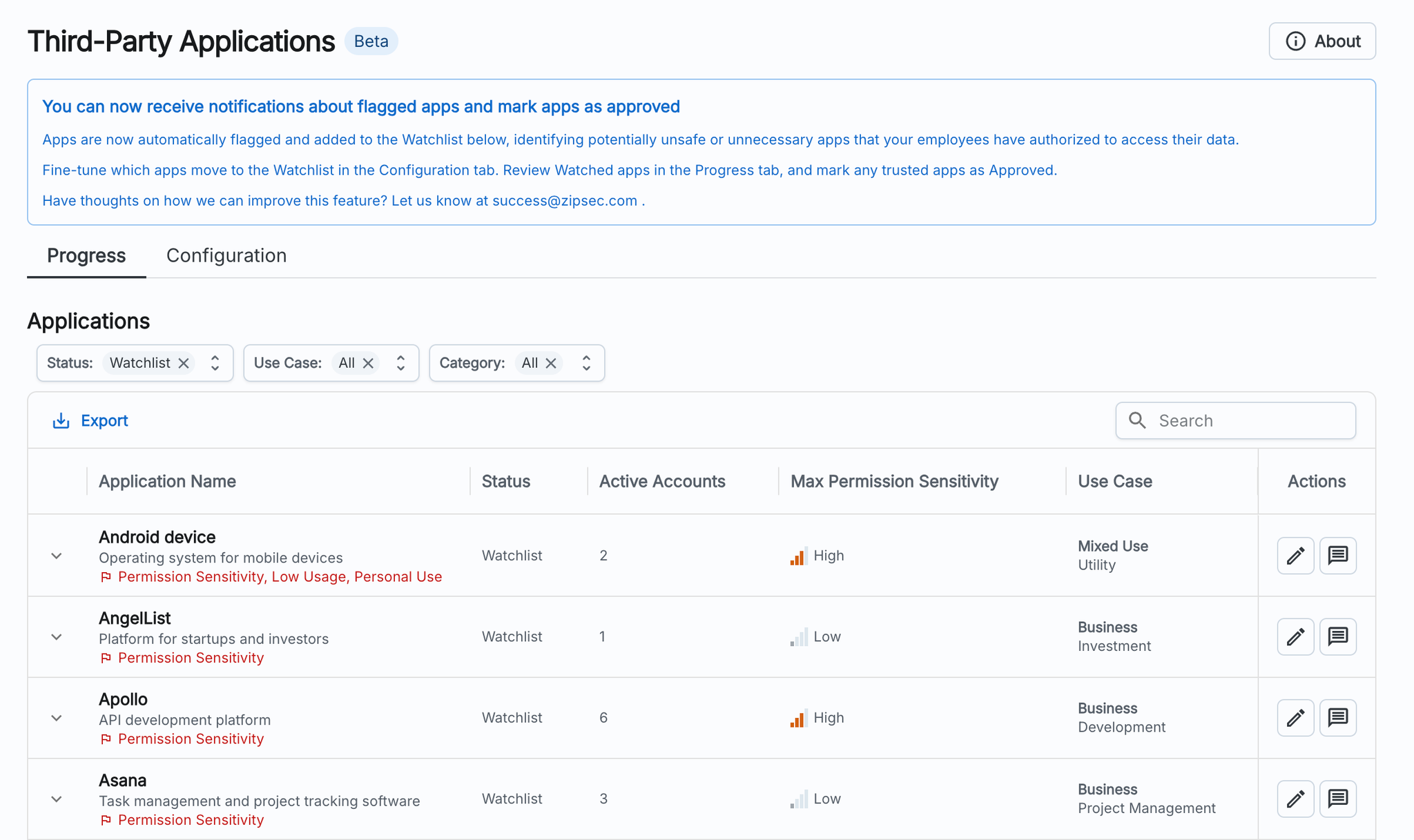
The adjustable parameters are as follows:
- Watch low-usage apps with authorized permissions above a certain sensitivity: If an app has fewer users than the threshold set AND has been granted permissions above the sensitivity level set, it will trigger a notification and be moved to the Watchlist.
- Watch personal or mixed-use apps with authorized permissions above a certain sensitivity: If an app is categorized as mixed or personal use AND it has been granted permissions above the sensitivity level set, it will trigger a notification and be moved to the Watchlist.
- Watch all apps with authorized permissions above a certain sensitivity: Set this parameter to your desired permission sensitivity if you want to watch all apps with permissions above a certain sensitivity level granted regardless of whether it has normal usage or a business use case.
You can now enable AI enrichment to help categorize third party apps!
To enable this, go to the Organization Settings page → Enable Controls → Toggle Enable AI Enrichment on.
This adds AI-generated labels to your apps to provide extra context as you’re reviewing them. These labels will not factor into the alerts and notifications you get. We are fine-tuning the labelling before incorporating them into alerts and would love to hear your feedback!
Without this enabled, you may notice many uncategorized apps.
How to review your Watchlist
For apps on your Watchlist, we recommend reviewing the accounts using it and asking those users for a reason for using the app. If there is a known business use case for their work, you can edit its status to be Approved.
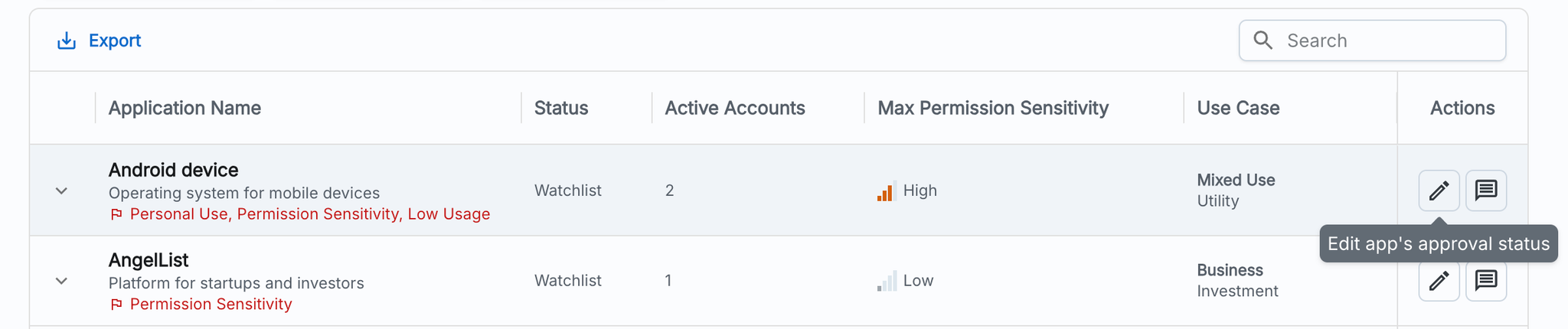
As you investigate and approve apps, you can add a comment or justification to annotate why changes were made or to link to more context.
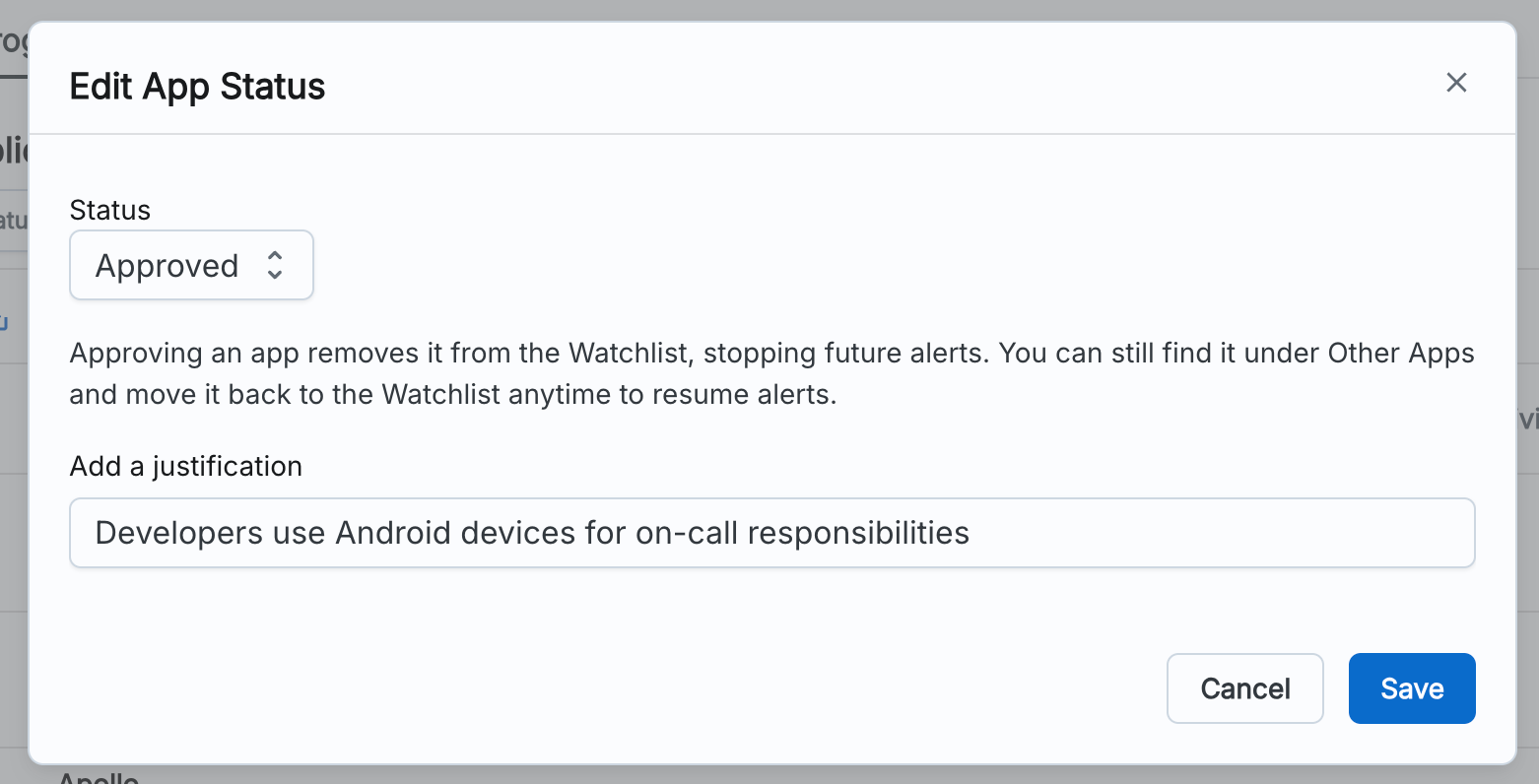
If you believe the app should not be used in your organization, we recommend communicating to the users why it is no longer allowed. Google and Azure provide ways to enforce this by revoking access or blocking it from future use.
We are actively working on ways to take action directly on apps that should not be authorized. Please reach out to info@zipsecinc.cc if you would like to help shape the future of this workflow!
Viewing Accounts’ SaaS Apps
Zip also displays the OAuth apps that have been authorized by every account. To view this on a per-account basis:
- Navigate to the Zip Console.
- In the left sidebar, click on the ‘Accounts’ tab.
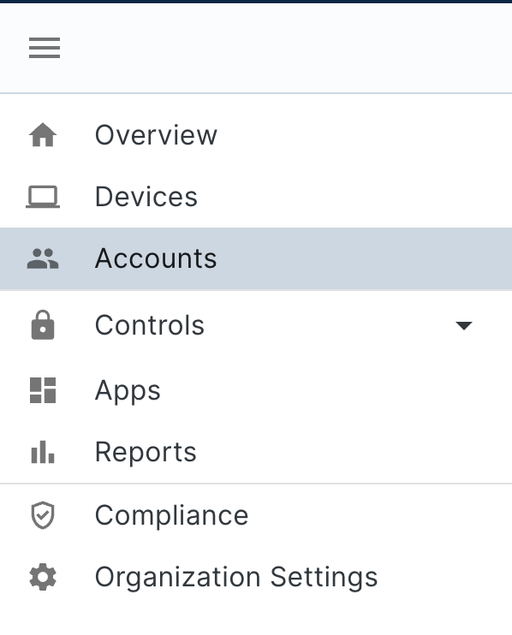
- Select any Google Workspace or Azure AD account to be directed to an overview of their account.
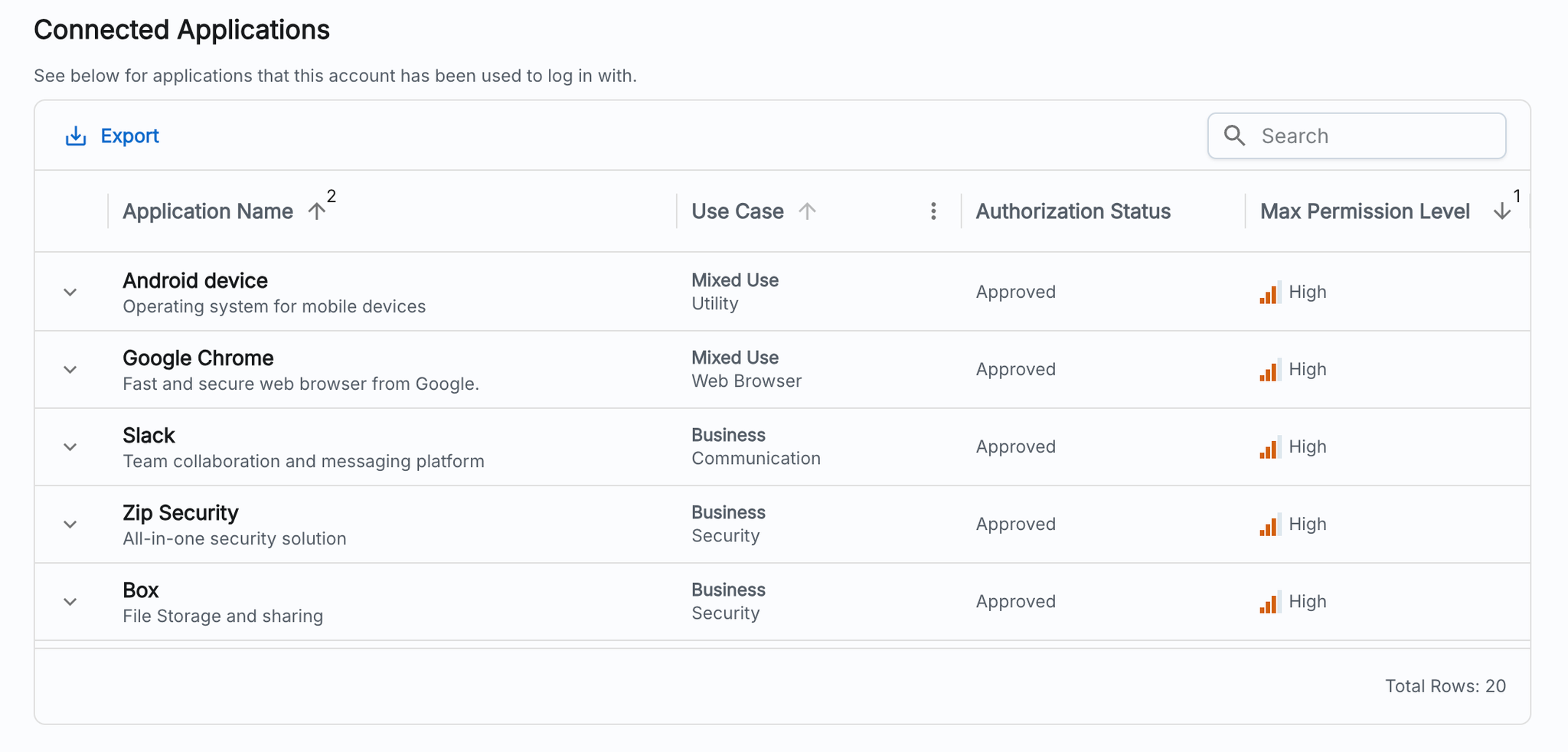
- Scroll down to the section called ‘Connected Applications’ to view all connected apps and their permissions. Expand an app’s row to view the specific permissions granted and their sensitivity levels.