
Zip integrates with Slack and Email (via SendGrid) to bring notifications from the Zip Console directly to your day-to-day workflows.
To stay up to date with your organization’s status, we recommend enabling external notifications so that you can be notified of any critical action items without having to continuously check the console.
How to set up Slack notifications
1. Create a Slack app
Navigate to https://api.slack.com/apps and create an app from scratch. Name it something like “Zip Security” and select your work organization’s workspace.
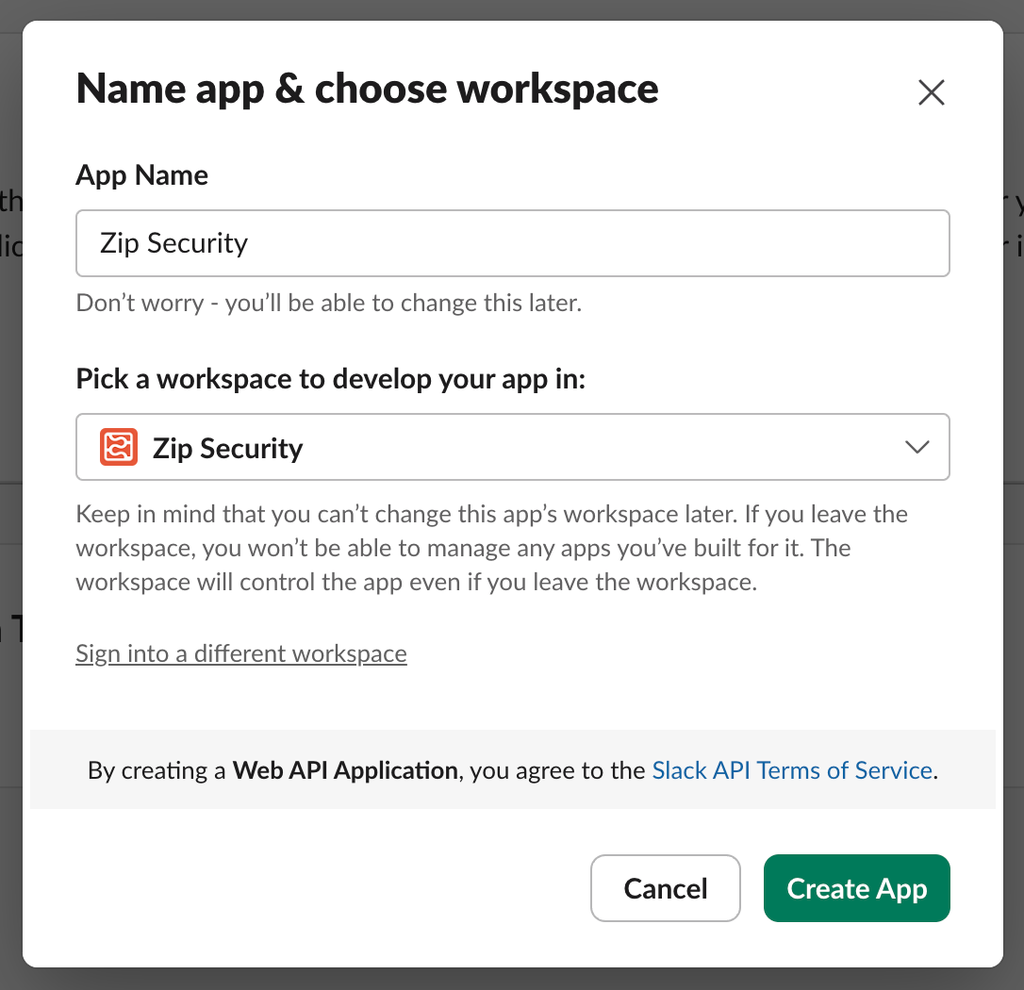
2. Enable incoming webhooks
From the app’s settings page (you’ll be automatically redirected, select Incoming Webhooks, and toggle Activate Incoming Webhooks to on.
3. Create an incoming webhook
You should now see a button called Add New Webhook to Workspace — click this to create your webhook! After that, you'll see something like the following:
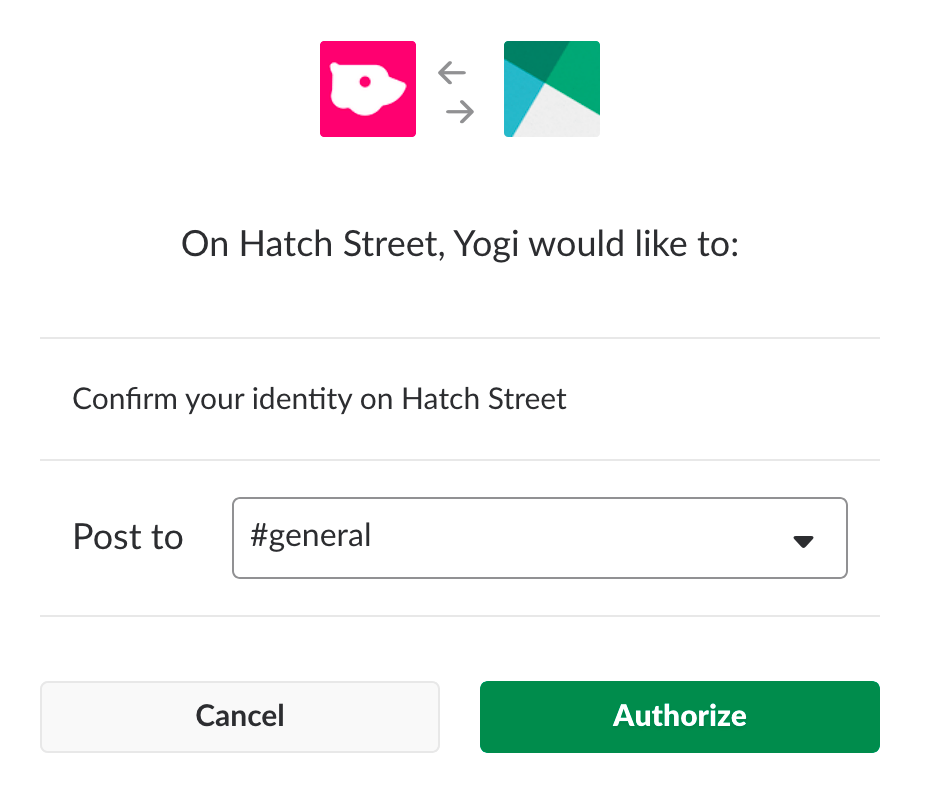
Select the channel that you would like the Zip app to post messages to (you may want to create a dedicated channel or choose something specific to your IT/Security stakeholders) and click Authorize.
4. Copy your webhook
You'll be sent back to your app settings, where you should see a new entry under the Webhook URLs for Your Workspace section. Your webhook URL will look something like this:
plain texthttps://hooks.slack.com/services/T0000000000/B0000000000/XXXXXXXXXXXXXXXXXXXXXXXX
Copy your Slack app’s webhook, and open the Zip Console.
5. Add your webhook to a Slack provider
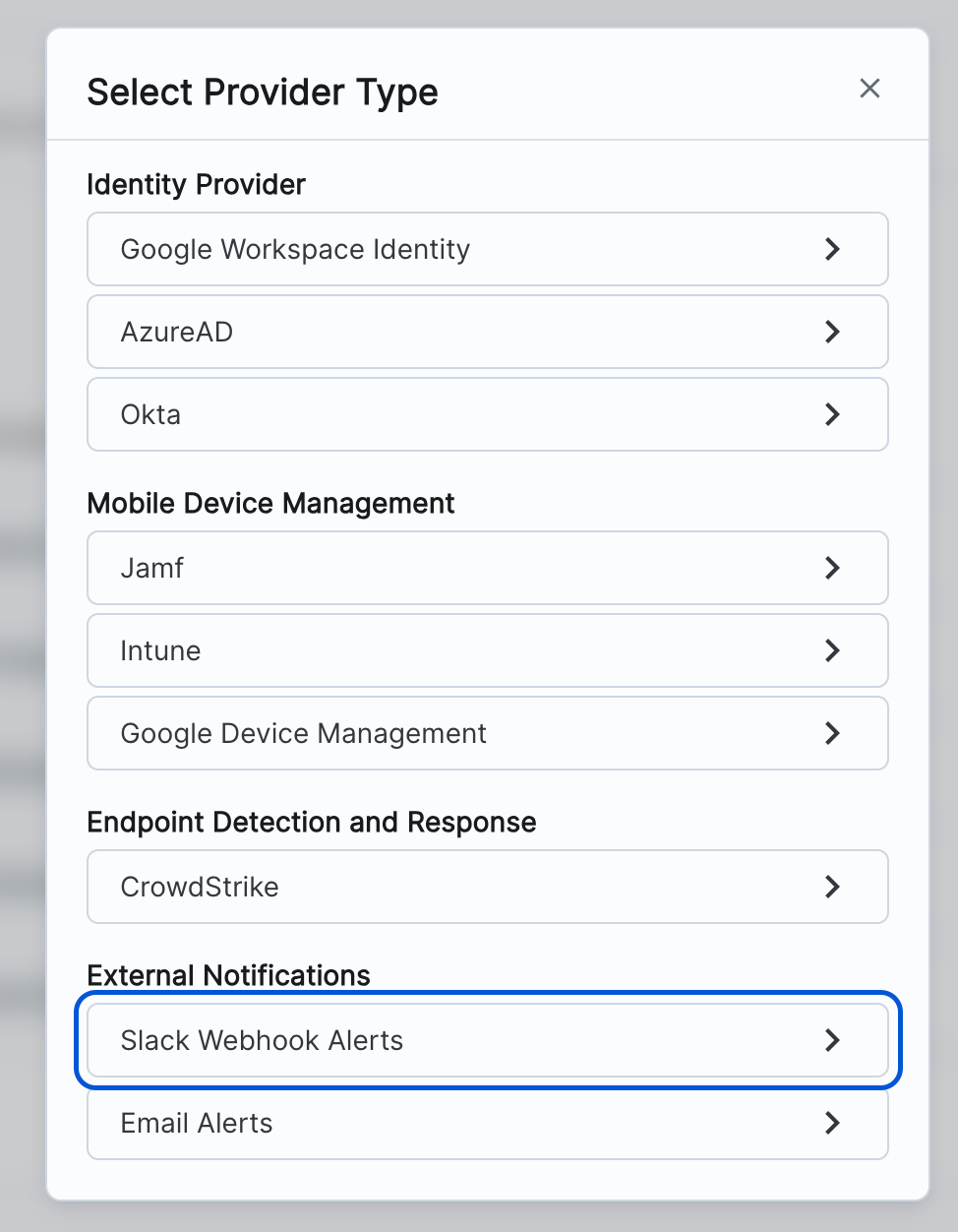
Enter a name for your provider. This is only to help you identify the provider within the Zip platform.
In the Token field, paste the webhook that you copied from the Slack app you created earlier.
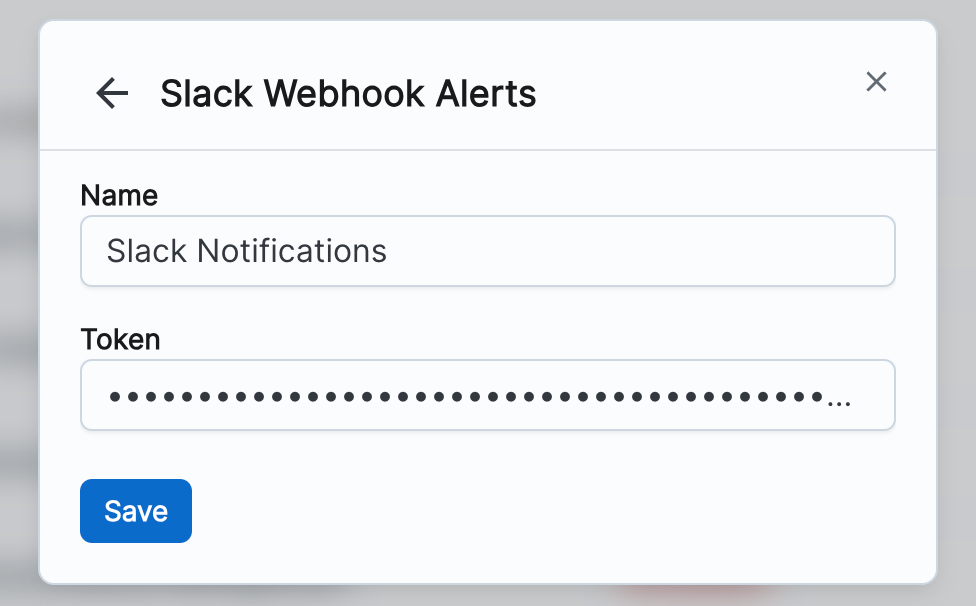
Click Save.
You’re done!
Slack is all hooked up to Zip now, and you’ll now receive messages about your Zip status directly in Slack.
We’re working on simplifying this process so that you can more easily set up Slack notifications. Let us know if you have any feedback or questions on the current process!
How to set up Email Notifications
For email, all you have to do is enter the email addresses that you want to receive notifications.
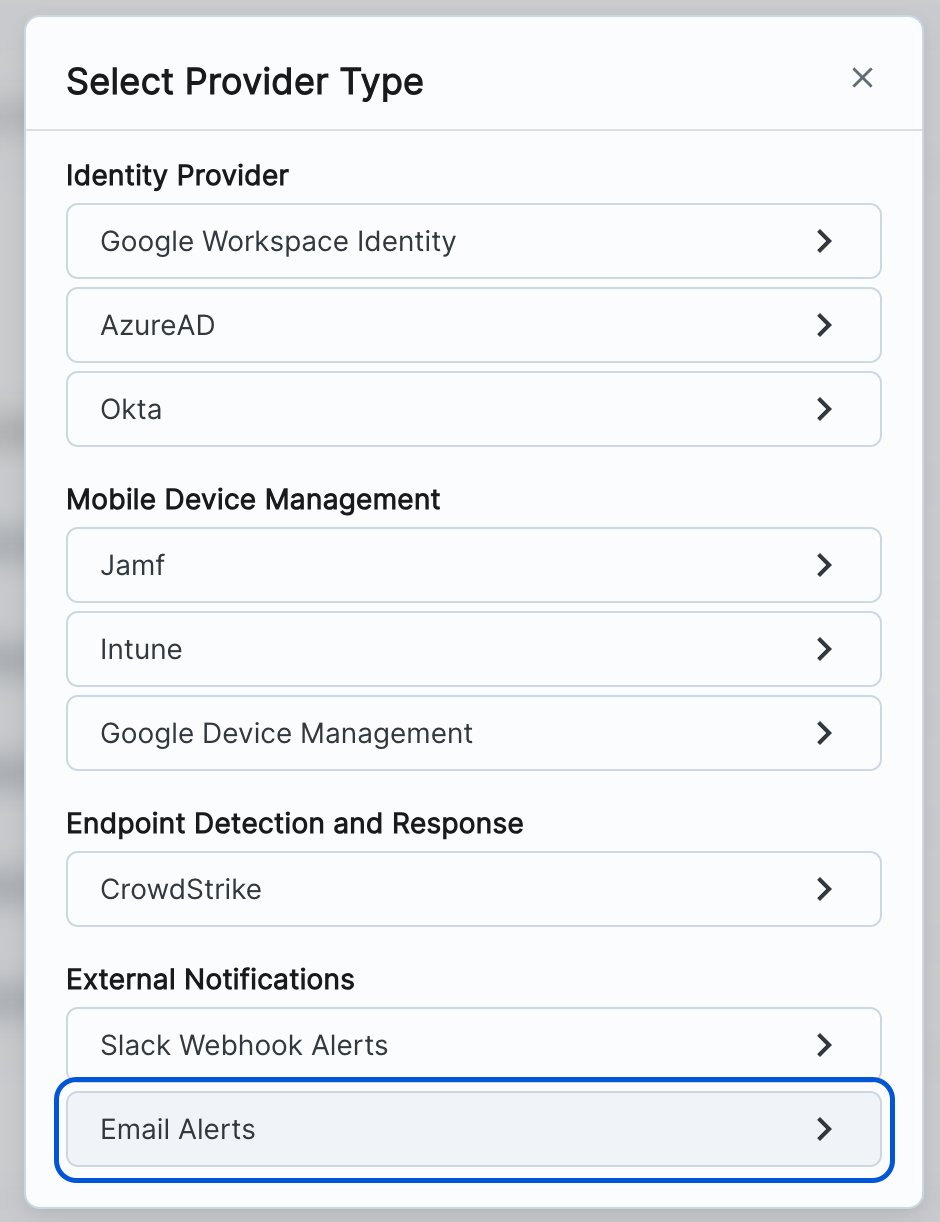
1. Add the Email provider
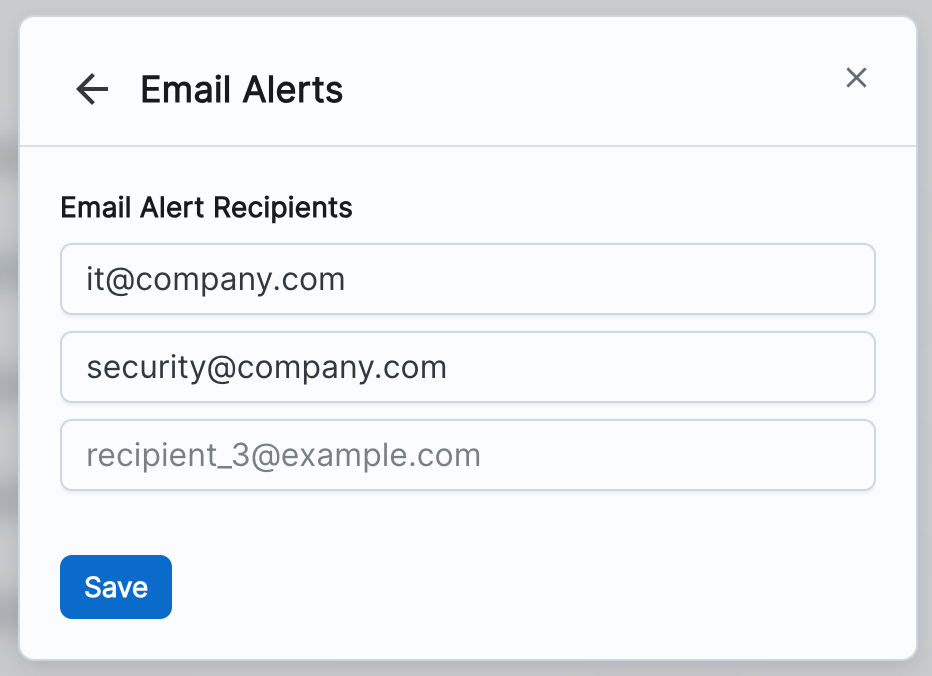
2. Enter Email recipients
Enter the email addresses that you would like to receive email notifications. You can use up to 20 email addresses, and you can edit this list at any time. Click Save when you’re done.
You’re done!
Congrats! Now your email inbox(es) are set up to receive Zip alerts.
Slack and Email notifications currently sends the same notification types listed in The Notification Center . We are actively adding more notifications in and out of platform. Let us know if you feel our notifications are missing anything important for keeping tabs on your security posture!