
Walkthrough & Overview of CrowdStrike Policies
Our modules and controls for CrowdStrike offer increased security and ease of management which can be easily applied through auto enforcement that allows you to achieve compliance across all your devices with the click of a button!
The purpose of this document is to provide a step-by-step guide for how to turn on controls and enable auto-enforcement to ensure maximum compliance across your fleet.
If you’d like to dig a little deeper into the overview of our controls and policies, scroll down to the FAQs at the bottom of this.
Turning on CrowdStrike Policies and Controls:
In your Zip console, navigate to https://zipsecinc.cc/modules to see the overview of EDR controls:
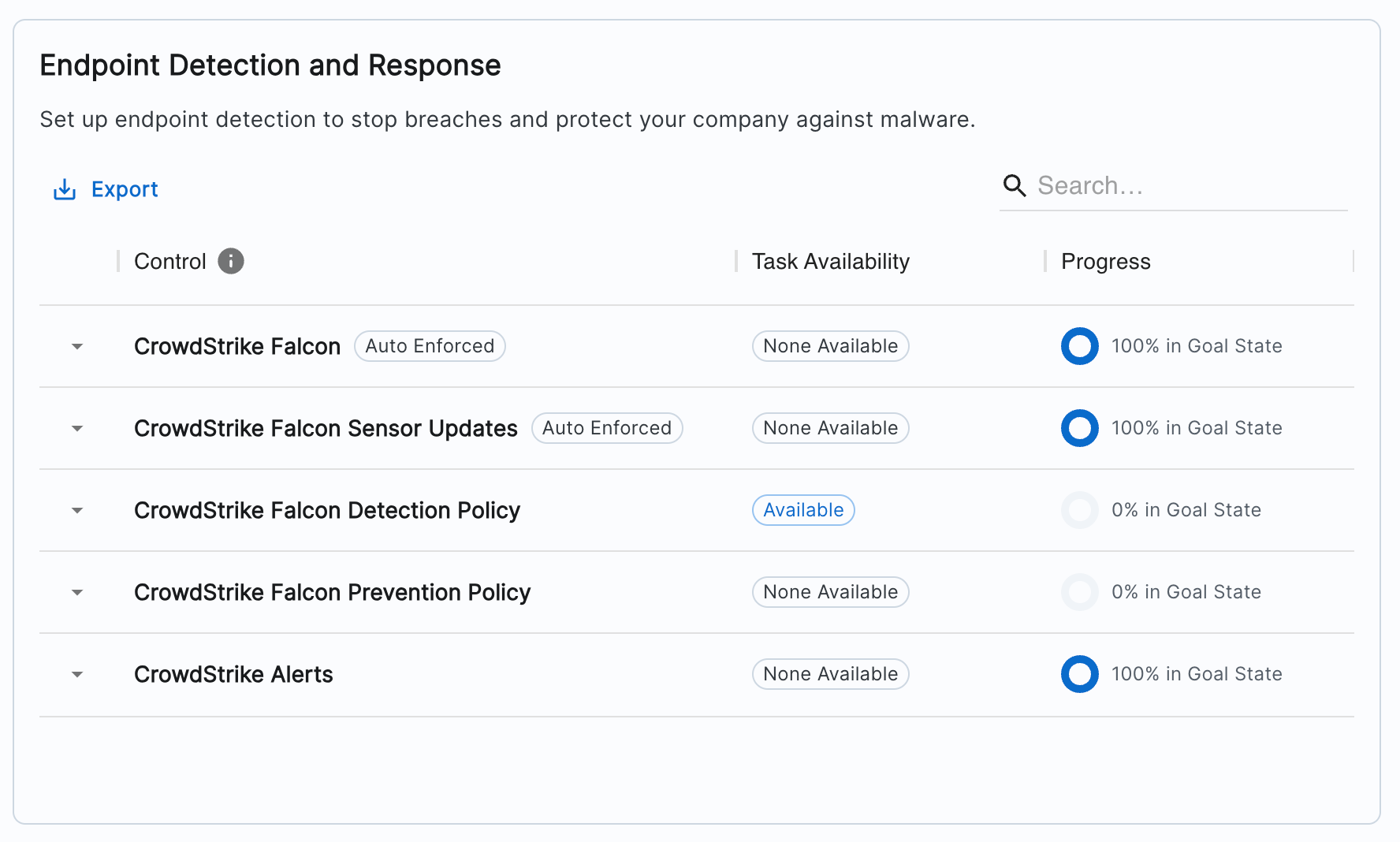
You likely will already have enabled the below controls during Implementation with our Customer Success team:
- CrowdStrike Falcon: Installs the CrowdStrike Sensor onto devices. This is the prerequisite for getting value out of all of the other EDR controls.
- Sensor Updates: Performs version updates to the CrowdStrike Sensor to keep it up to date with the latest security standards.
To ensure you are best protecting your fleet, we strongly recommend turning on auto-enforcement for Detection and Prevention Policies as well in order to start detecting and preventing threats to your endpoints.
Instructions for turning on auto-enforcement for Detection and Prevention Policies:
- Navigate to https://zipsecinc.cc/modules
- Scroll down to Endpoint Detection and Response, and click on CrowdStrike Falcon Detection Policy
- On the Configuration tab, toggle ‘Auto Enforcement’ on and click Save.
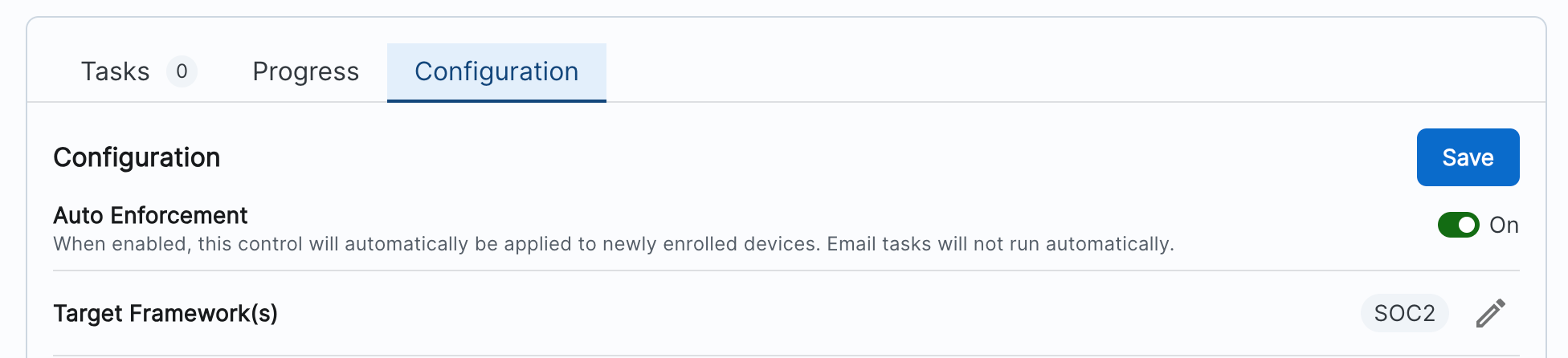
- Repeat step 2 for CrowdStrike Falcon Prevention Policy
- Once these are enabled, if CrowdStrike detects anything suspicious or malicious, Zip surfaces these alerts in the CrowdStrike Alerts control. Information on how to manage alerts is outlined here: CrowdStrike Alerts
Turning on CrowdStrike Falcon USB Policy:
Note: this control will only be enable-able if you have the Falcon Device Control as part of your CrowdStrike subscription. If you would like to have this added to your CrowdStrike subscription, please email us at info@zipsecinc.cc and we can sort it for you!
- Similar to above, navigate to https://zipsecinc.cc/modules:
- Navigate to the control: CrowdStrike Falcon USB Policy
- Navigate to the ‘Configuration’ tab - and enable the settings you wish to apply:
- We recommend toggling ‘Auto Enforcement’ to ON. This means as devices enroll in the MDM, this policy will automatically be applied, and their device will automatically be compliant.
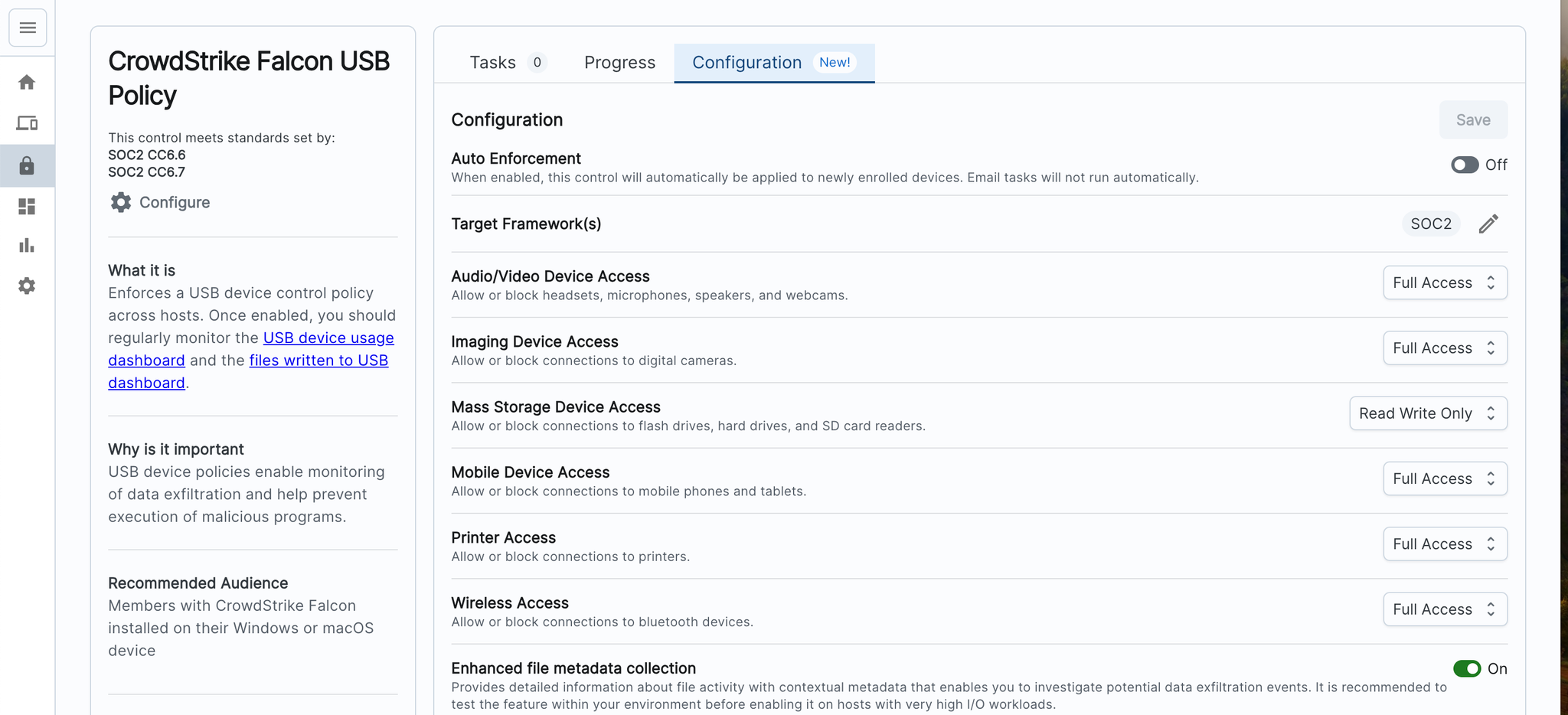
- Once devices are enrolled in this control, you are able to monitor and review the USB controls interacting with their device. You can do this directly within CrowdStrike.
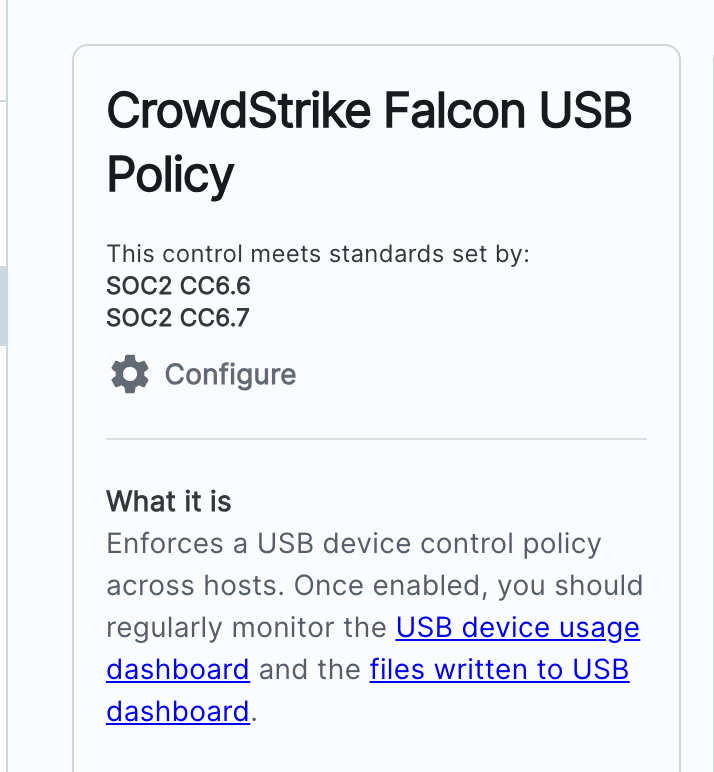
- On the left hand side of your screen, we have included direct links to the relevant pages within the CrowdStrike portal:
FAQs
What does turning on auto-enforcement mean?
- Auto-enforcement of a control means that upon device enrollment, the device is also by default enrolled in the policy. This helps to streamline devices staying compliant across multiple controls, and it also helps from a management perspective by reducing the manual action required to get users to be compliant with controls.
Does turning on auto-enforcement impact users in any way?
- The 21 day soak period is in place to give the policy time to learn ‘normal’ behaviors, and also for the whoever is managing the policy to allow exceptions for any activity they do not want blocked. This approach means we expect minimal impact on users of the prevention policy. However, if anything is incorrectly stopped, there is always the ability to go into CrowdStrike and manually make an exception.
- Additionally, auto-enforcement of CrowdStrike Falcon policies simply means that endpoints are automatically being updated with the latest sensors and have the CrowdStrike Falcon endpoint detection capability actively running on them.
What information can my company see when I have my device enrolled in CrowdStrike?
This guidance is designed as a useful resource to share with users if they want to understand better what CrowdStrike is, what information it gathers from devices, and why it is important:
1. What is the CrowdStrike Falcon Agent?
a. The CrowdStrike Falcon Agent is an antivirus solution that protects your laptop from malware, viruses, ransomware, and more.
2. What information is shared with CrowdStrike?
a. To detect malicious activity, CrowdStrike uses information about the activity on your computer and compares that information to known malicious activity, alerting and occasionally automatically remediating when activity may be dangerous (like ransomware).
3. Can you see my browser history?
a. No, CrowdStrike is not an employee surveillance tool -- its purpose is to stop hacks and breaches.
4. What happens if CrowdStrike alerts on something on my laptop?
a. If CrowdStrike alerts, it will often automatically "stop" the bad activity from happening. Once CrowdStrike alerts, our Managed Detection and Response Partner, Coalition, will investigate to make sure nothing else malicious is happening.
5. Why are you rolling our CrowdStrike?
a. A sophisticated antivirus solution is important for the security of our company and data, and is required by certain compliance frameworks (HIPAA and SOC2). It's our responsibility to safeguard our company data, and this helps us do that!
Some good resources are CrowdStrike's privacy policy and the getting started guide!
Could you give me an overview of all the CrowdStrike Controls and Policies and What they do?
Control | What it does |
CrowdStrike Falcon | Installs endpoint detection on macOS and Windows devices.
Auto-enforcement is recommended to ensure devices are protected from day one. |
CrowdStrike Falcon Sensor Updates | Maintains updated Falcon sensors across your fleet and protect sensors from unauthorized uninstallation by end users.
Auto-enforcement recommended to ensure latest version of sensor are installed across your fleet. |
CrowdStrike Falcon Detection Policy | Detection policies manage the activity that will trigger suspicious detections on your hosts, helping you keep your endpoints secure.
Auto-enforcement recommended to ensure suspicious activity is detected. |
CrowdStrike Falcon Prevention Policy | Prevention policies manage the activity that will trigger and proactively kills suspicious detections on your hosts, helping you keep your endpoints secure.
Auto-enforcement recommended to automatically move end points from Detection policy to Prevention Policy after a 21-day soak period. This soak period is time where any manual exceptions can be made to allow normal activities that CrowdStrike flags as a detection, ensuring minimal impact to users when the prevention policy is turned on. |
CrowdStrike Falcon Alerts | Alerts you to suspicious activity detected across your fleet.
No auto-enforcement required. |
CrowdStrike Falcon USB Policy | Enforces a USB device control policy across hosts. USB device policies enable monitoring of data exfiltration and help prevent execution of malicious programs.
Whilst this control can be deployed via the Zip Console, you will need to log into CrowdStrike and you should regularly monitor the USB device usage dashboard and the files written to USB dashboard. |
What happens if an end user triggers a CrowdStrike security alert?
What happens depends on two things:
(1) If your purchase Managed Detection & Response (MDR) through Zip Security
(a) If you purchase MDR through Zip Security, your designated MDR team will triage and respond to the alert within the designated SLA. For more information please read here.
(2) If the user is compliant with the CrowdStrike Falcon Detection and Prevention Policy controls in the Zip Console (see the documentation on managing these controls here)
(a) If the user is compliant with the “CrowdStrike Falcon Prevention Policy” control, CrowdStrike may automatically stop the malicious process from running, or “quarantine” (stop the user from being able to click on) the malicious file.
(b) If the user is only compliant with the “CrowdStrike Falcon Detection Policy” control, CrowdStrike does not automatically take action, and instead alerts you that something has happened you may want to investigate or take action. You will receive a notification in the Zip Console that there is something you need to look in to!
Below provides some guidance that can be shared with employees to explain to them what they can expect if that case arises:
- Our endpoint detection and response tool, CrowdStrike , continuously monitors for suspicious activity to keep your device and information safe. To learn more about how CrowdStrike is rolled out to devices, please read more here.
- If something potentially harmful is detected—like opening a malicious file or clicking a risky link—the system may automatically block the threat.
- While unlikely, there may be cases where a harmless action is mistakenly flagged (a false positive). In that case, someone from IT may contact you to understand what process was running, and once confirmed safe, it will be added to a whitelist to avoid this happening again.
If you also have Managed Detection and Response Services:
- In more serious cases, our MDR partner may remotely isolate your device from the network to prevent spread or damage. If your device is isolated, you'll temporarily lose internet access and some functions while we investigate. A member of your IT team will reach out with next steps and support.