
Context
Our 1-click compliance frameworks feature allows you to easily apply and auto enforce relevant security controls to achieve a target compliance framework with the single click of a button!
Instructions
To configure a target compliance framework and automatically enable controls for your organization:
- Navigate to the “Controls” tab: https://zipsecinc.cc/modules
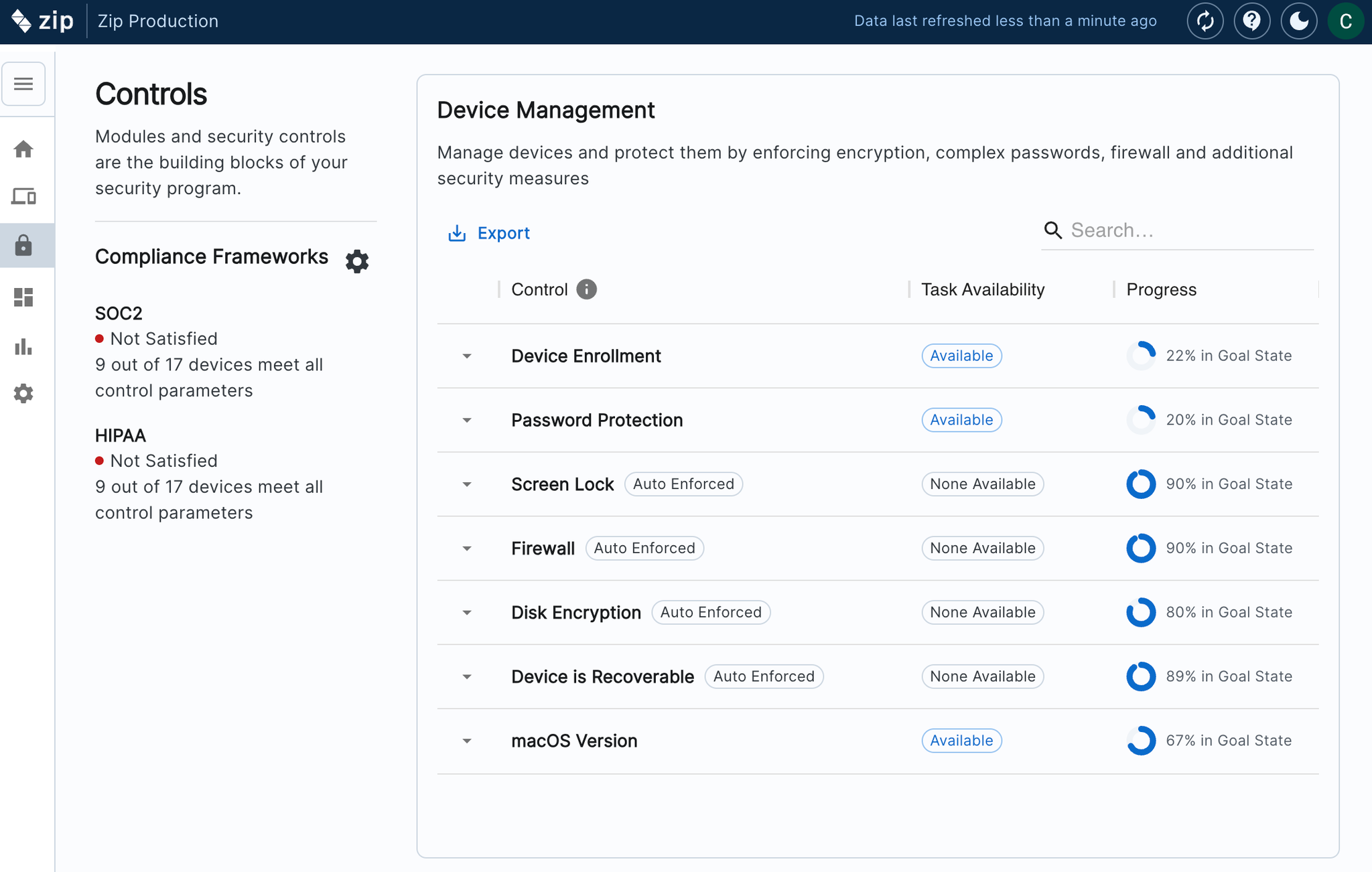
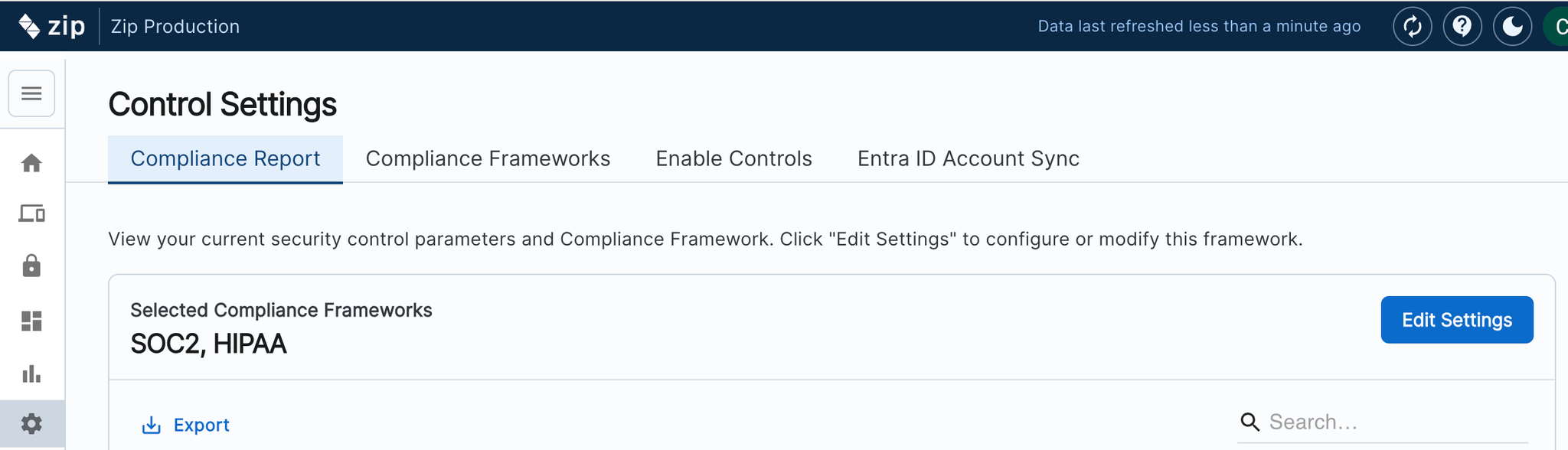
- On the left side, click on the settings gear icon next to “Compliance Frameworks” to navigate to the Module Settings page: https://zipsecinc.cc/modulesettings?mode=reporting
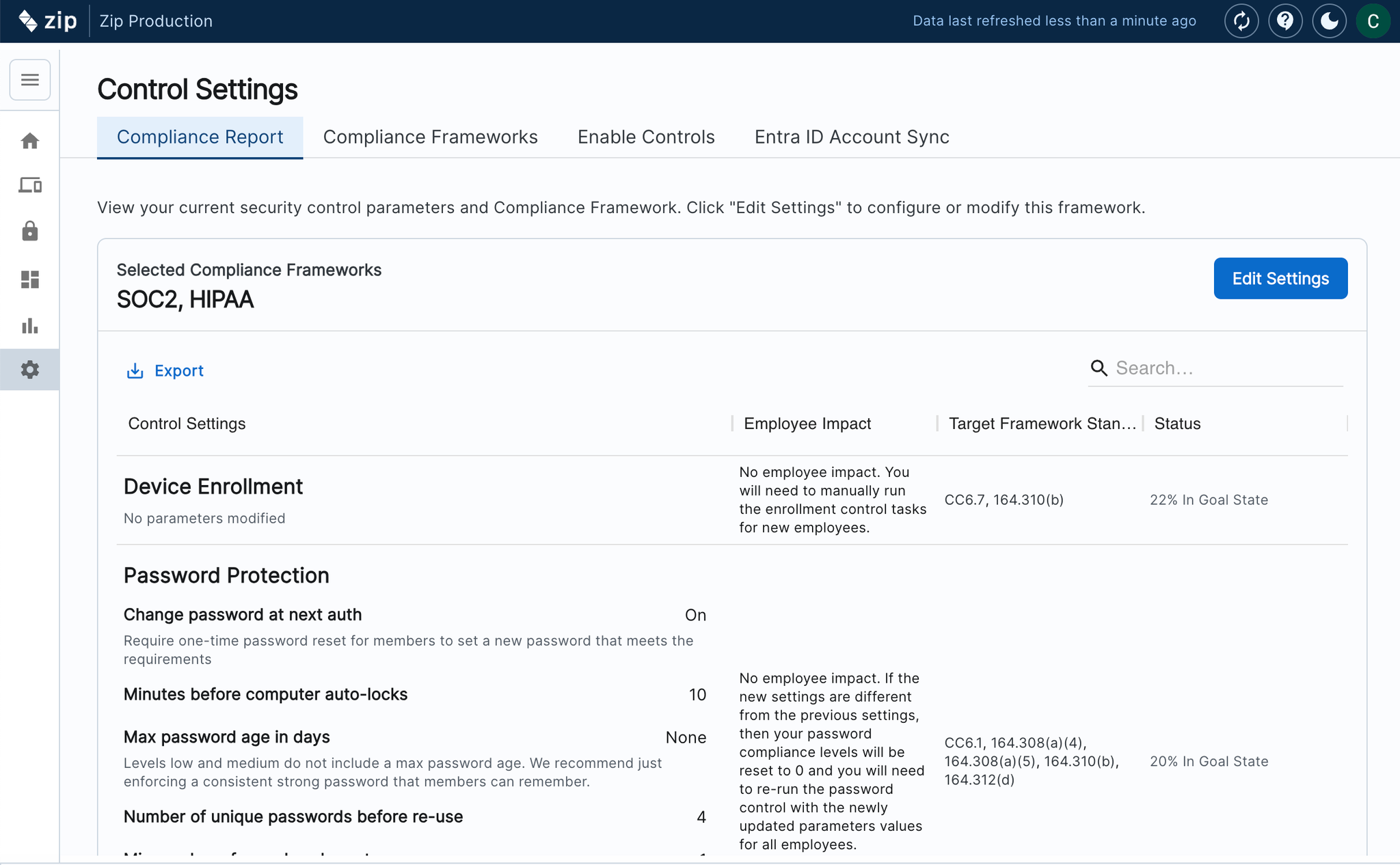
- In the top right corner, click “Edit Settings”. This will take you to the edit mode that allows you to select your target framework and apply changes.
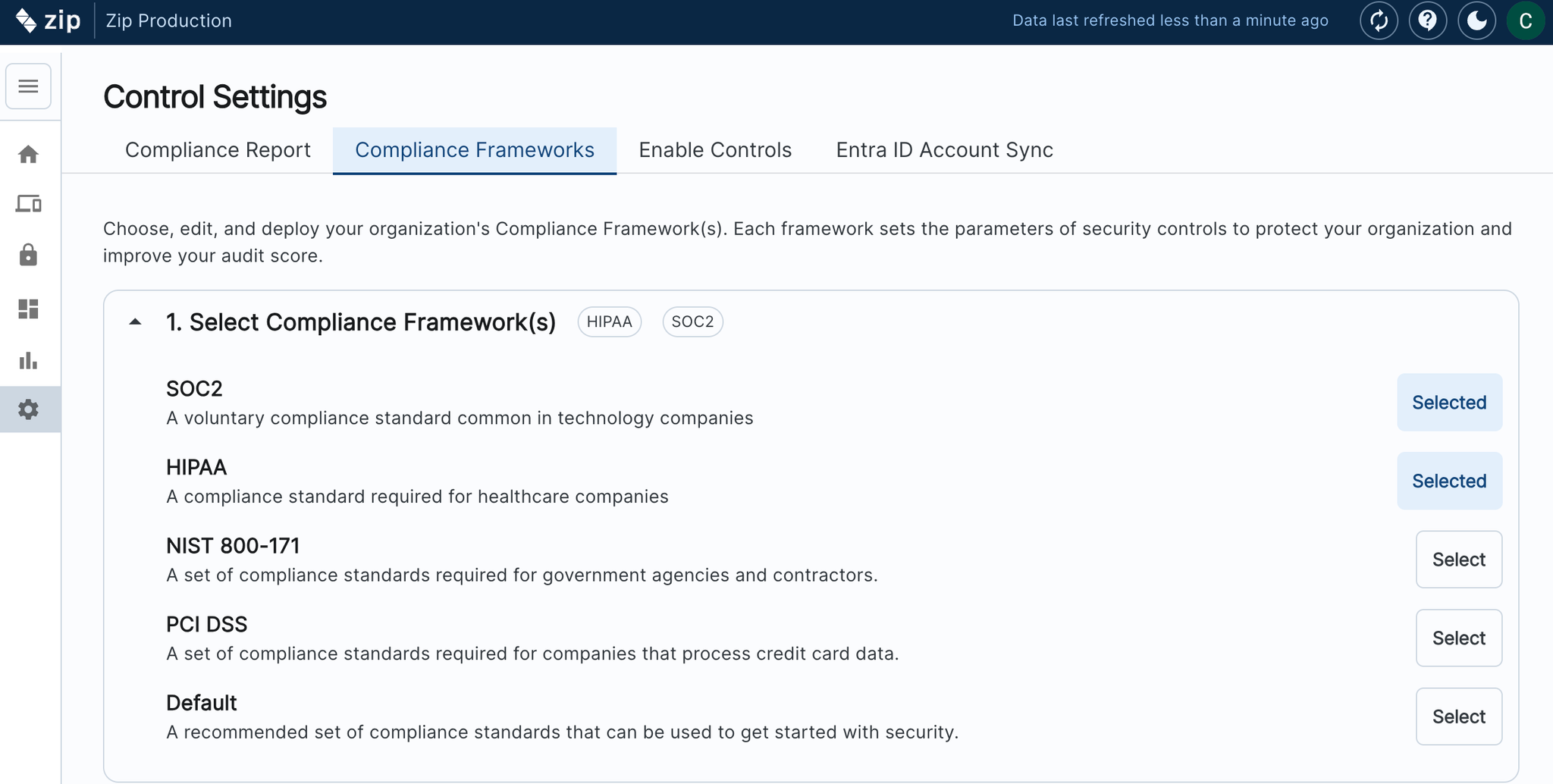
- Select your target compliance framework. Right now, we support SOC2, HIPAA, NIST 800-171, PCI DSS, and a “Default” framework that enforces basic security levels we recommend for any company that wants to get started with security.
- Scroll down to “Preview Control Settings” to view the parameters and controls that will be applied. By default, auto enforcement is enabled for all controls that are supported. You can toggle auto enforcement off for any controls that you would not like to be immediately auto-enforced across your organization.
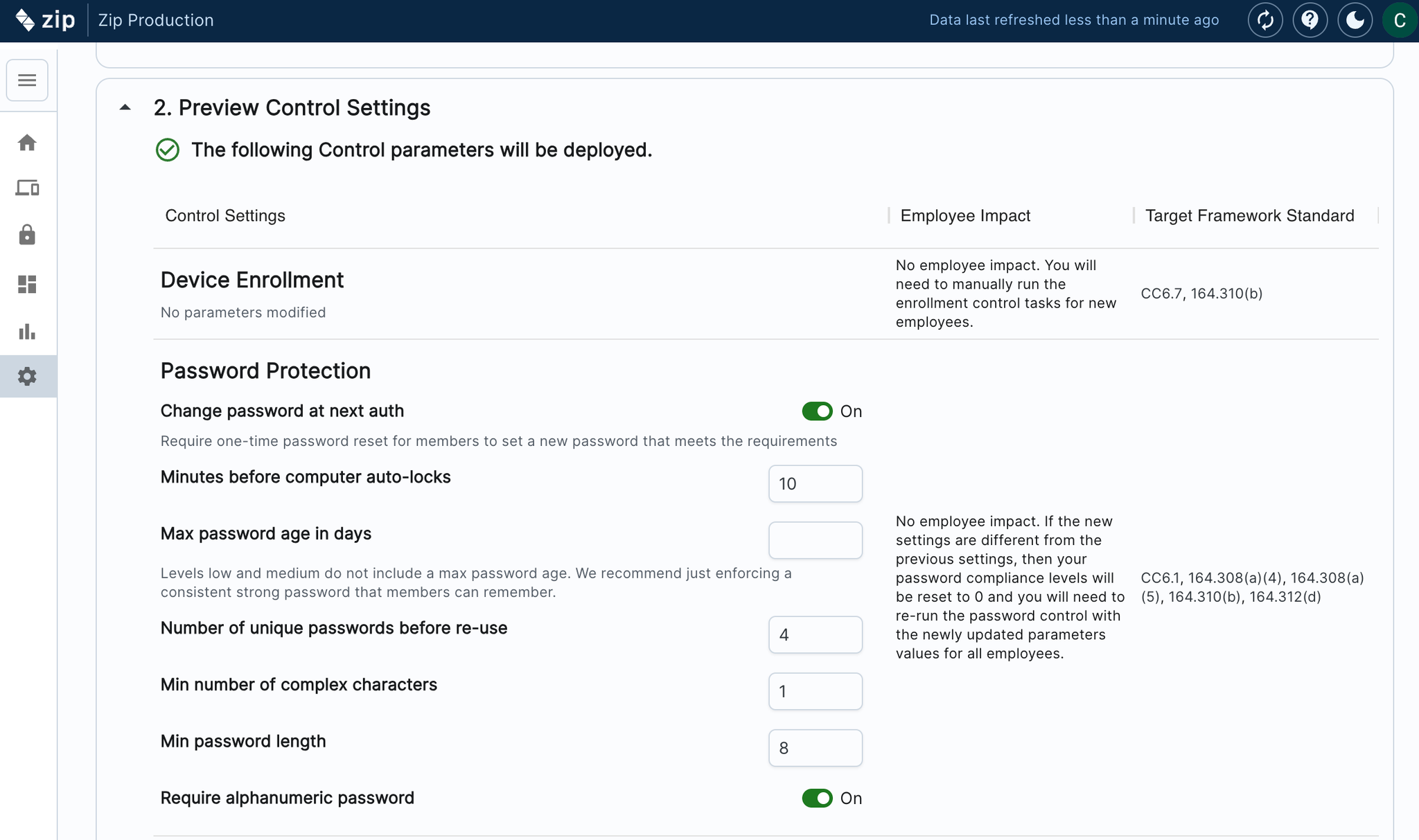
- Scroll down to “Preview Warnings” to see any controls that are related to the framework but will not be applied.
- If there are warnings, you may be missing a required dependency for one or more controls. You can still save your updated compliance settings to deploy the currently available controls.

- In the top right corner, click the “Save and Apply” button to apply the changes you just reviewed! This will automatically configure and deploy the controls you just previewed.
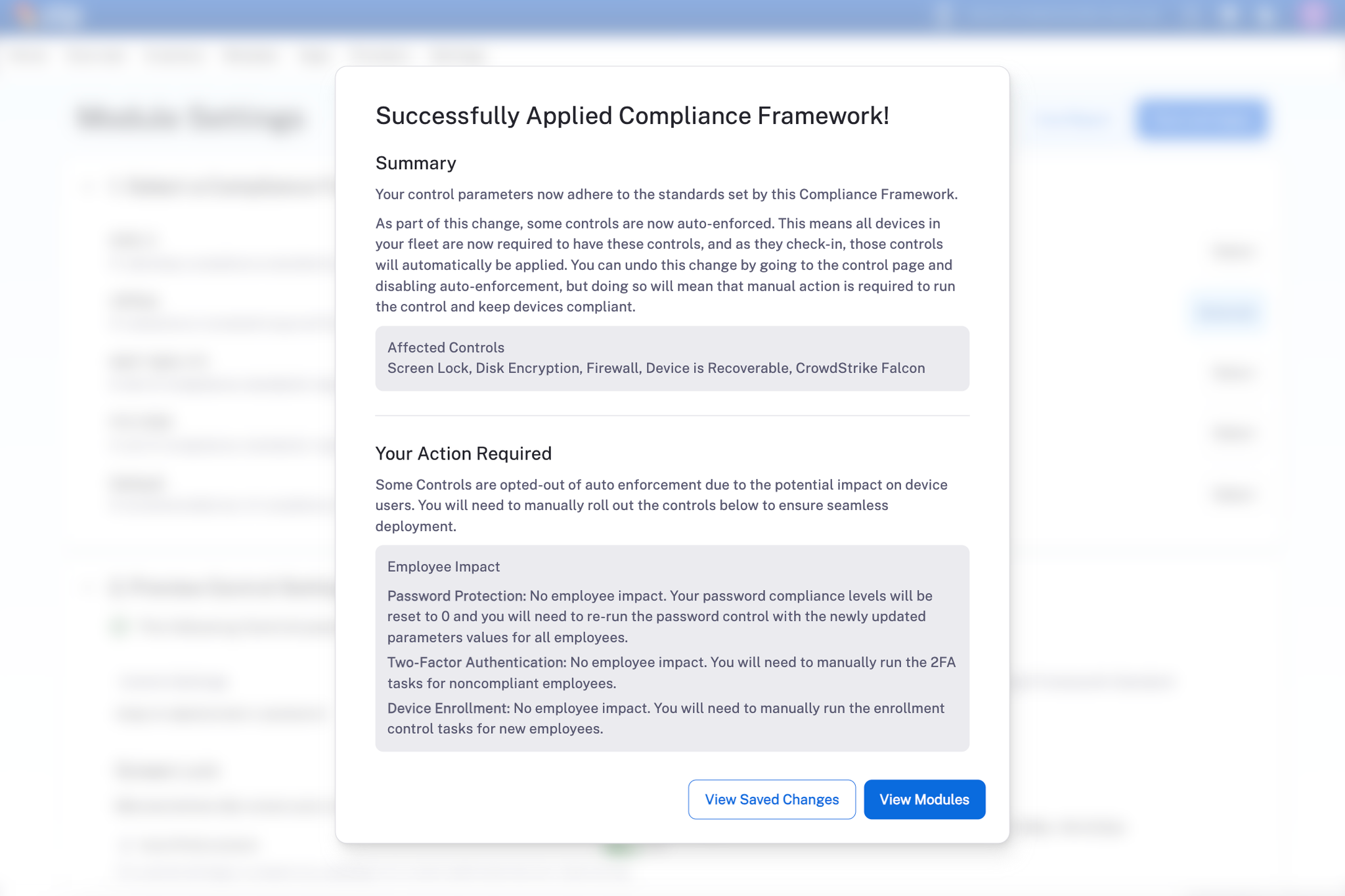
- After the changes finish applying, you will see a summary pop up of all the actions Zip ran behind the scenes. Take special note of the “Your Action Required” section, which details any follow ups you may need to take afterwards.
- You’re done! Wait for devices to check in again to view your updated compliance progress in the “Controls” tab, and take any additional actions required from the previous summary section.
- If you navigate back to the Controls Settings page, you can also click on the “Export” link in the top left corner to download framework data and your organization’s goal state progress for audit purposes
- Provider missing — you likely have not enabled a provider needed for the module. This could be something like missing CrowdStrike, which is required for many different compliance frameworks. If you’re interested in adding additional providers, please reach out to info@zipsecinc.cc.
- Module disabled — you need to manually enable a module to apply the control. Navigate to the organization settings page: https://zipsecinc.cc/settings and enable the relevant module.
FAQ
Why should I use 1-click compliance frameworks?
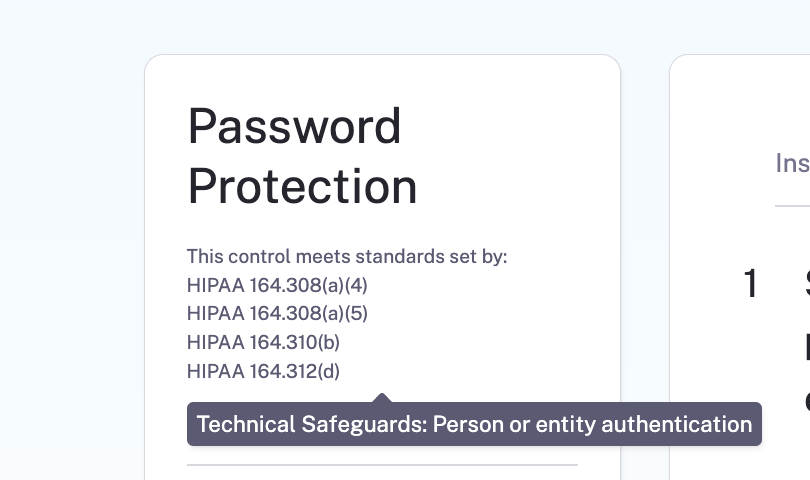
The 1 click compliance frameworks feature allows you to quickly and easily deploy the security controls you care about for your organization, to rapidly achieve compliance for a given framework without needing to know the individual details of what changes need to be applied via your MDM, IdP, or EDR software.
This saves you time spent manually applying changes or figuring out what actual controls need to be deployed in order to be “compliant” for a set of ambiguous framework standards. We directly map relevant framework controls to each Zip control, saving you many hours of work and derivation during the audit process!
What happens if I’ve already applied some controls and then enforce 1-click compliance frameworks afterwards?
Most of the time, there will be no further action required. Zip will — behind the scenes — update the controls to meet your compliance framework, and silently roll out to your fleet with no user action required.
For higher risk controls, like password protection, or for controls you’ve opted to not have rolled out automatically, you will need to take manual action to roll out the changes. Concretely, devices that were previously compliant will no longer be compliant, and Zip will show that you have “new tasks” available to run for the control, allowing you to reset and roll-out the compliance framework changes.
What does it mean if I have warnings on the module settings page?
There are 2 types of warnings, and both should include help text to understand the issue: