Context
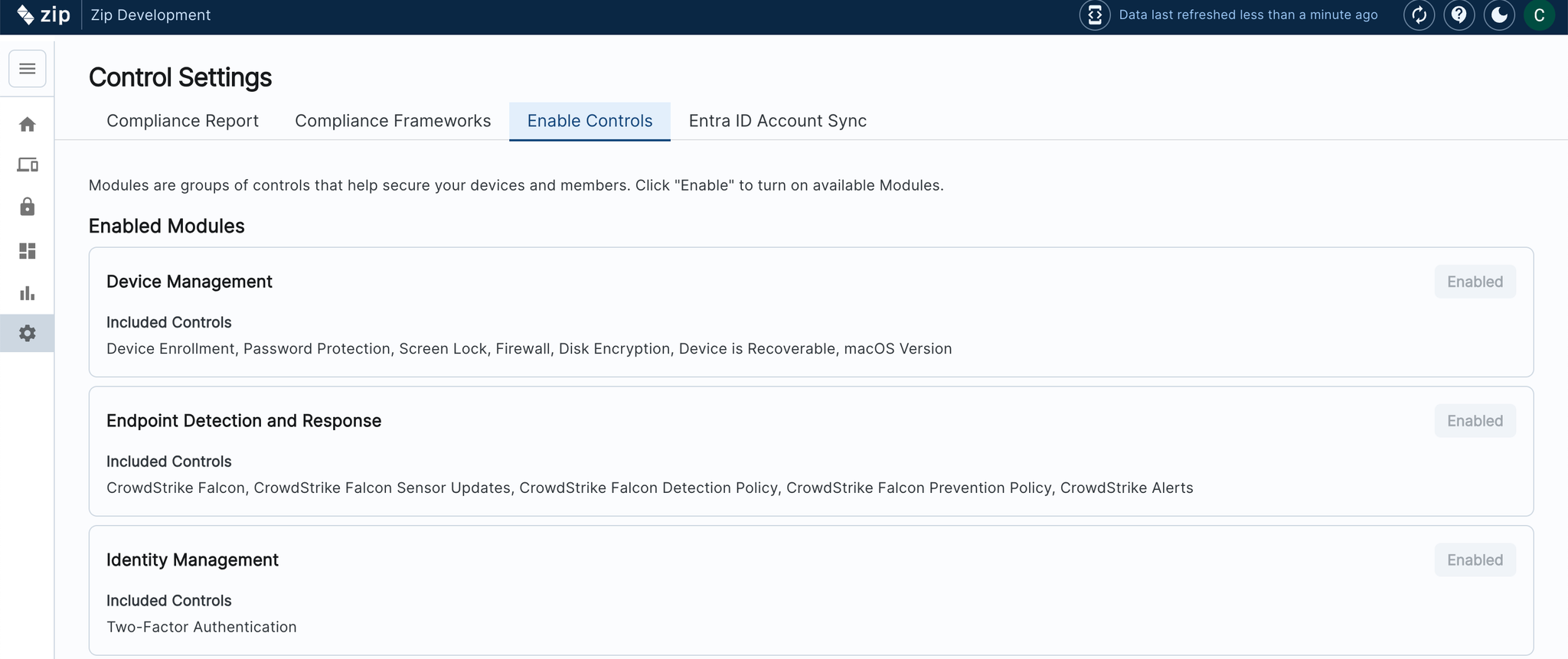
In this section we’ll walk through turning on modules and controls, the building blocks of your security program. Modules refer to the group of controls for each of your security strategies, e.g. Endpoint Detection and Response.
In order for this step to be ready, it is essential that the Zip Console has been set up, and all tools and providers have been integrated. As long as that’s complete, turning on modules is incredibly simple!
Instructions for Turning on Controls
- In the sidebar navigate to Settings —> Control Settings
- In the top left hand corner hit ‘Edit’
- In the topbar click ‘Enable Controls’
- Toggle ‘Enable’ for all controls
- You’re done!
When you enable “device management” controls, the Zip Console will be set by default to enforce some helpful settings in your Intune. Specifically, it will make sure that the Windows devices in Intune are all “Corporate” owned, so that you can manage them. It does this by checking every night at 4am EST for “Personal” devices, and changing their ownership to Corporate. If you would like to turn this feature off, you can do so by navigating to the Device Enrollment Control Configuration tab and toggling “mark Windows devices as Corporate” off.
Read on to the next page for instructions to turn on your Compliance Frameworks!
FAQs
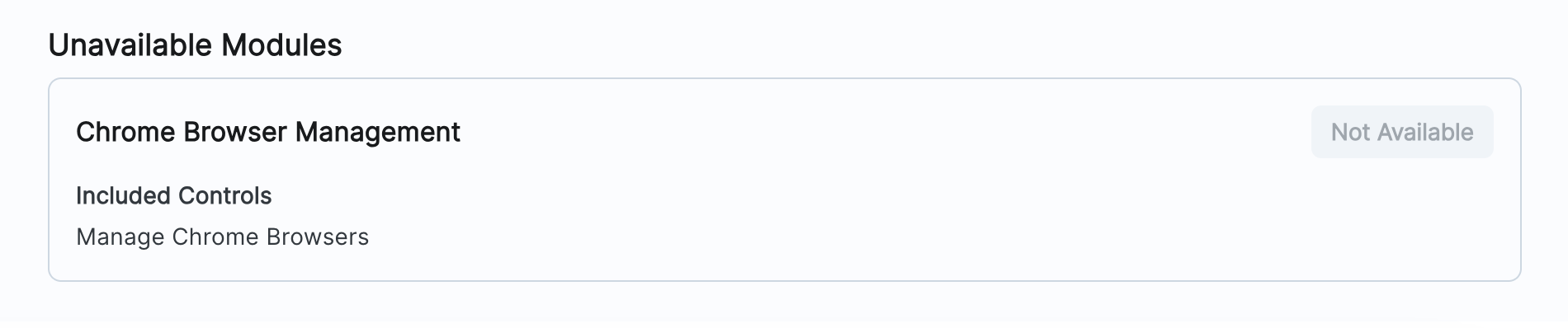
What if some modules are not available for me to turn on?
- If some modules are showing as ‘unavailable’ please reach out to info@zipsecinc.cc
- The reason this has happened is either because a provider has not been integrated with the Zip platform yet, or a configuration was set up to not enable the control.
What if I want to edit some of the parameters of individual controls?
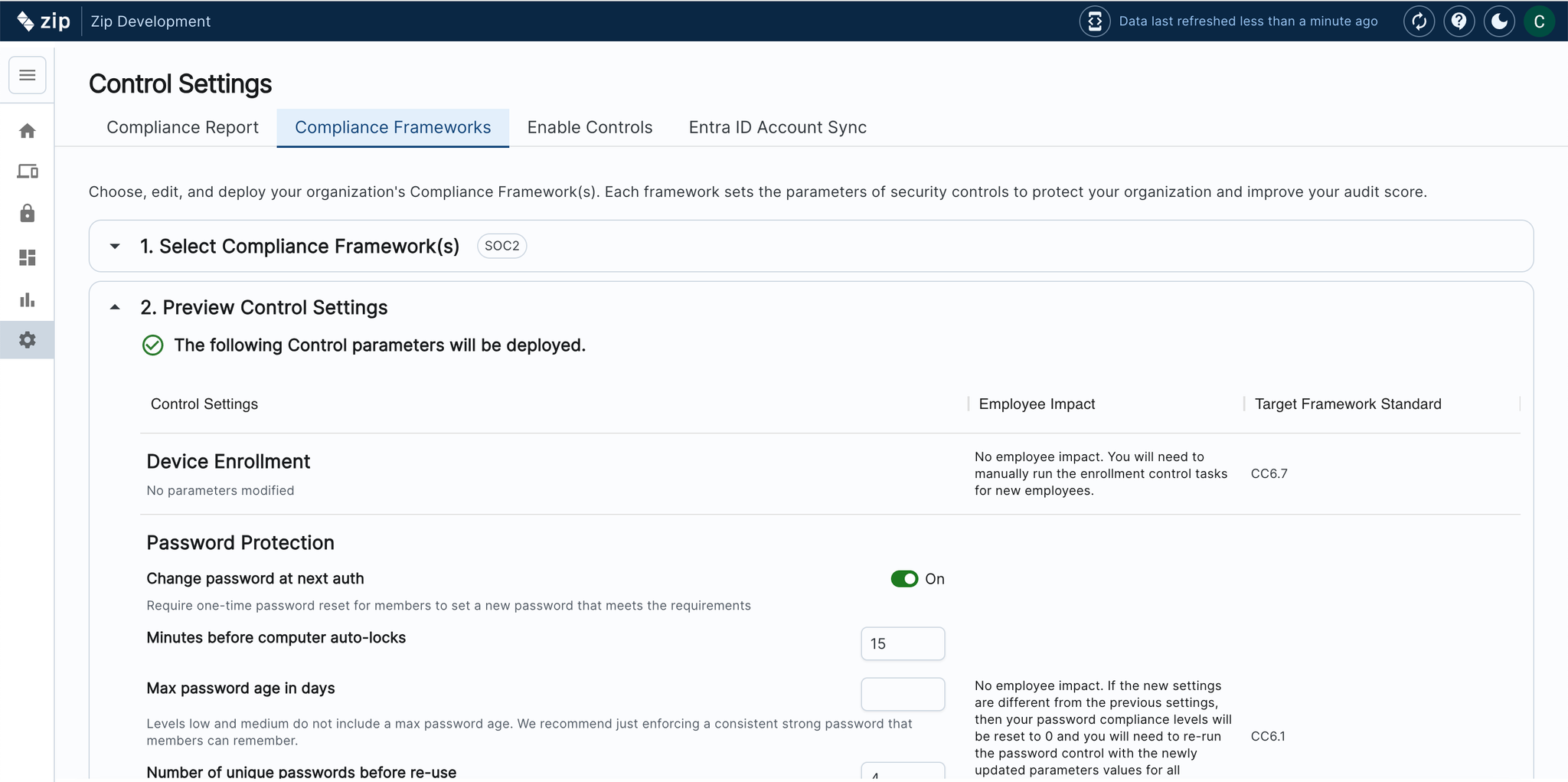
- We set default parameters for controls (e.g. length of time before screenlock) that align with best security practises. However, we also recognise the importance of being able to make these customizable to the needs of your organization. Follow the below instructions to review and edit control parameter:
- In the Controls setting tab, navigate to —> Compliance Frameworks
- Select step 2 ‘Preview Control Settings’
- Scroll through to the control you would like to edit, and make any changes you’d like to.
- Hit ‘Save and Apply’