
Context
There are different broken or incomplete states we can end up in with attempts to Entra Join Windows devices with federated Google Workspace accounts. The purpose of this doc is to capture those states, how devices can arrive in them, and how to rectify them!
ContextIncomplete Entra Join - MS IconHow to get into this stateConfirm federated Google account is NOT within MDM user scopeSetup device for organization with federated Google accountHow to rectifyFrom Entra portal: Confirm Microsoft account is within MDM user scopeFrom device: Complete the Entra JoinIncomplete Entra Join - Briefcase IconHow to get into this stateSetup device for personal useEntra join the newly setup BYOD deviceRegister the deviceHow to rectifyFrom Entra portal: Confirm Microsoft account is within MDM user scopeFrom device: Disconnect the registered accountFrom device: Disconnect the joined federated Google accountFrom Entra portal: Confirm records for this device no longer existFrom device: Join the Microsoft account
Incomplete Entra Join - MS Icon
This is a state where there’s a single record for the device within Entra, but no record for the device within Intune.
Screenshot
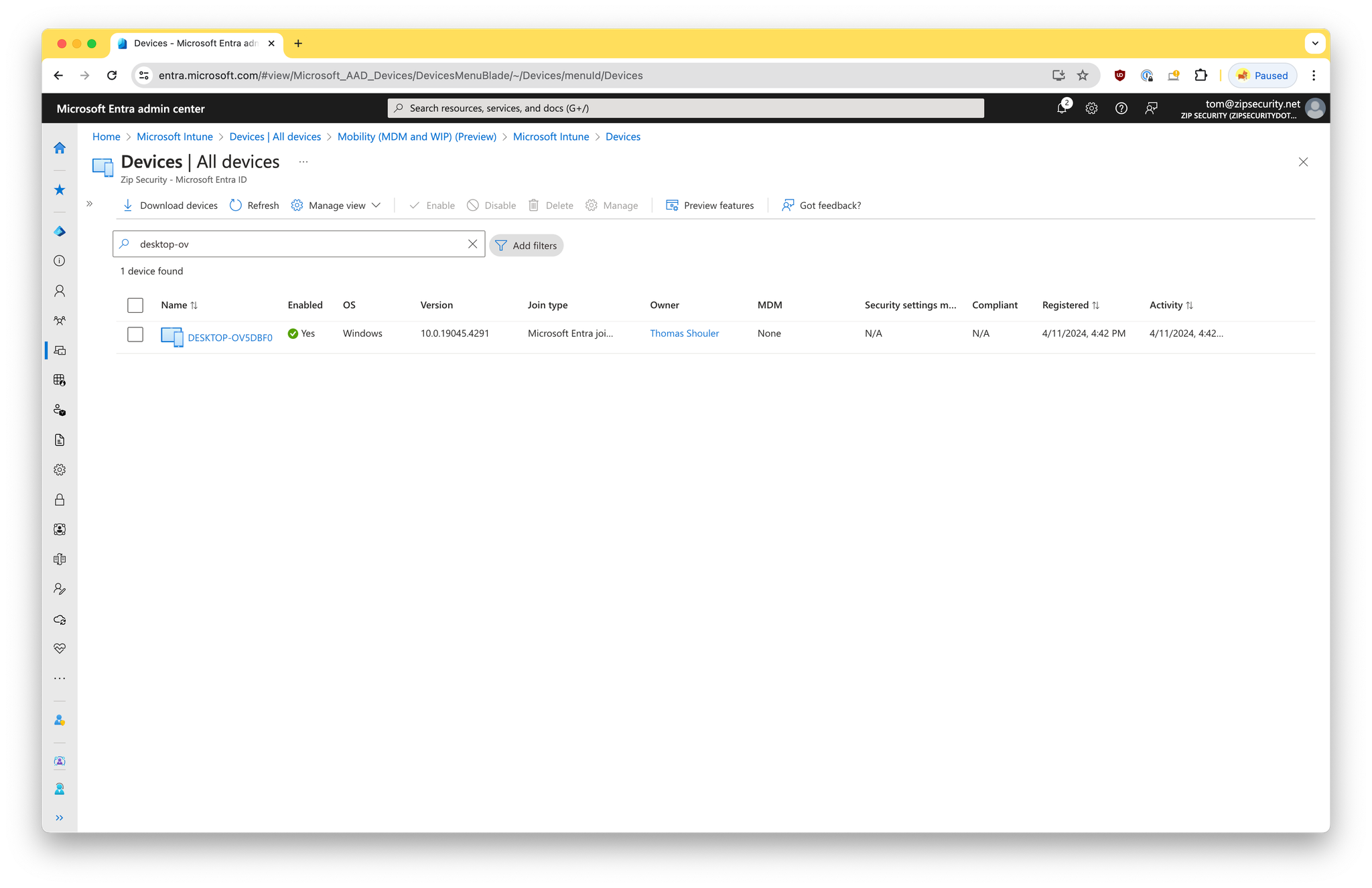
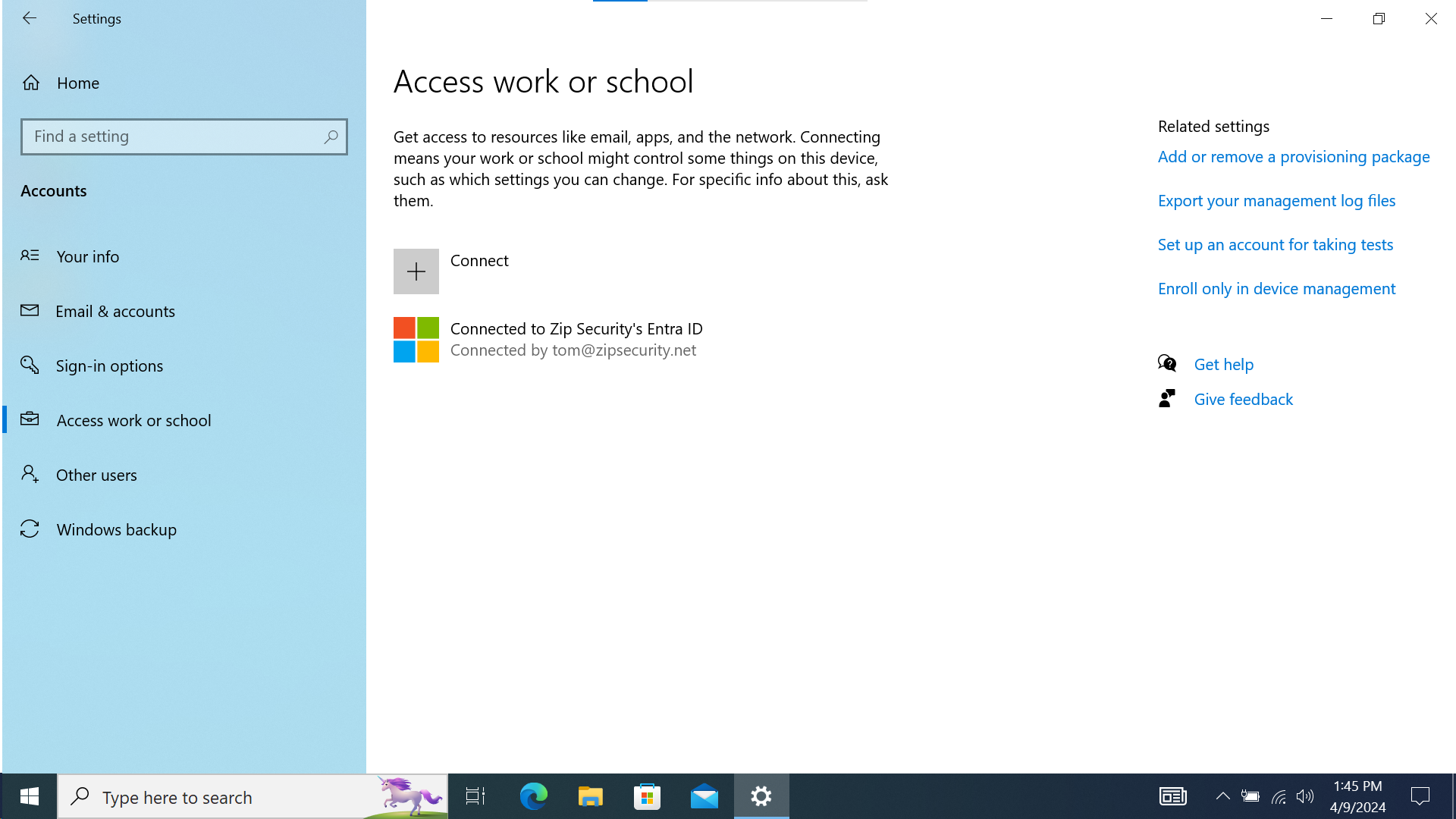
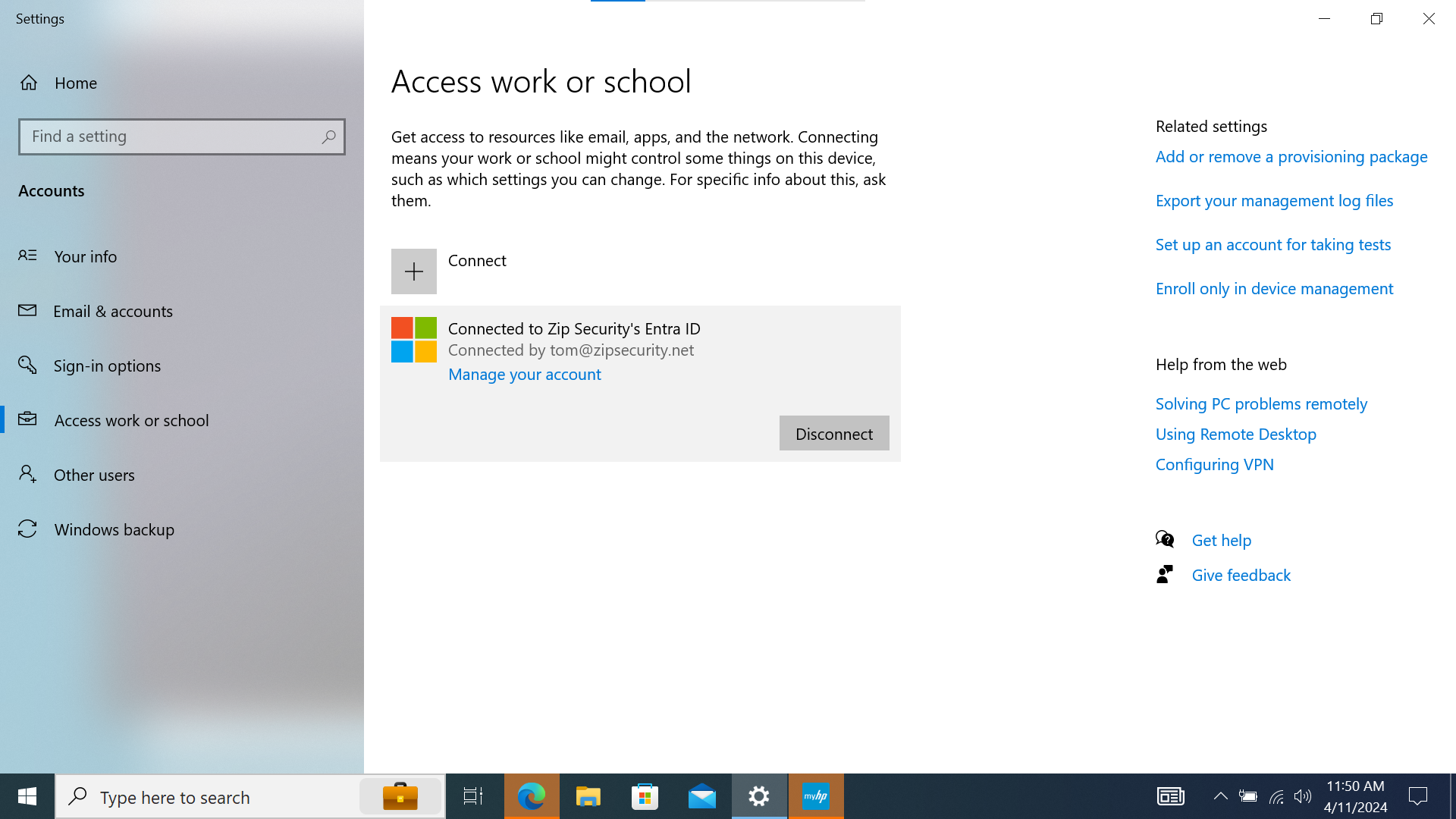
If we look at “Access Work or School”, then we should see a single item, with a Microsoft logo and the primary text: “Connected to <organization> Entra ID”, and secondary text: “Connected by <federated email address>”.
Screenshot
How to get into this state
At initial device setup, the device is Entra joined with a federated Google Workspace account
Confirm federated Google account is NOT within MDM user scope
Note that if the account is included within MDM user scope, but lacking an Intune license, we’ll run into other issues.
To confirm that the federated Google Workspace account is not within MDM user scope…
- Navigate to Entra Mobility (MDM and WIP)
- Confirm that the group assigned to MDM user scope does NOT include the account
- Press “Save” if you had to make changes
Setup device for organization with federated Google account
From a new installation of the OS, navigate through the Windows initial device setup as follows…
- Navigate through region, keyboard layout, wifi network selection, and EULA
- “How would you like to set up?” → “Set up for an organization”
- “Sign in with Microsoft” → Enter federated Google Workspace email address
- Google Sign in screen should render → Enter federated Google Workspace email address, and then password
- Accept privacy settings on following page
- Navigate through Windows Security prompts. It will have you MFA for your federated Google Workspace account and then ask you to set a pin → Set a pin
- Then it should say “All set!” on the following page. Proceed and the windows desktop should render.
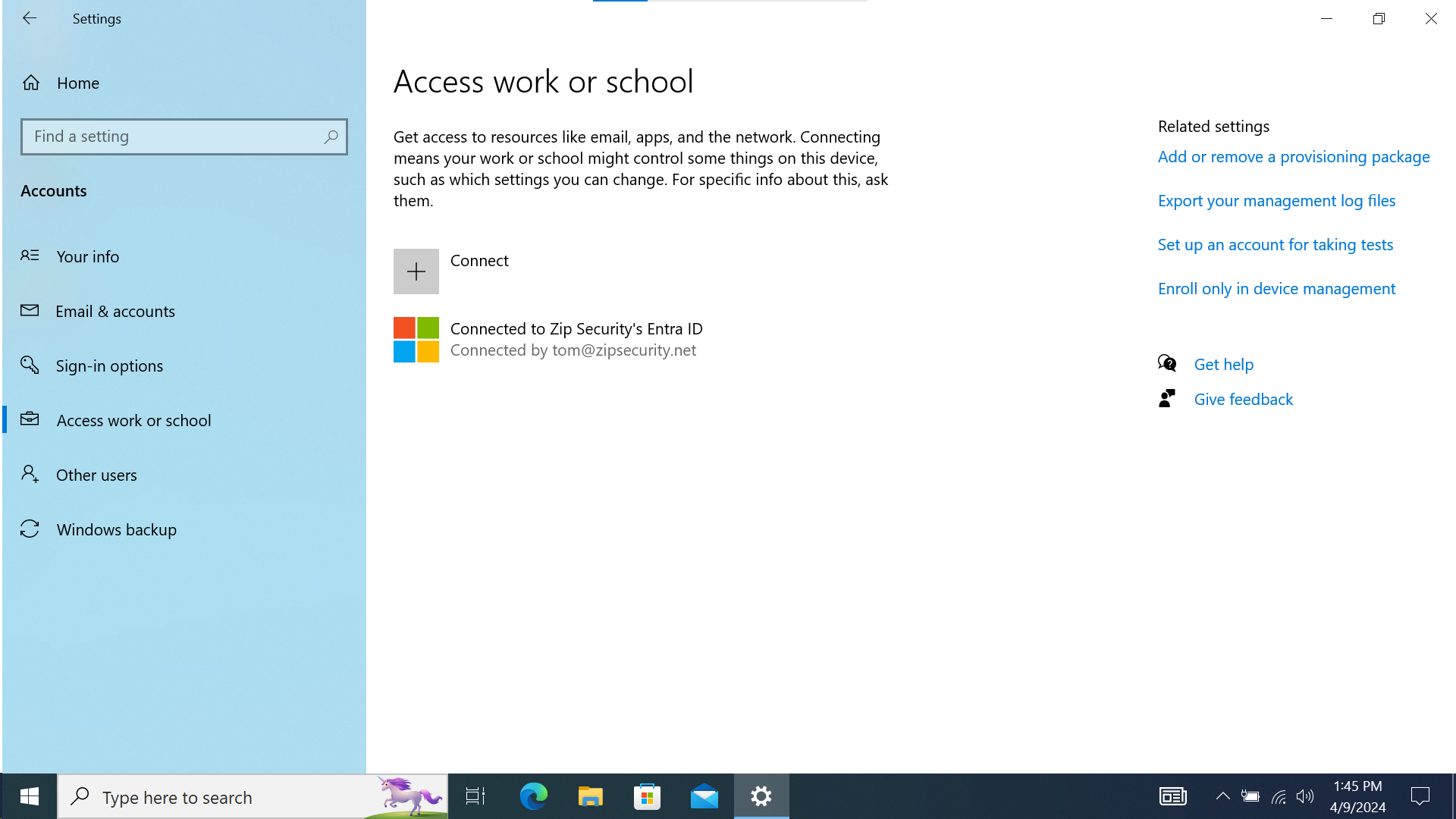
- Navigate to access work or school. It should look like the following screenshot:
Screenshot
How to rectify
From Entra portal: Confirm Microsoft account is within MDM user scope
To confirm that the Microsoft account is within MDM user scope…
- Navigate to Entra Mobility (MDM and WIP)
- Confirm that the group assigned to MDM user scope includes the account
- Press “Save” if you had to make changes
From device: Complete the Entra Join
We need to complete the join by connecting the licensed Microsoft account to the device
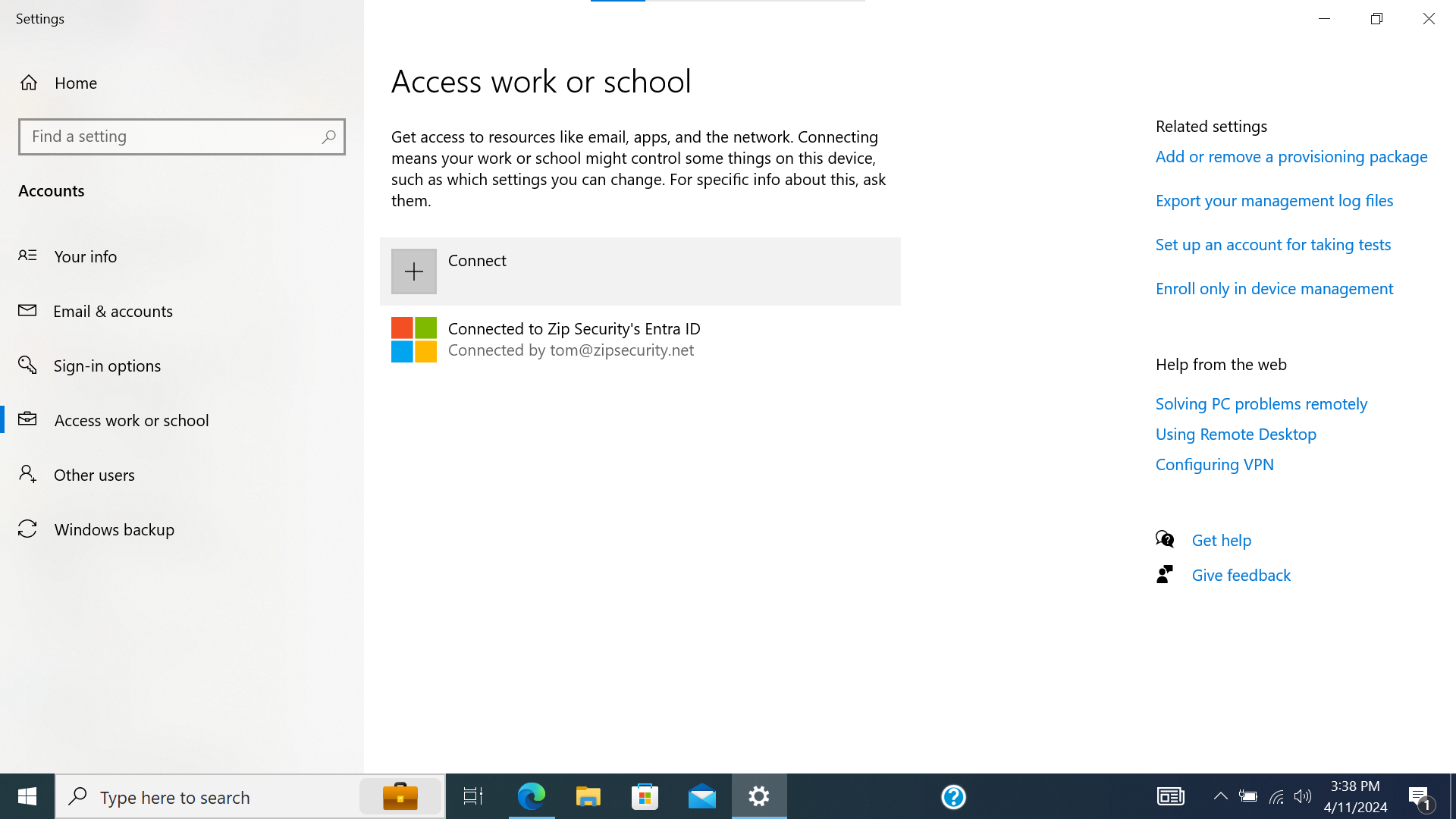
- Navigate to “Access work or school”. Select “Connect”.
Screenshot
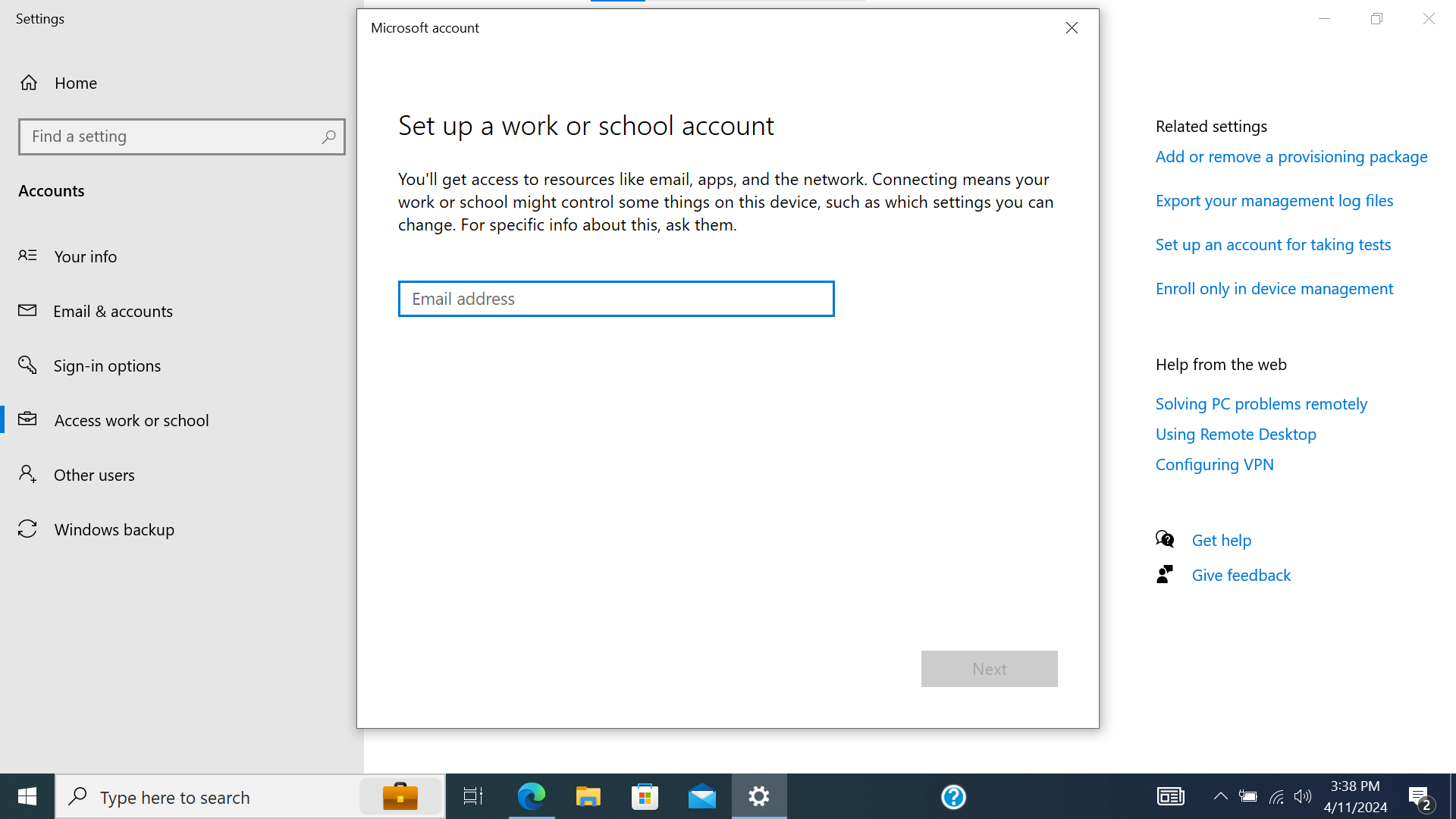
- Enter the employee’s Microsoft email address and press “Next”.
Screenshot
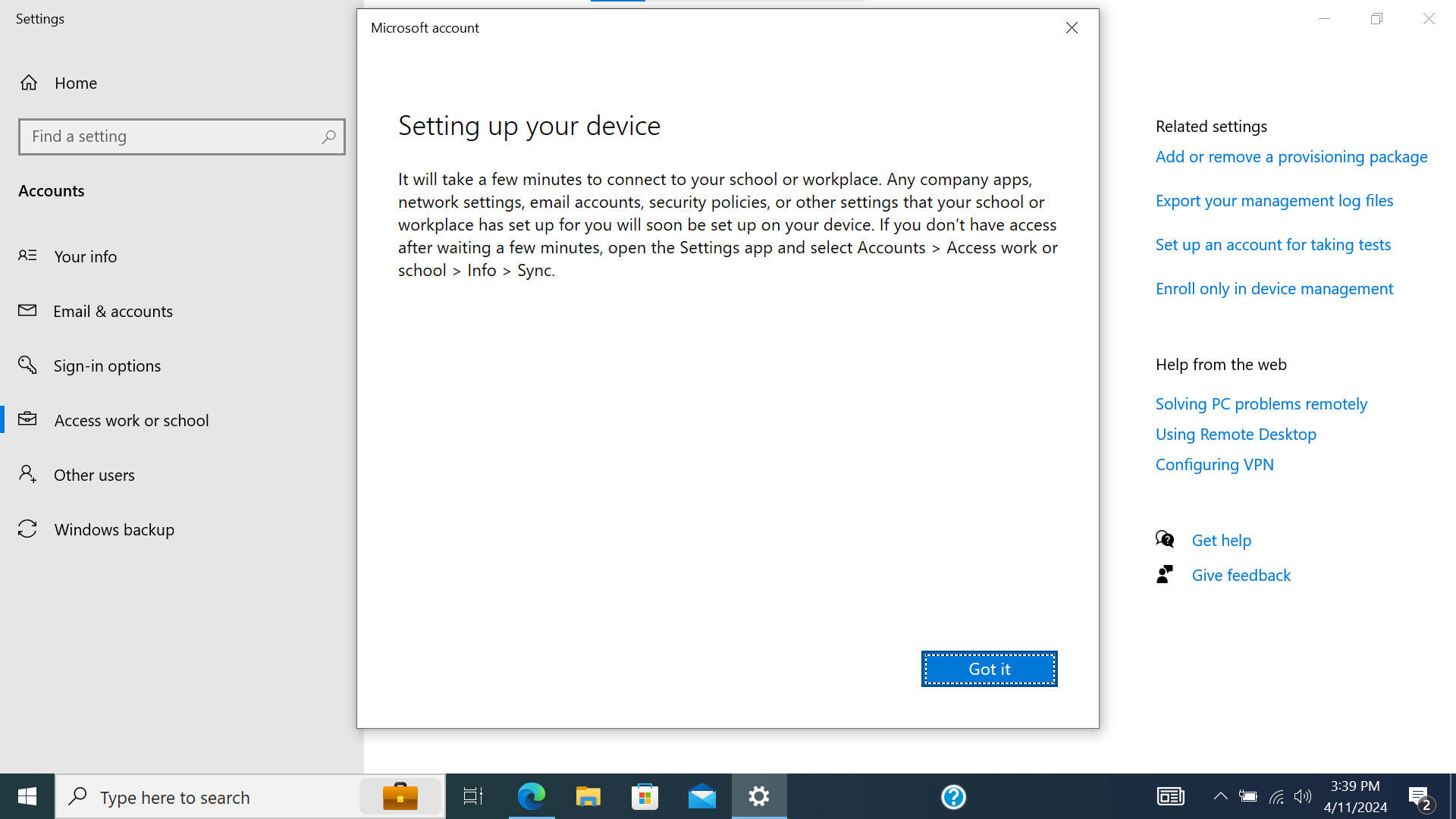
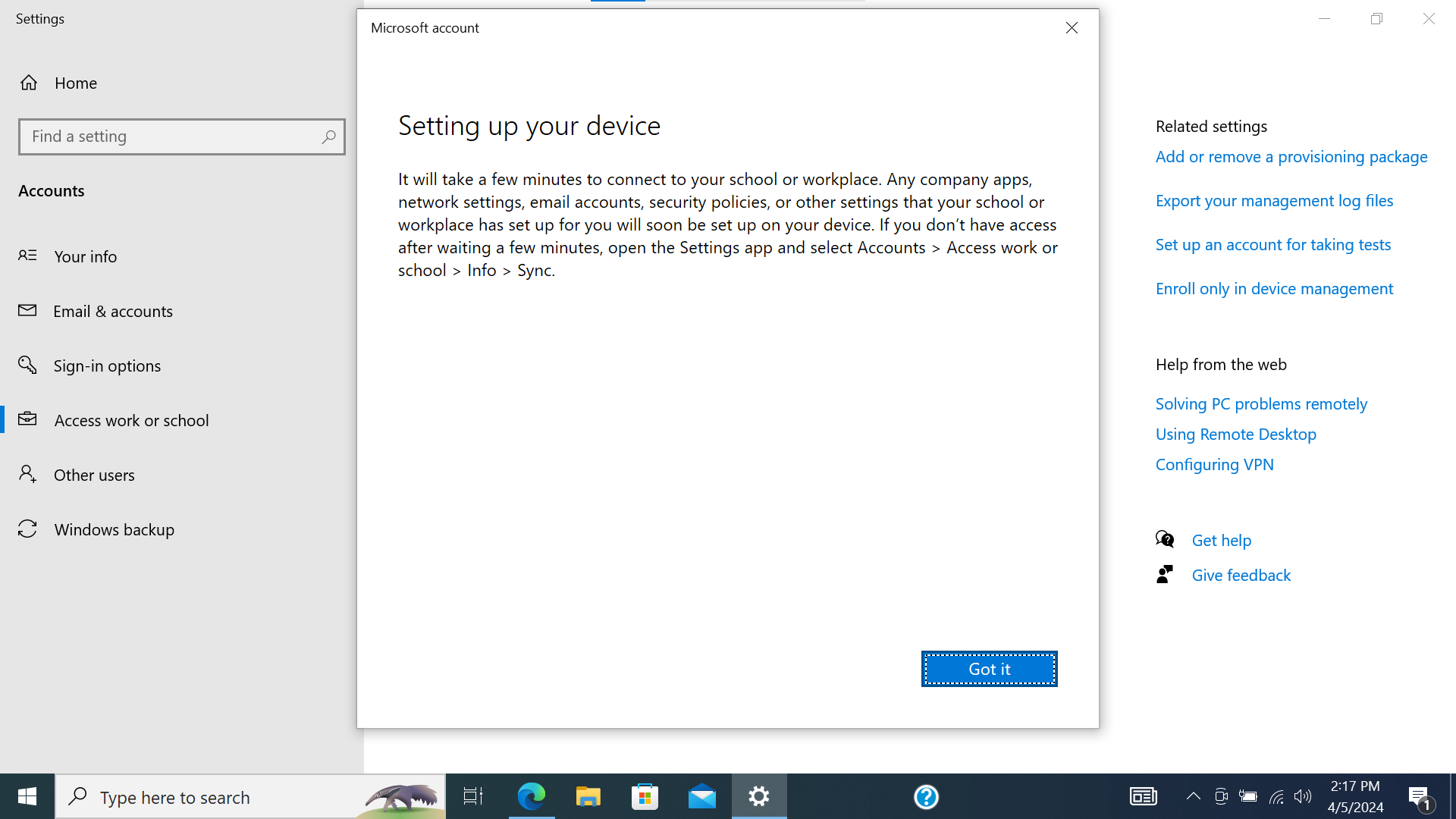
- This will process for a bit and then a confirmation modal should render. Press “Got it”.
Screenshot
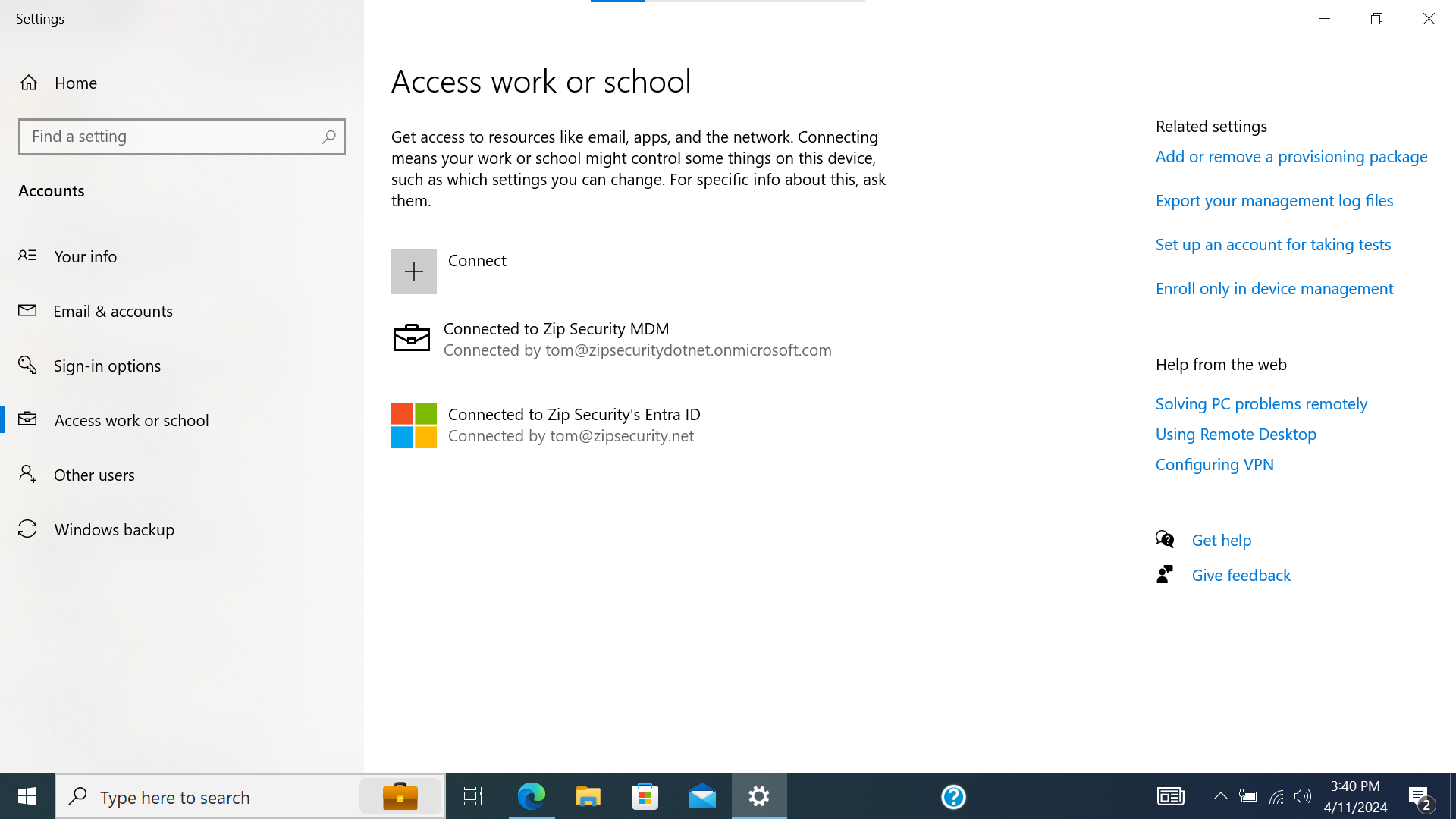
- Confirm that there’s now a second entry within “Access work or school”, and that says “Connected to <organization> MDM” and “Connected by <onmicrosoft.com email address>“.
Screenshot
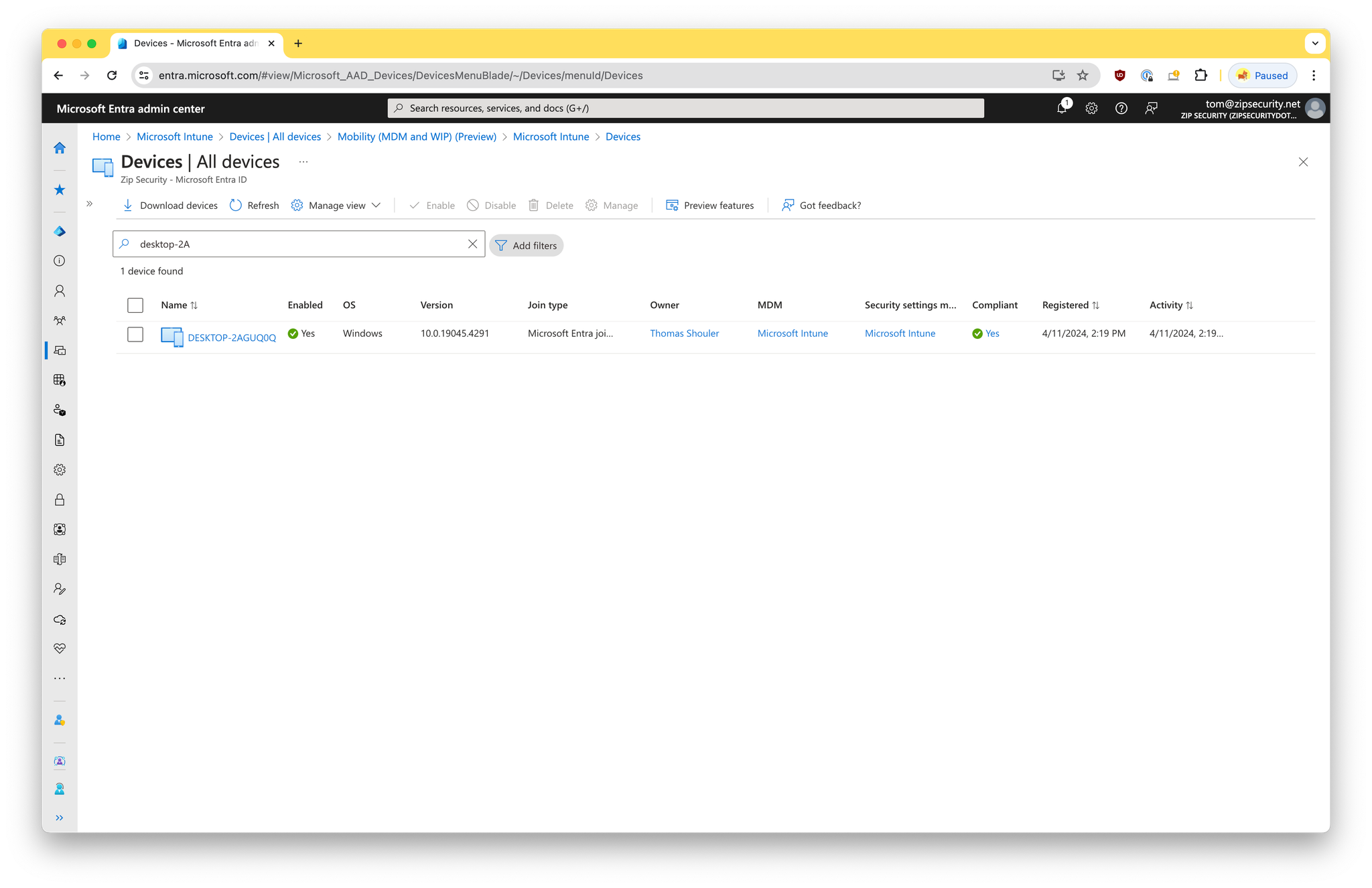
Within Entra, you should now see the record updated with the value for “MDM” equal to “Microsoft Intune”
Screenshot
Incomplete Entra Join - Briefcase Icon
This is a state where there’s either…
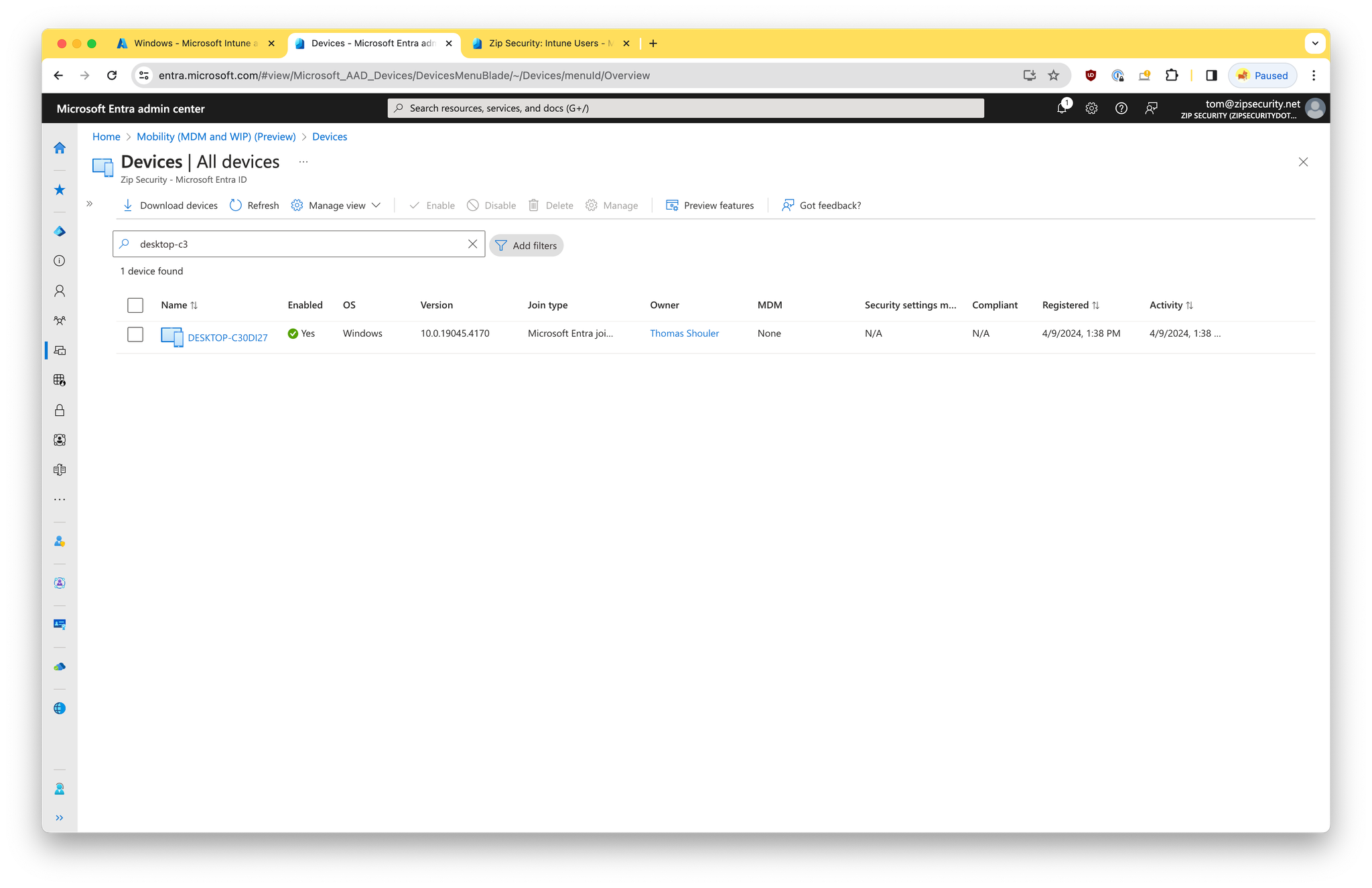
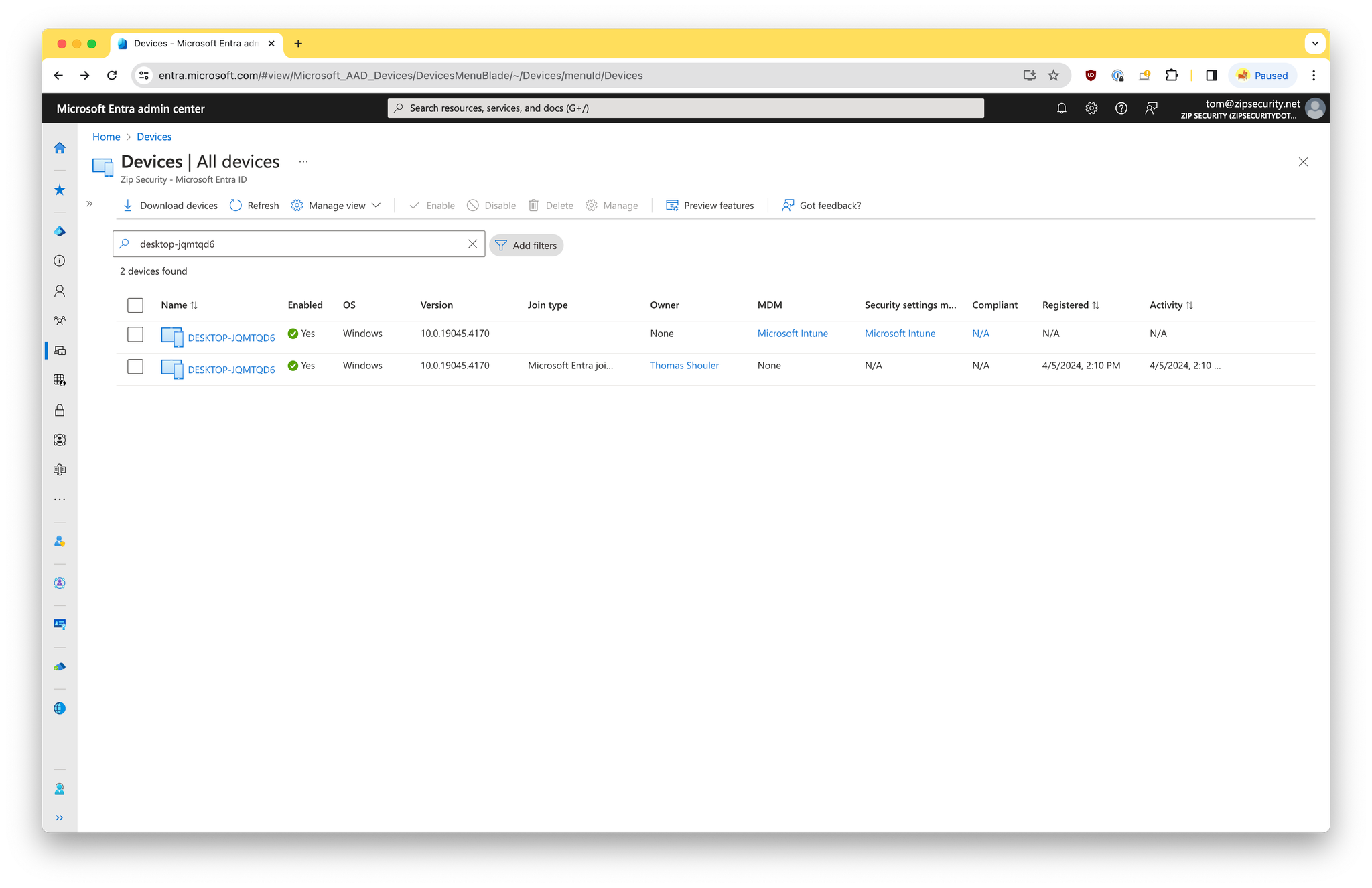
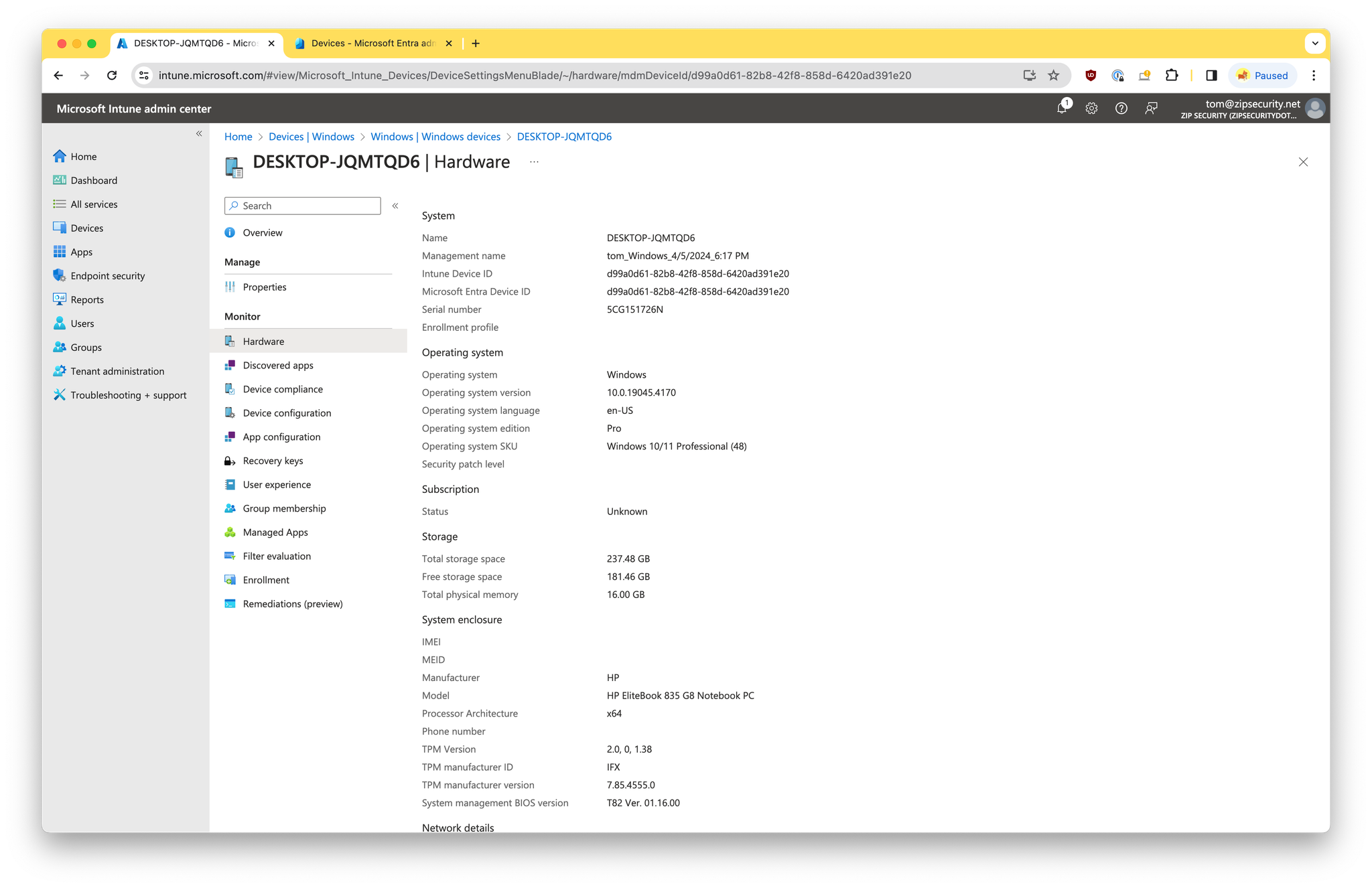
- Two records for the device within Entra, and a single record for the device within Intune. If you navigate to the “Hardware” section of the the device within Intune, you should see matching values for
Intune Device IDandMicrosoft Entra Device ID.
Screenshots
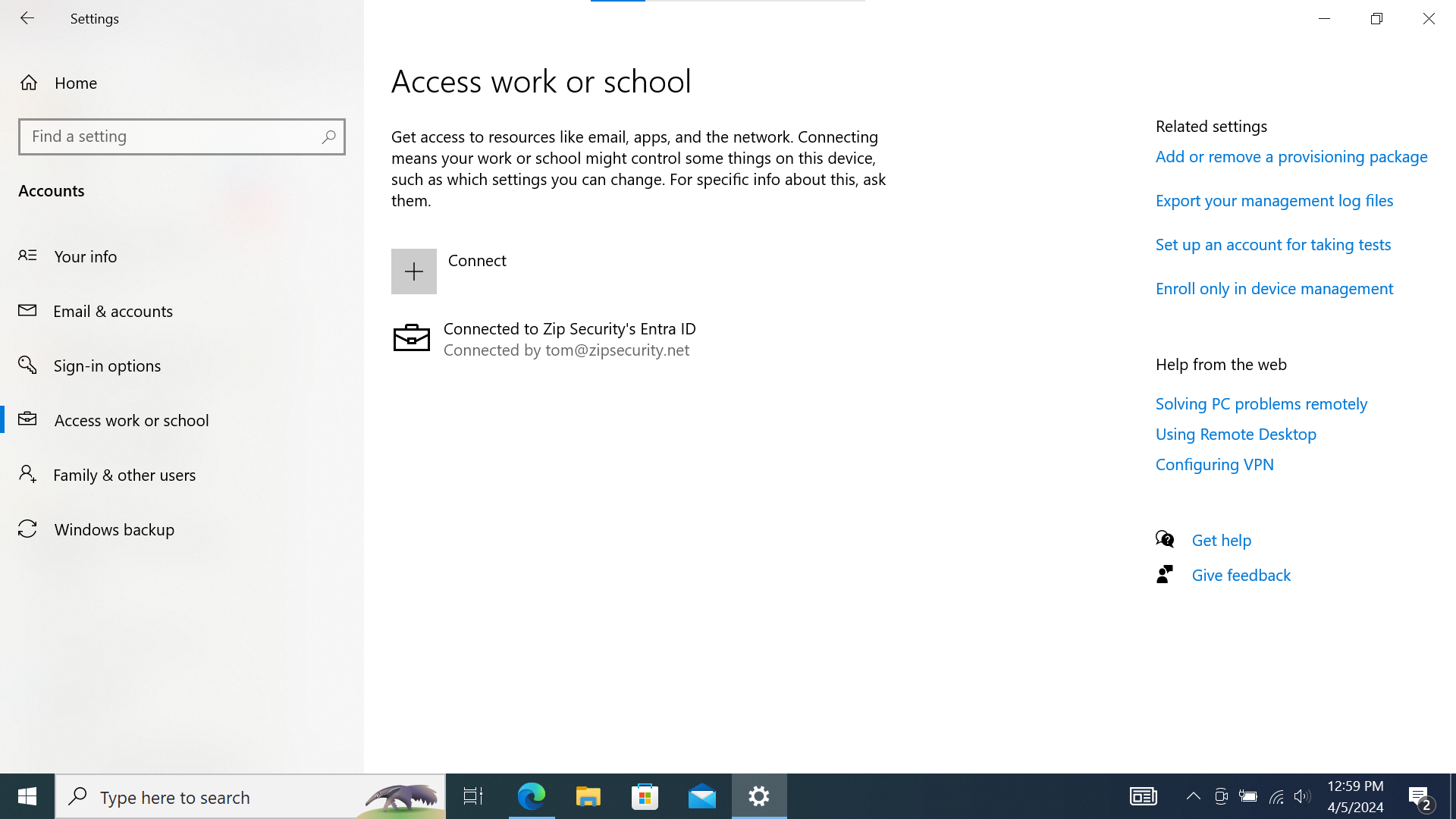
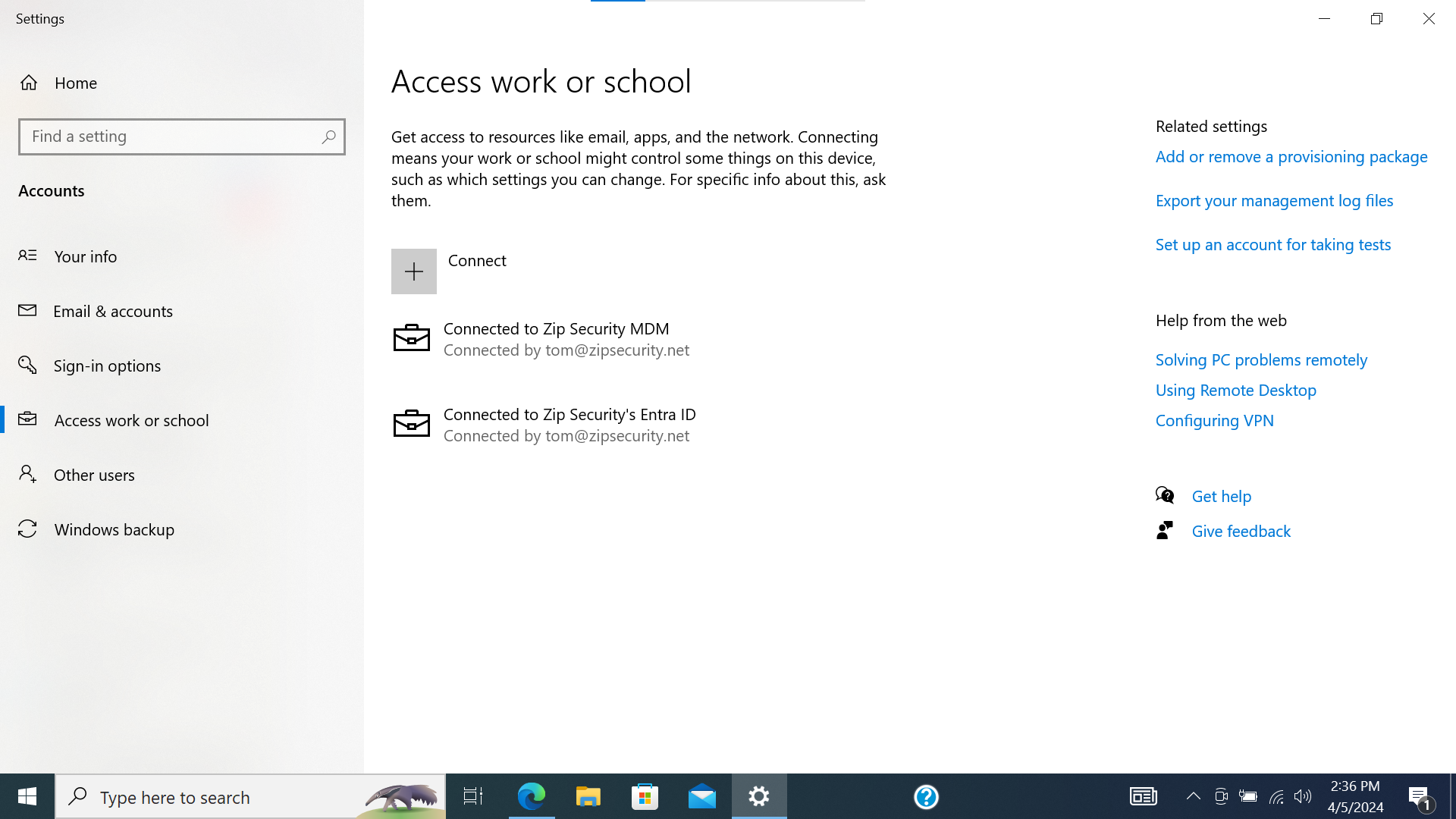
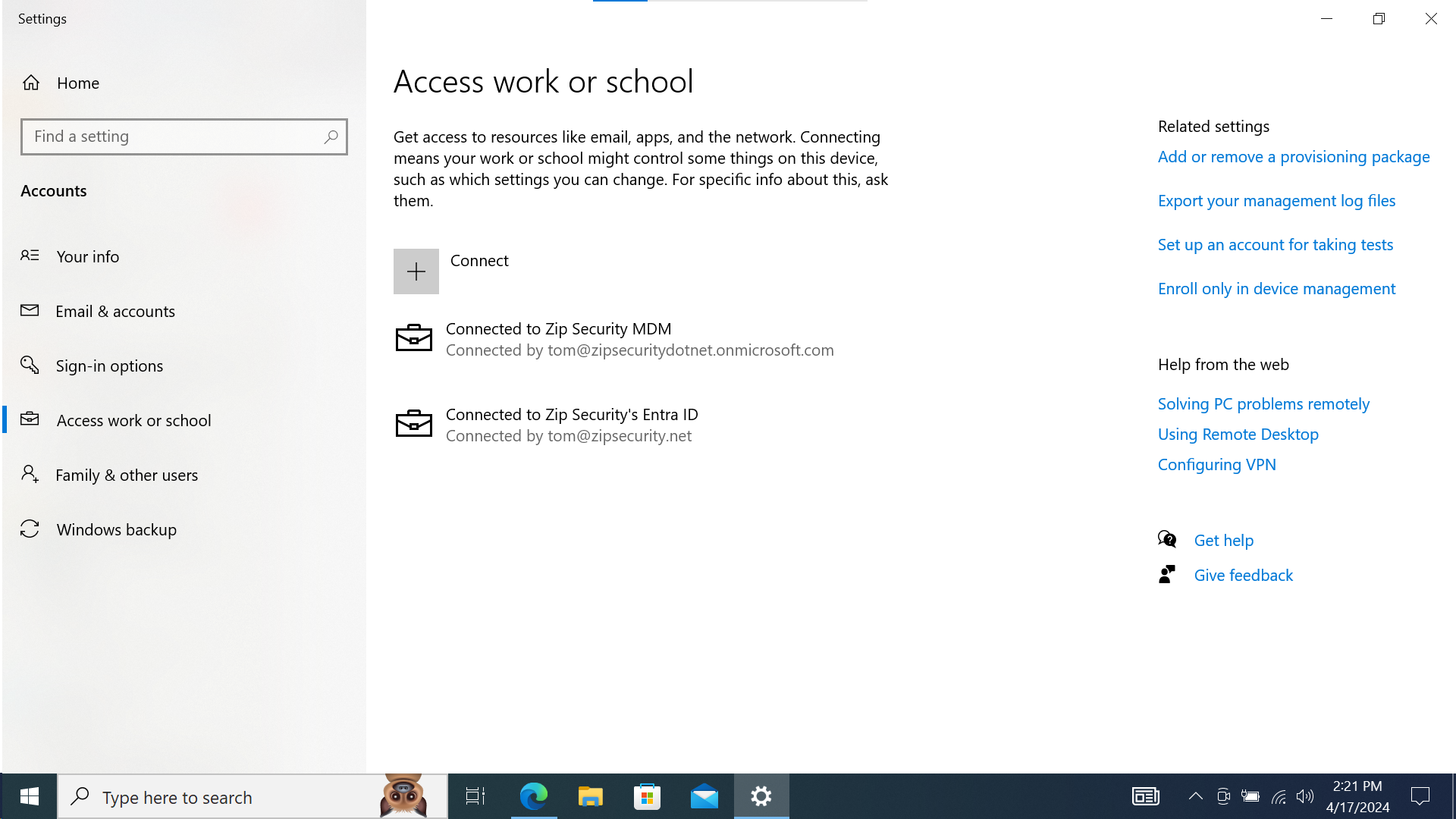
And then if we look at “Access Work or School”, then we should see either…
- A single item, with a briefcase icon and the primary text: “Connected to <organization> Entra ID”, and secondary text: “Connected by <federated email address>”.
Screenshot
- Two items with briefcase icons. The one mentioned just above, as well as a second with “Connected to <organization> MDM” and “Connected by <email address>“.
Screenshot
How to get into this state
Setup device for personal use
Navigate through the windows setup wizard as follows…
- Navigate through region, keyboard layout, wifi network selection, and EULA
- “How would you like to set up?” → “Set up for personal use”
- Select “Offline account”
- Select “Limited experience”
- Create password
- Create security questions
- Skip or accept remaining prompts
Entra join the newly setup BYOD device
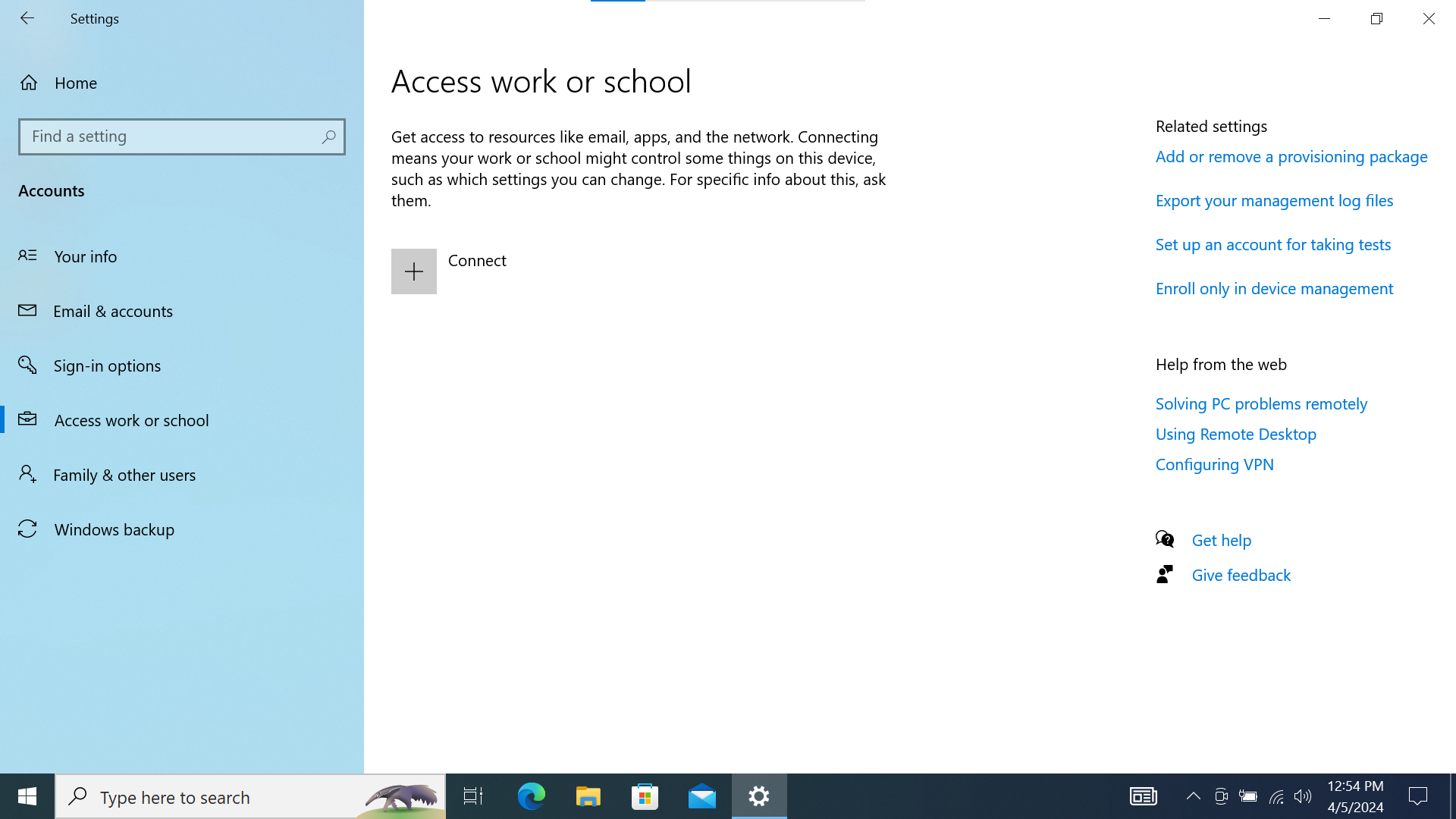
- Navigate to access work or school. Press “Connect”
Screenshot
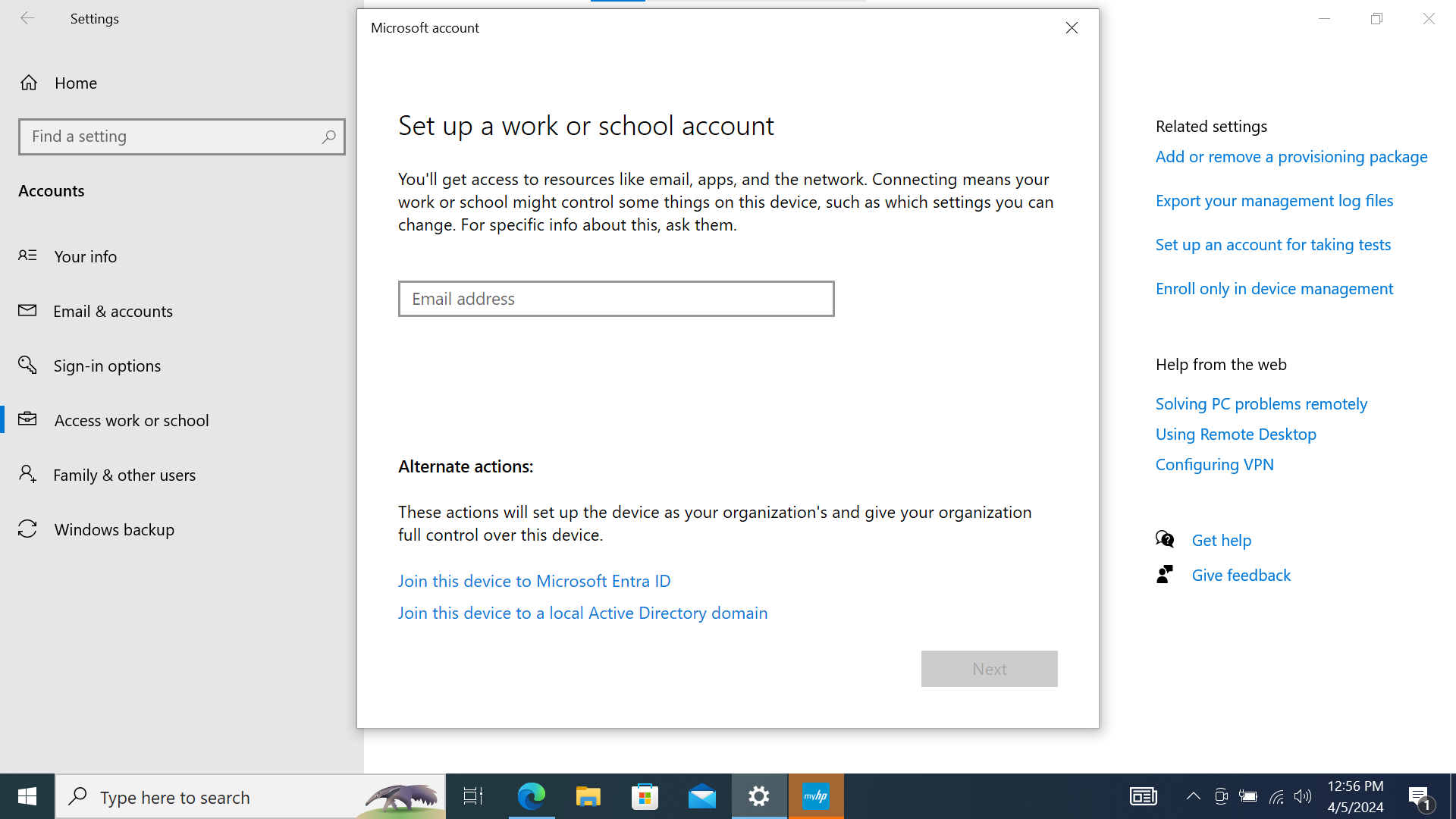
- Select “Join this device to Microsoft Entra ID”
Screenshot
- Authenticate with your federated Google Workspace account credentials
Screenshot
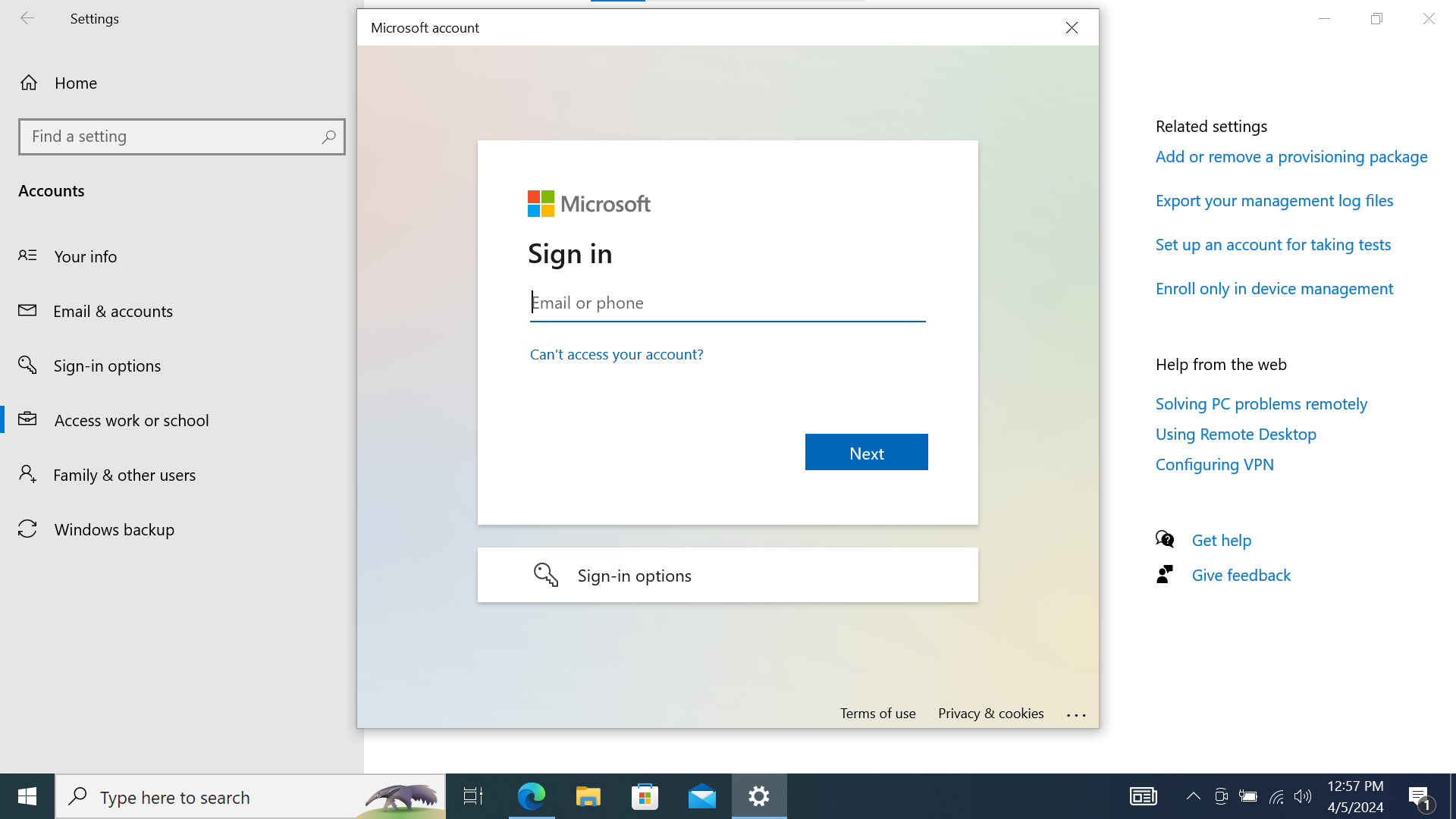
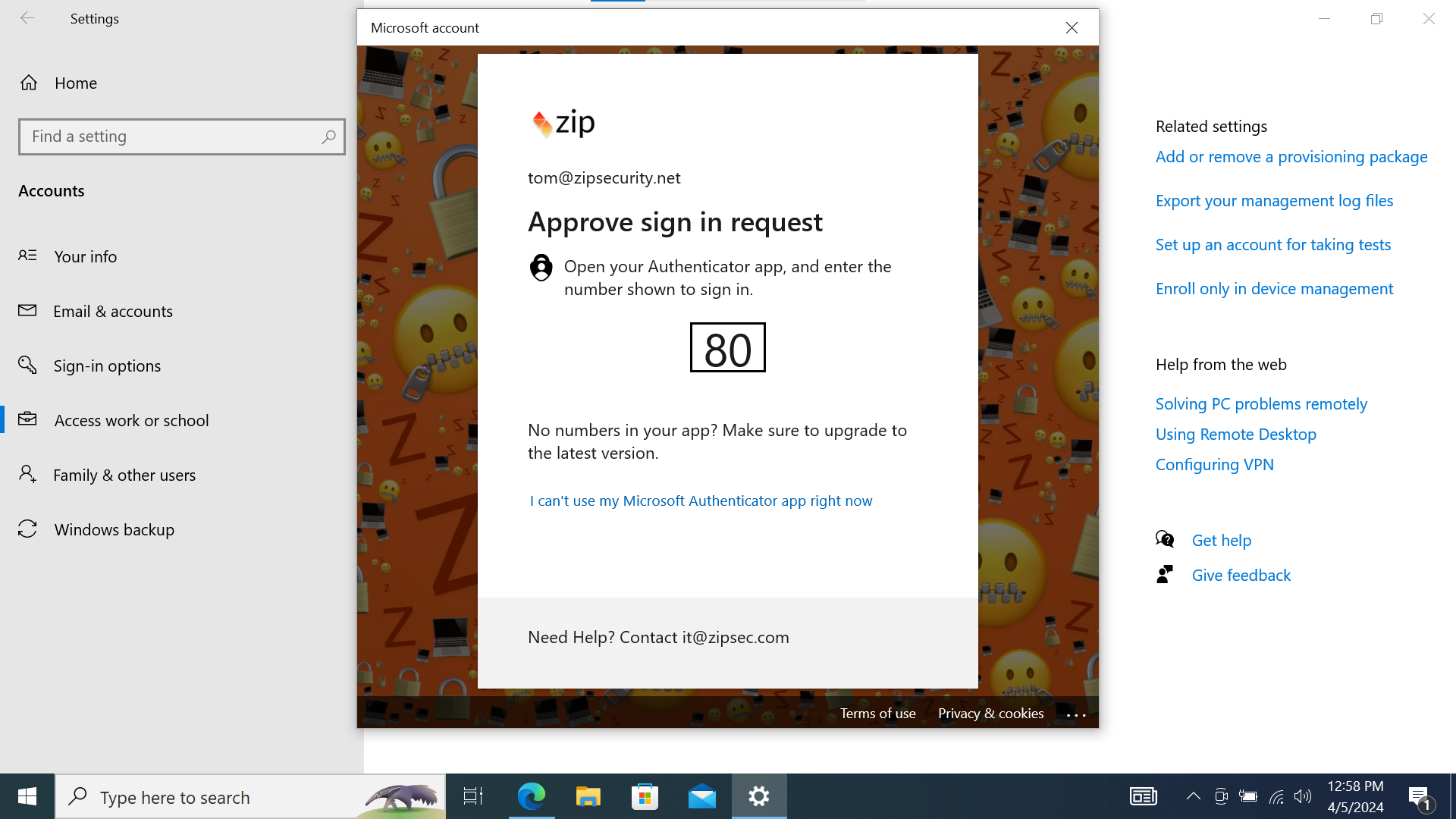
- Confirm that it’s your organization, and then wait for setup to complete.
Screenshot
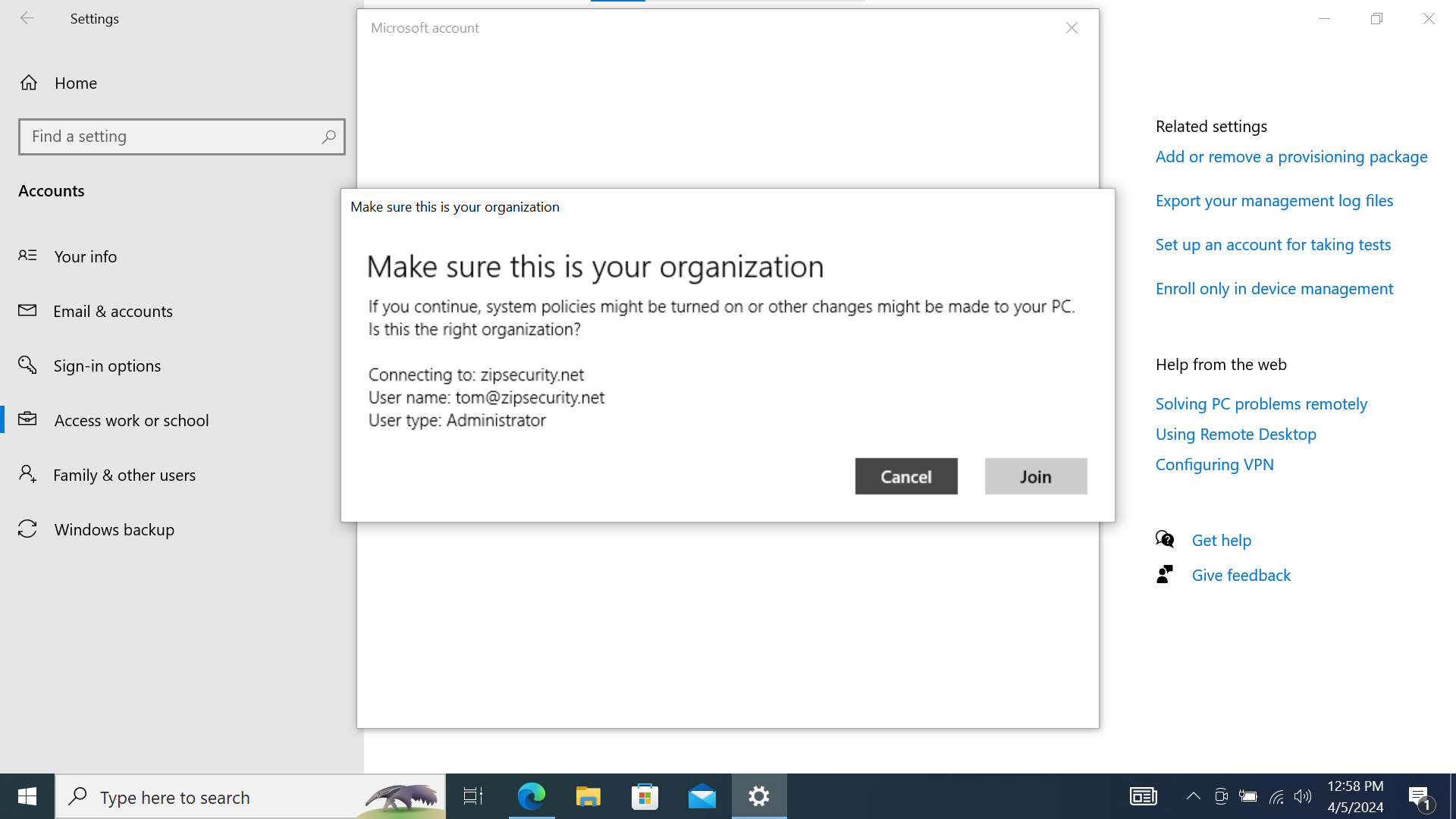
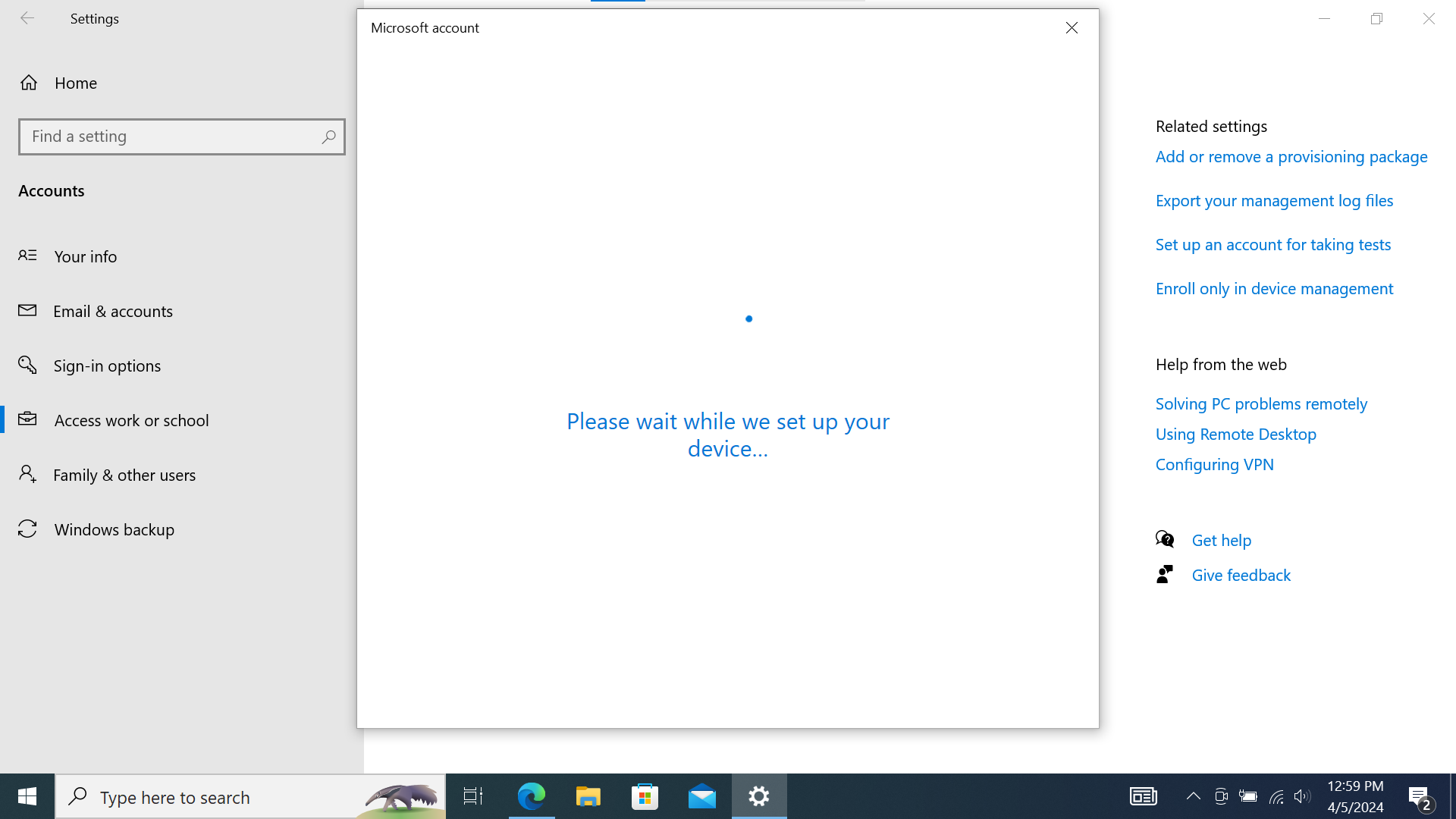
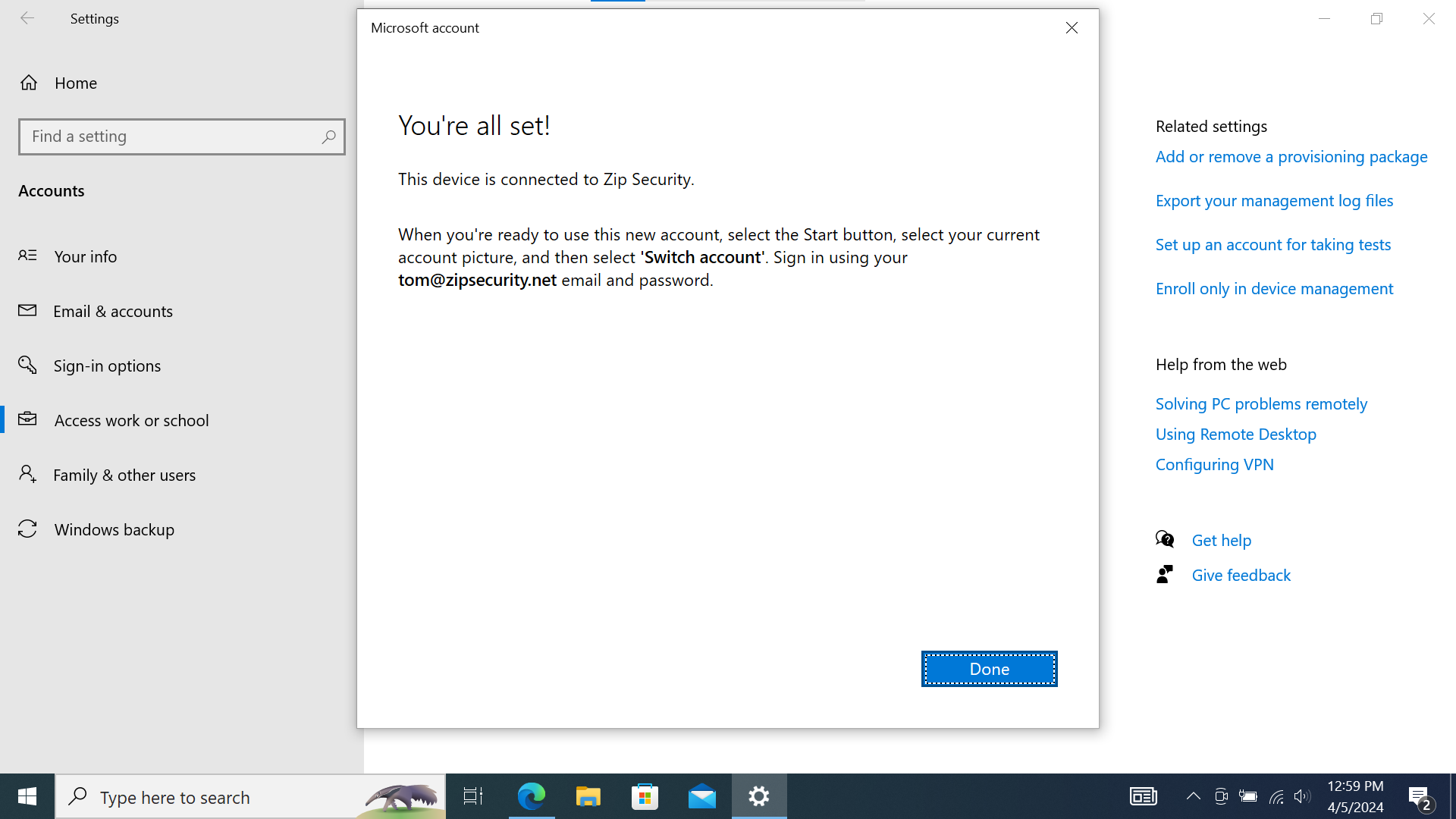
- You should now see an entry with “Connected to … Entra ID” for your federated account
Screenshot
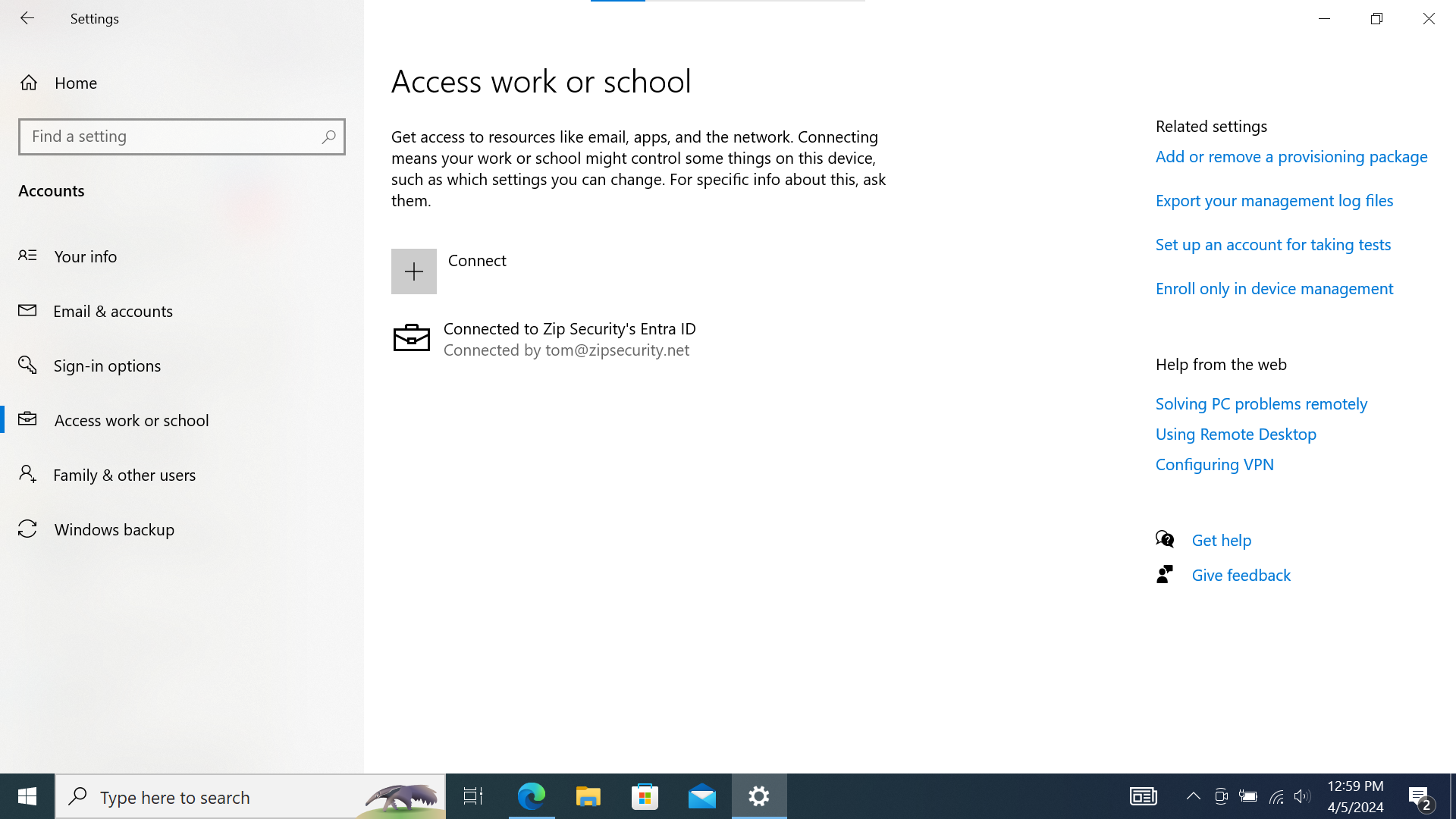
Register the device
We only need to do this if there’s a second record with “Join type” = “Microsoft Entra registered” within the Entra devices list. Otherwise skip!
There are two different ways to get into this state. We can try to register the device with the Microsoft account, but Microsoft fails to associate it since we’ve already Entra joined the device with the federated account. We can also get into this registered without an account state if we “Enroll only in device management”.
(a) Register device via Microsoft Account
- Navigate to access work or school. Select “Connect”
Screenshot
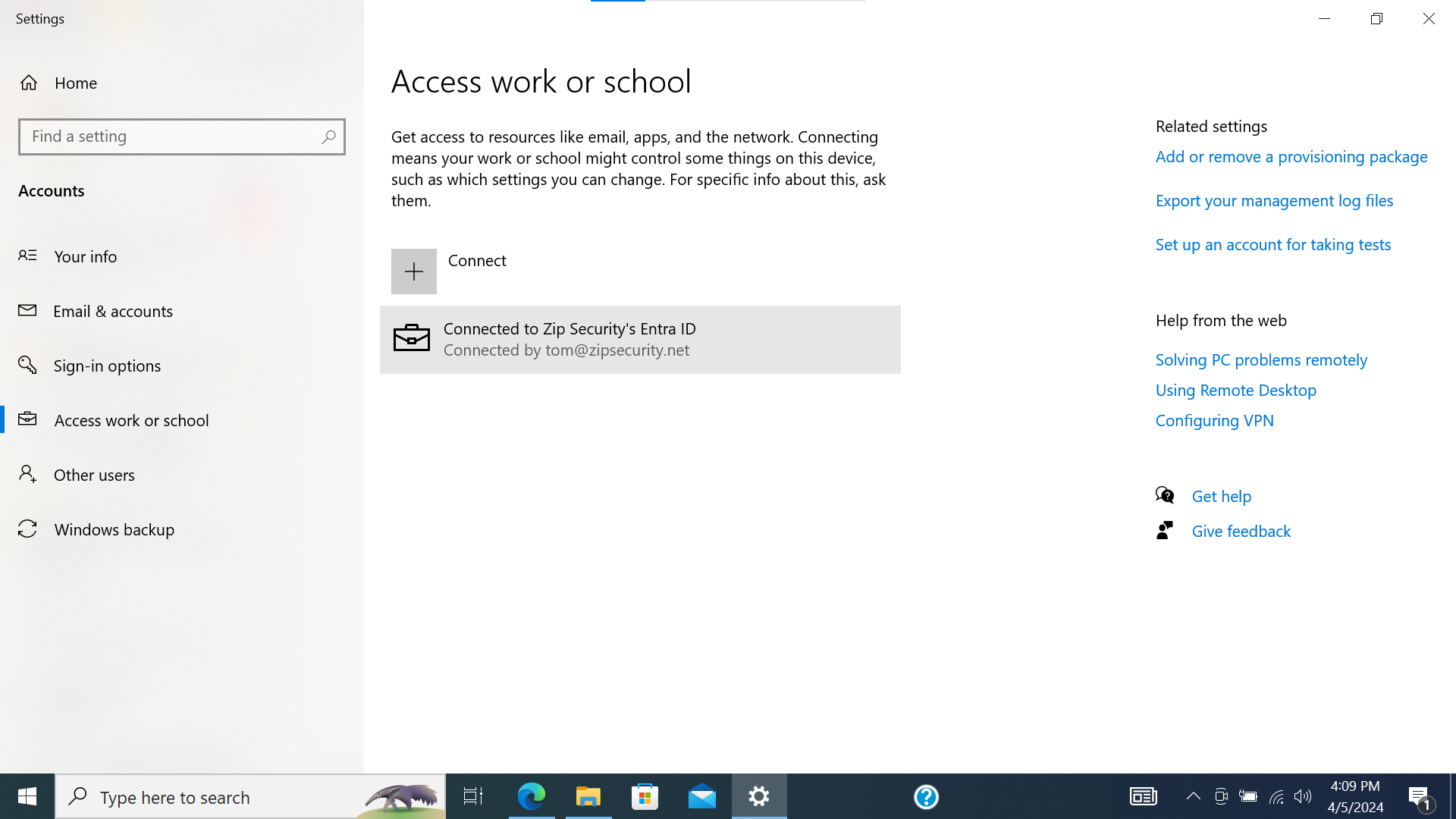
- Enter your Microsoft account credentials to auth and set up the account
Screenshot
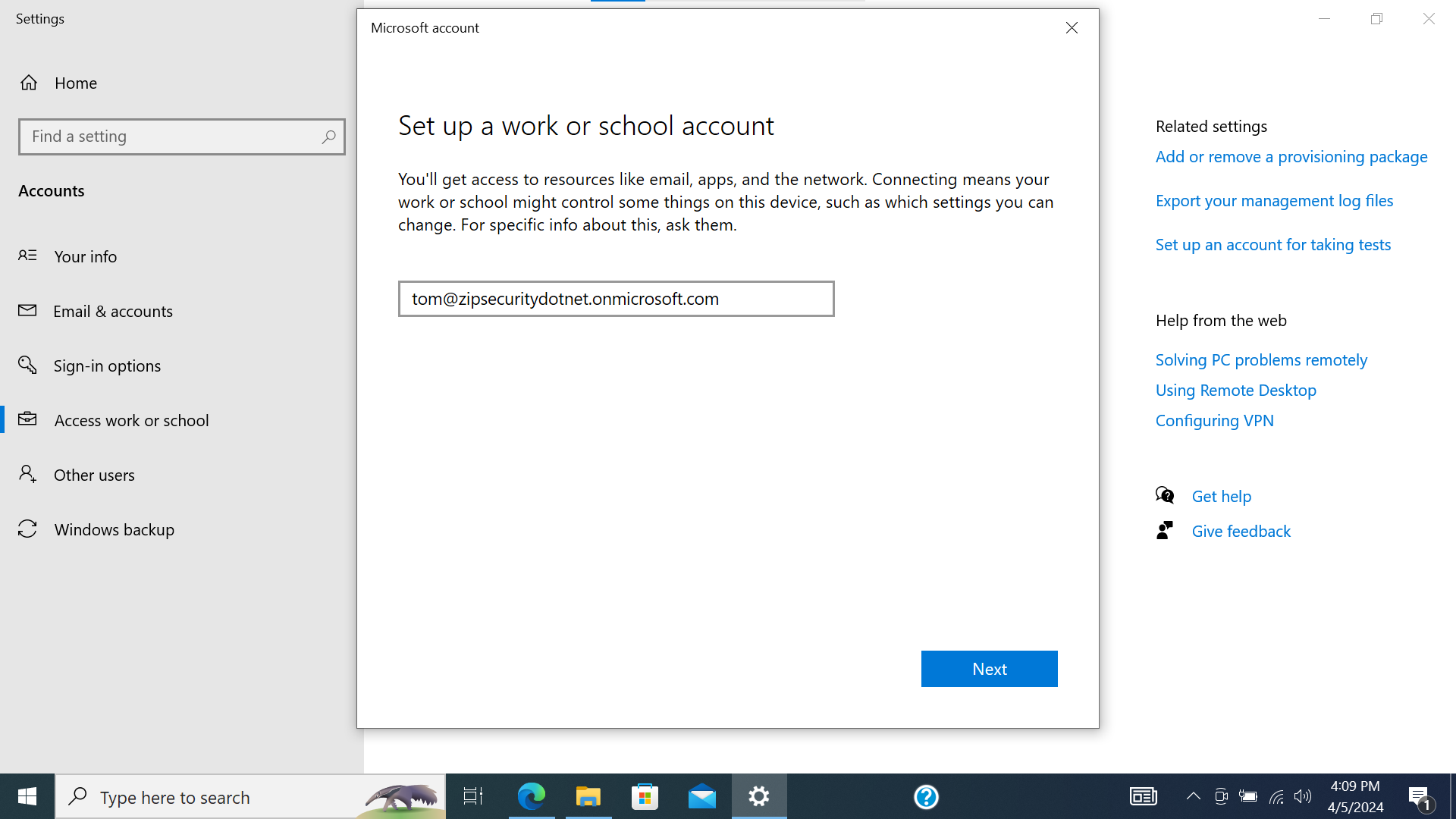
(b) Register device via MDM-only enrollment
- From the existing view, click “Enroll only in device management”
Screenshot
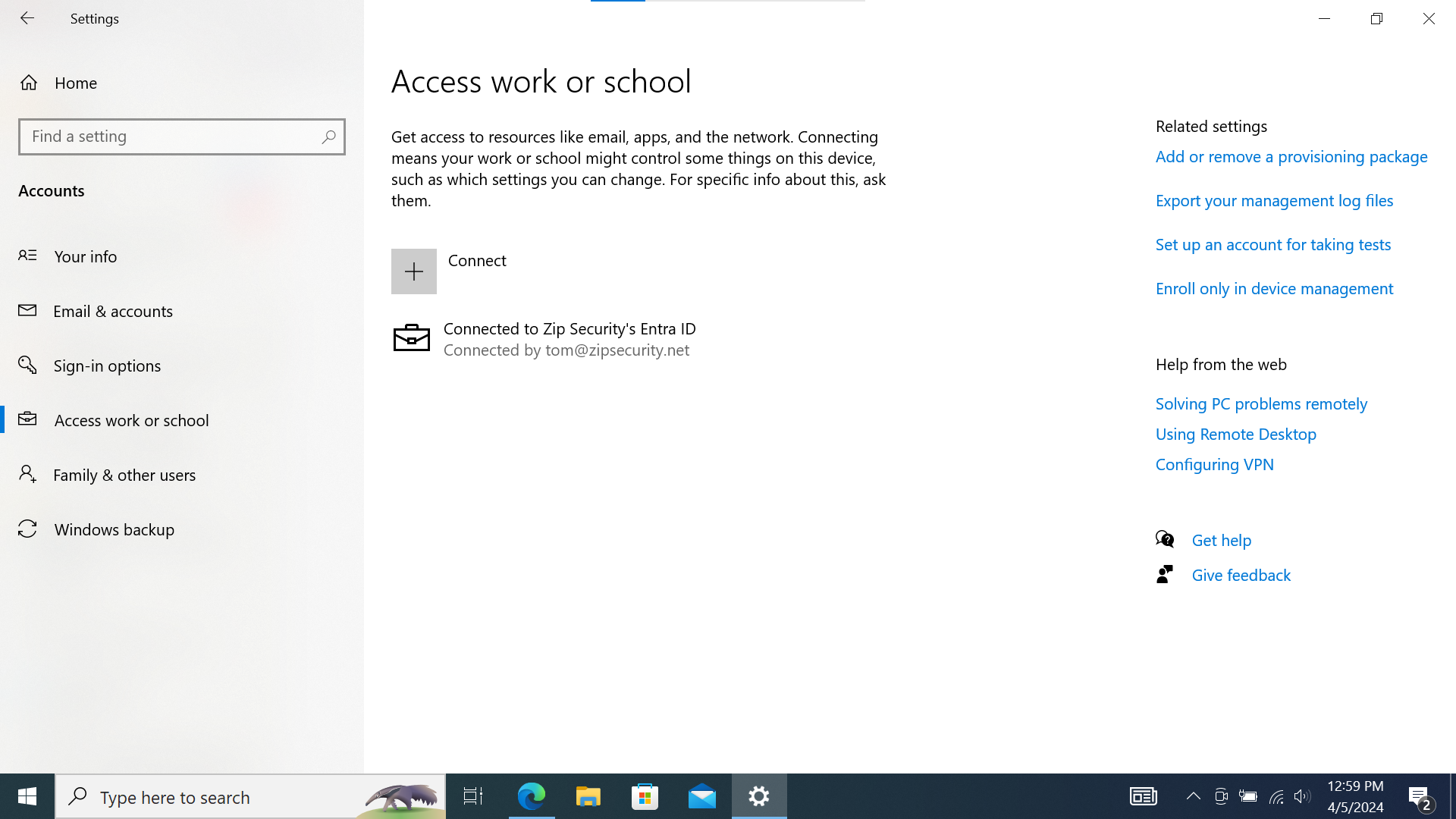
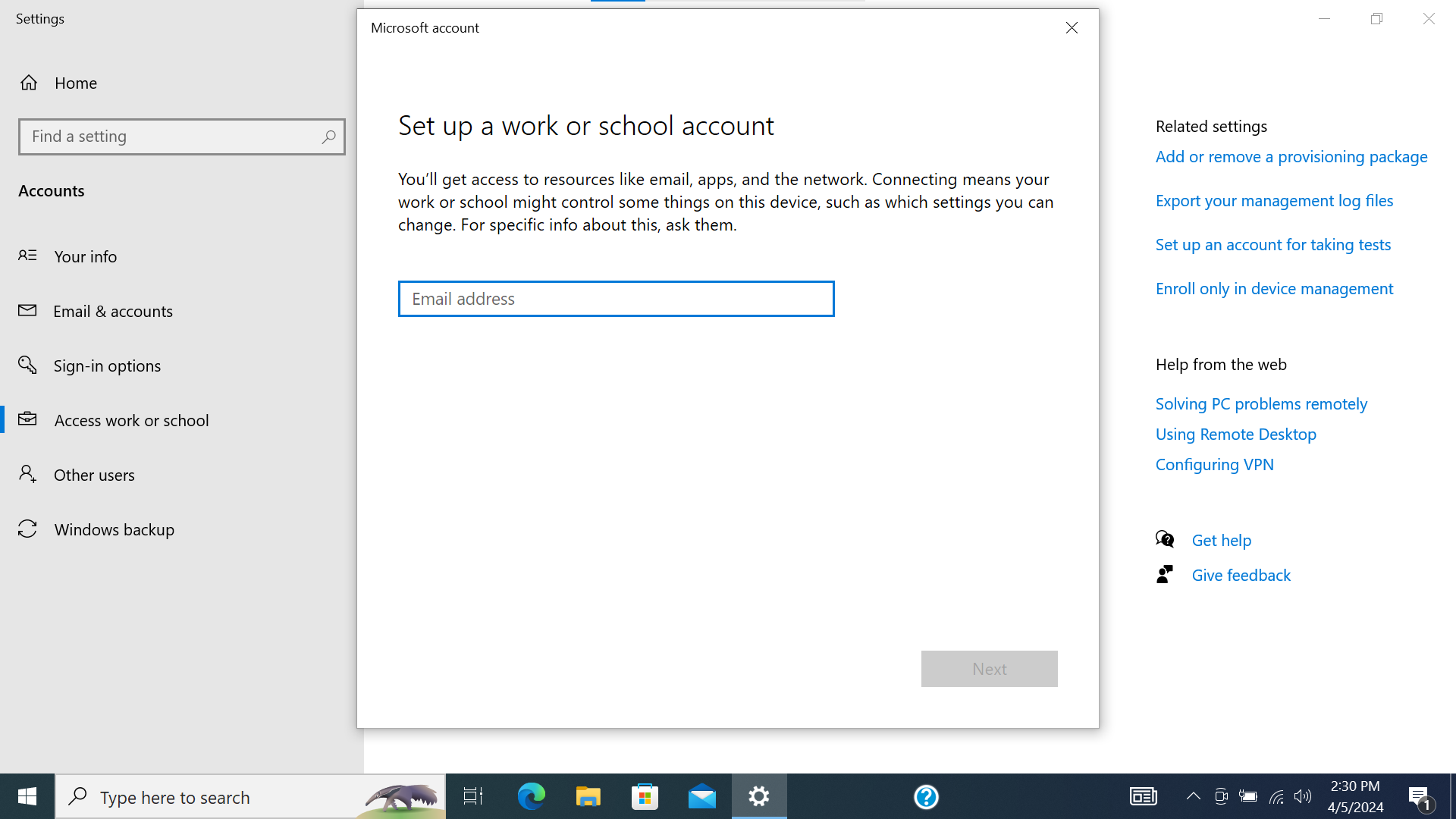
- Enter the email address for any account (federated Google Workspace or Microsoft). It doesn’t matter within this workflow because we’re enrolling “only in device management”
Screenshot
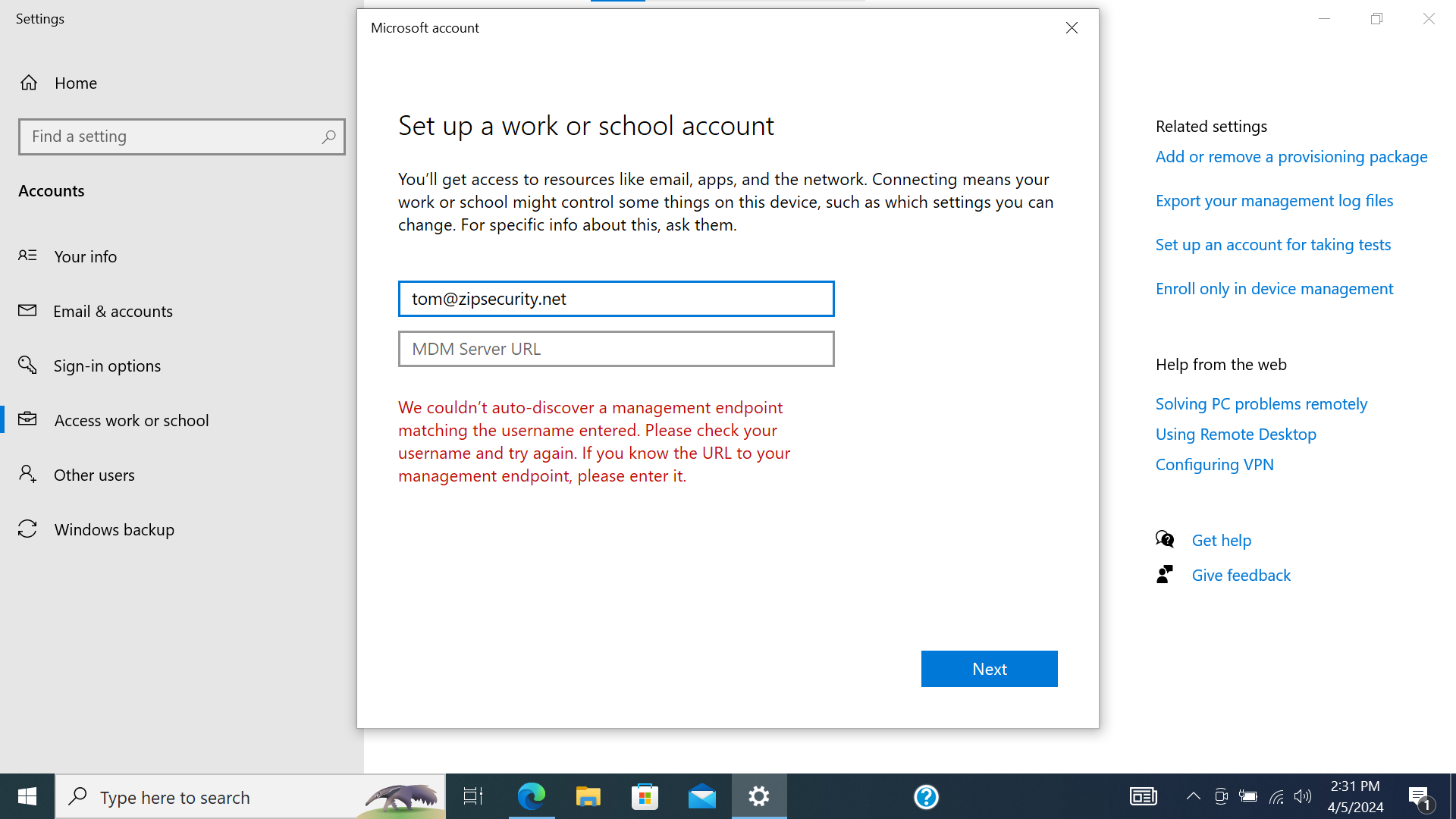
- If you’re prompted to enter the MDM server URL, enter
https://enrollment.manage.microsoft.com/enrollmentserver/discovery.svc
Screenshot
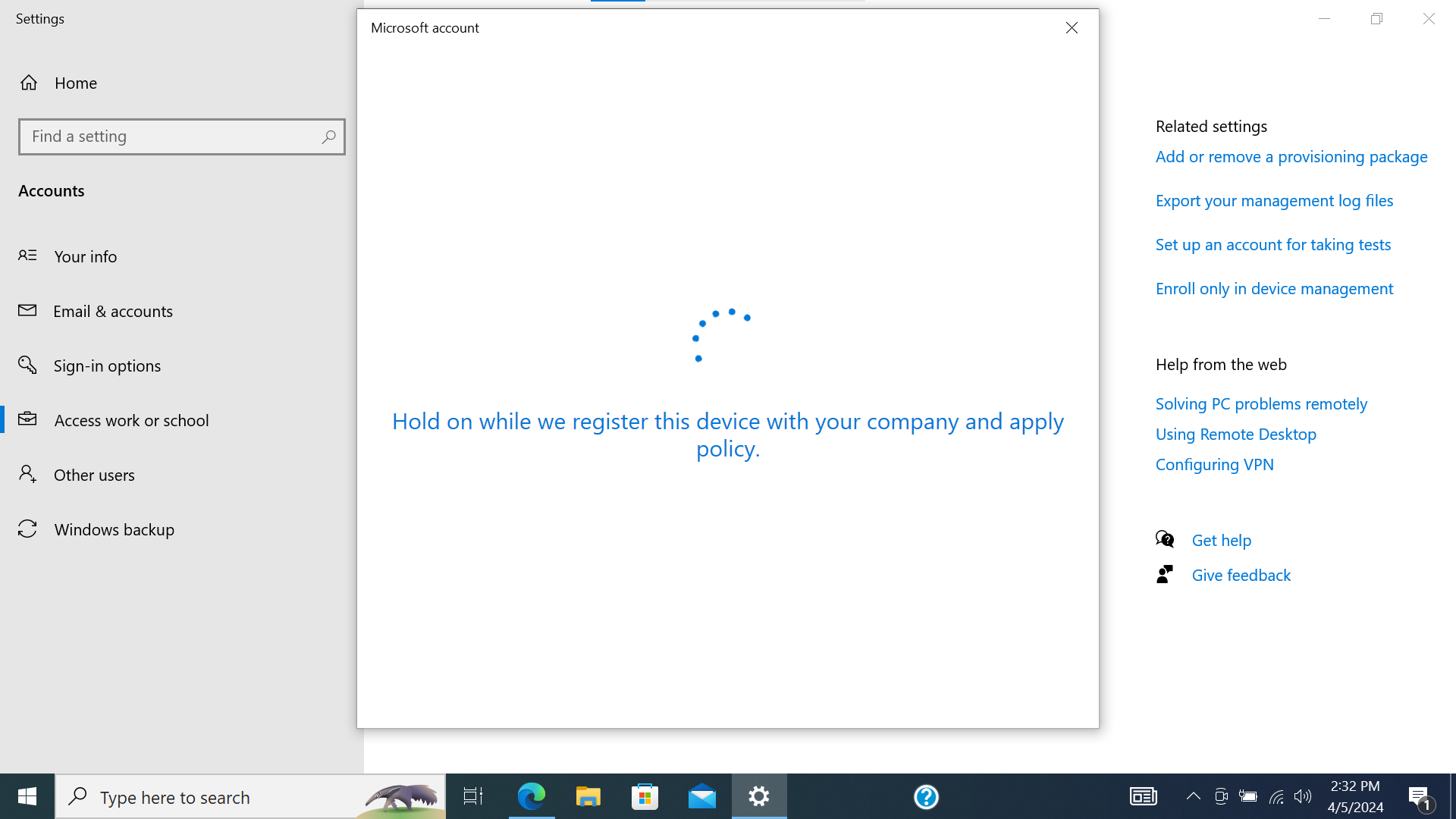
- Press “Next”, and the device should get enrolled in MDM (without an associated account)
Screenshot
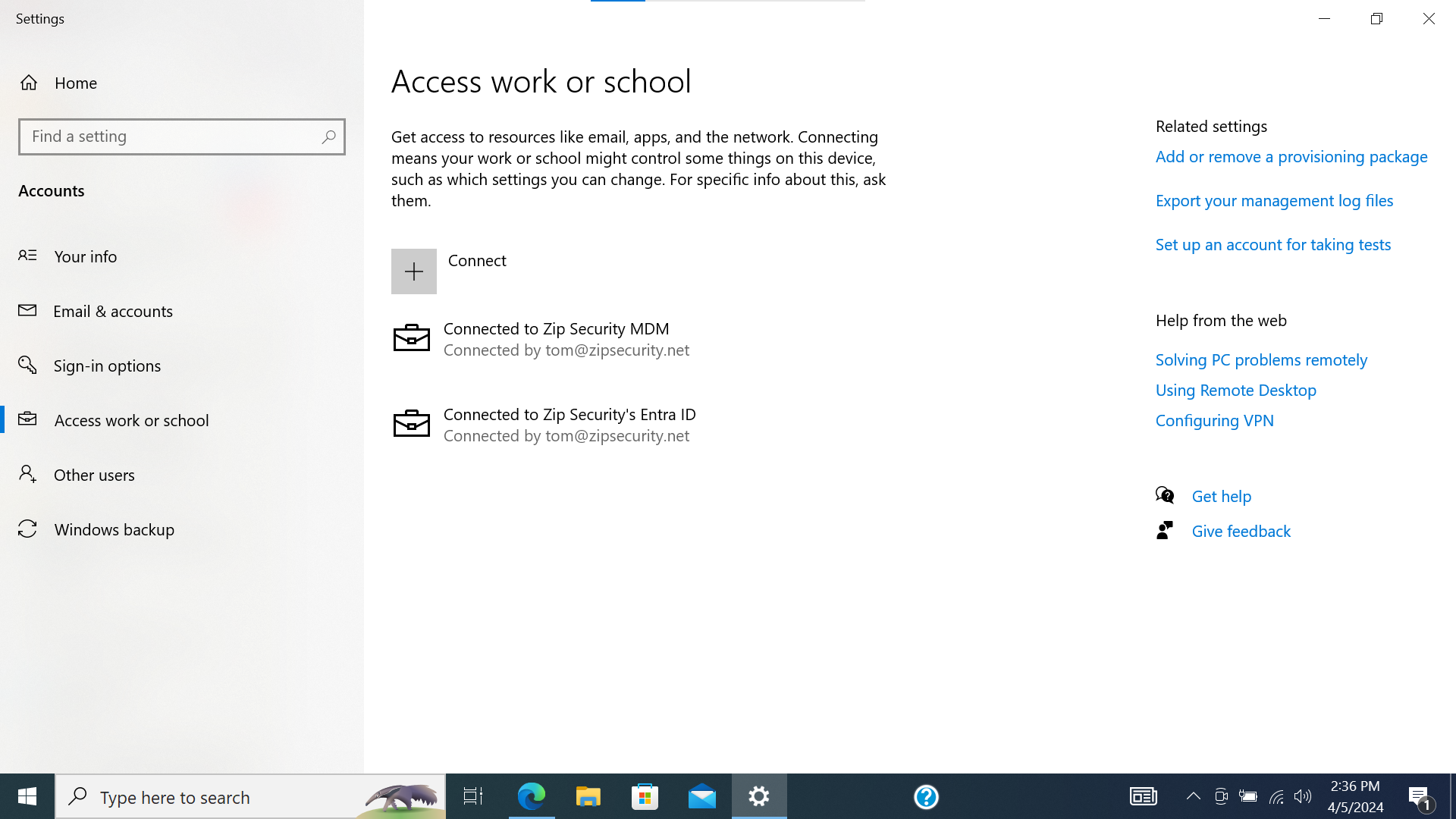
How to rectify
This resolution requires disconnecting and reconnecting accounts. For any account on a Windows device, access to
C:\Users\<my-account> is restricted to that specific account. Users are encouraged to store files in the organization’s preferred hosted drive solution (e.g., Google Drive, OneDrive) to avoid loss of access. If files are left in these locations, they can be recovered by signing back in with the relevant account.From Entra portal: Confirm Microsoft account is within MDM user scope
Confirm that licensed Microsoft user accounts that we intend to Entra join are included in MDM user scope
- Navigate to Entra Mobility (MDM and WIP)
- Select “Microsoft Intune” in the list to navigate to that application
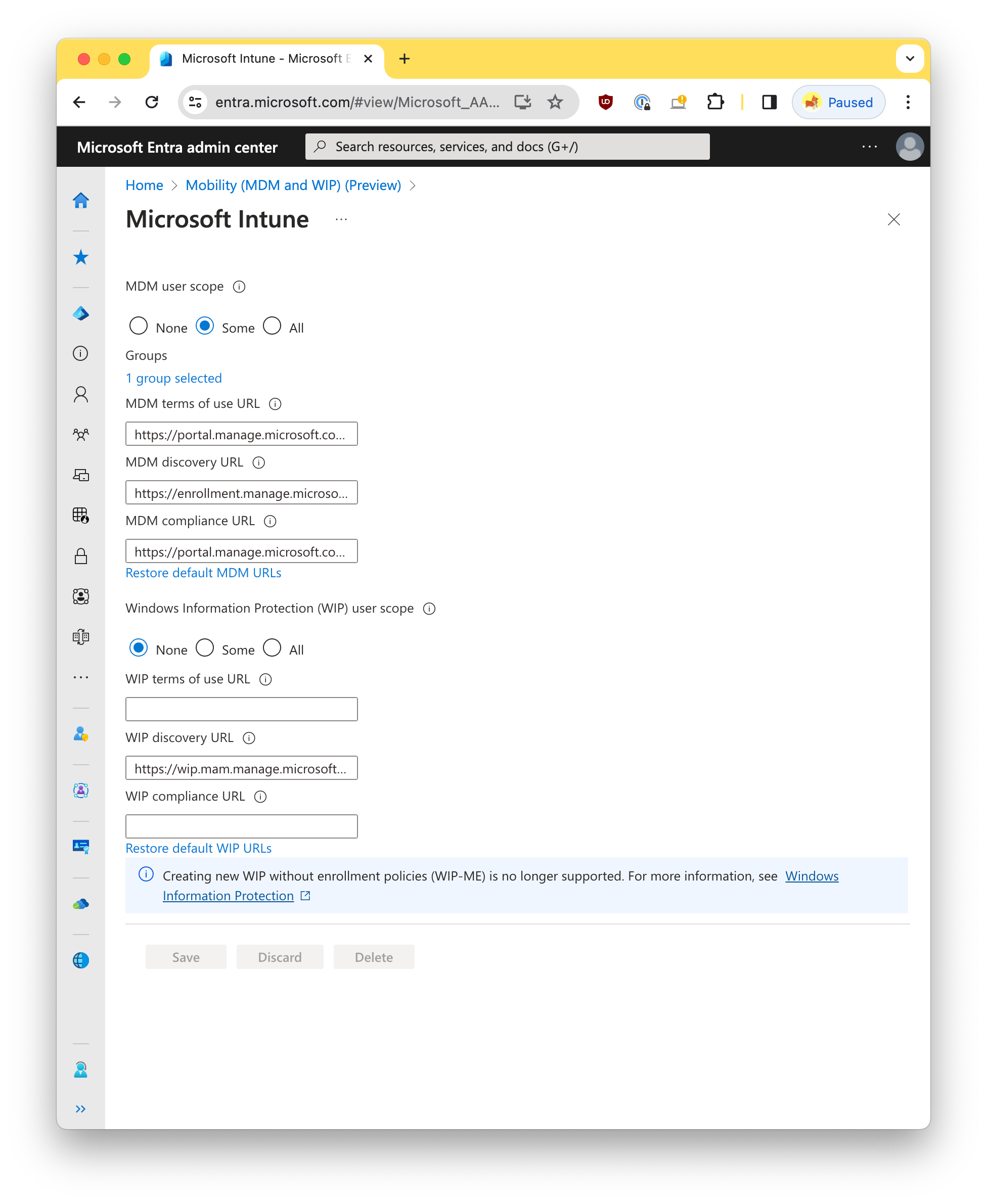
- Toggle “MDM user scope” to
Someand select the group of users that are licensed for Intune
Screenshot
- Press “Save” if changes were made
From device: Disconnect the registered account
If the device hasn’t been registered (i.e., there is no “Access work or school” item with “Connected to <organization> MDM”), skip this step
- On the "Access work or school" screen, click the dropdown arrow next to the Microsoft "Work or school" account item with “Connected to <organization> MDM”, then click "Disconnect".
Screenshot
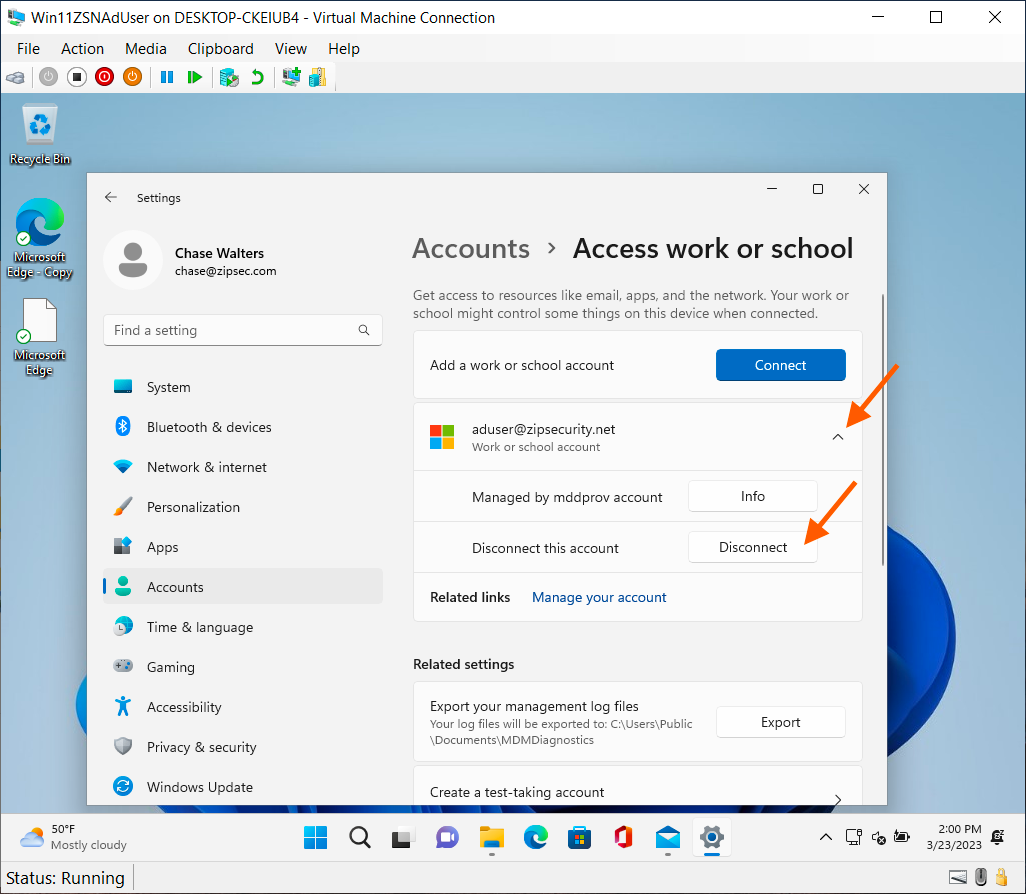
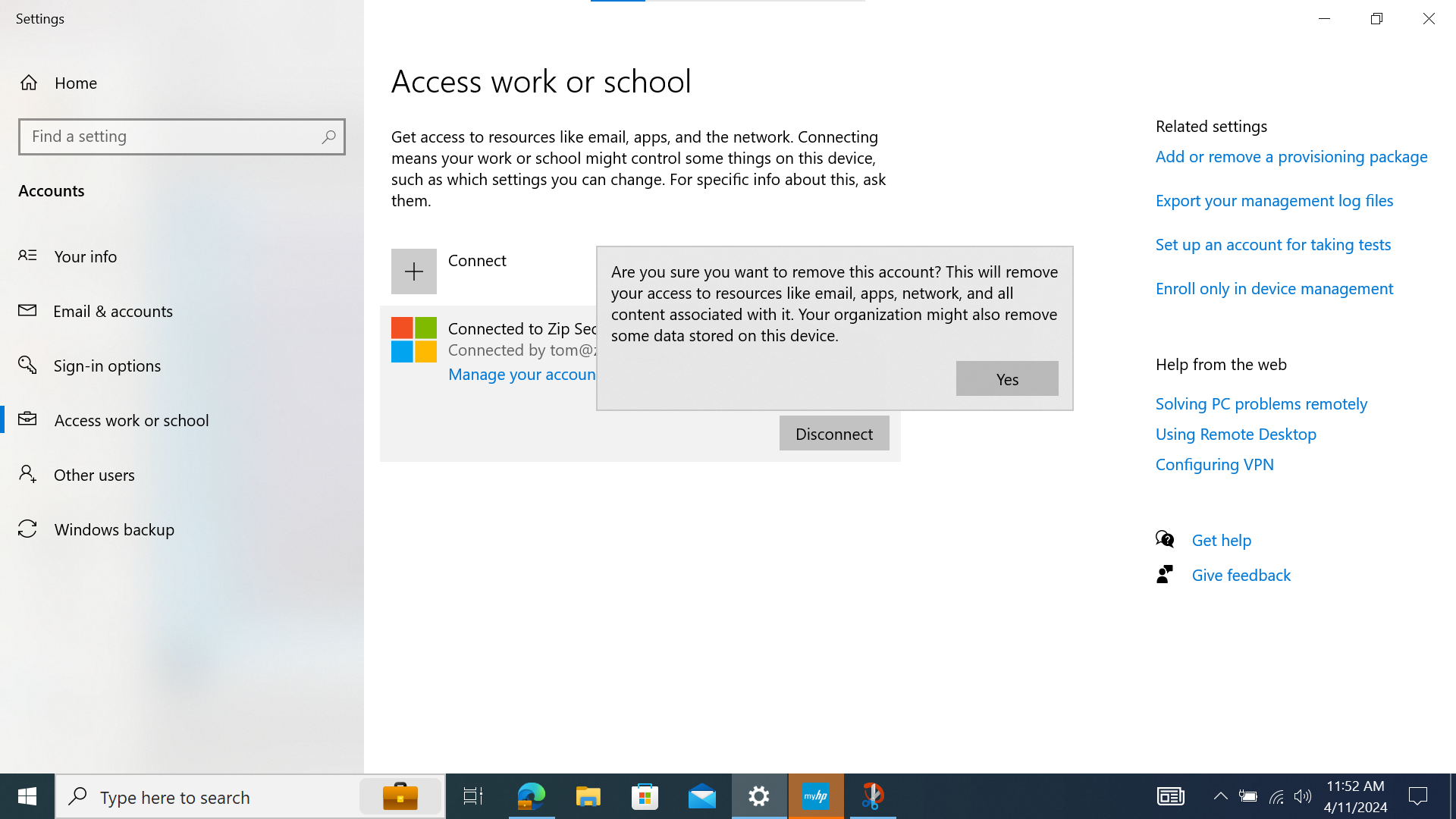
- You'll be prompted to confirm the disconnection, and warned about losing SSO access to accounts and company data once you do. Click "Yes" to confirm the disconnection.
- After a few moments, the screen should refresh and this "Work or school" account item should be gone.
From device: Disconnect the joined federated Google account
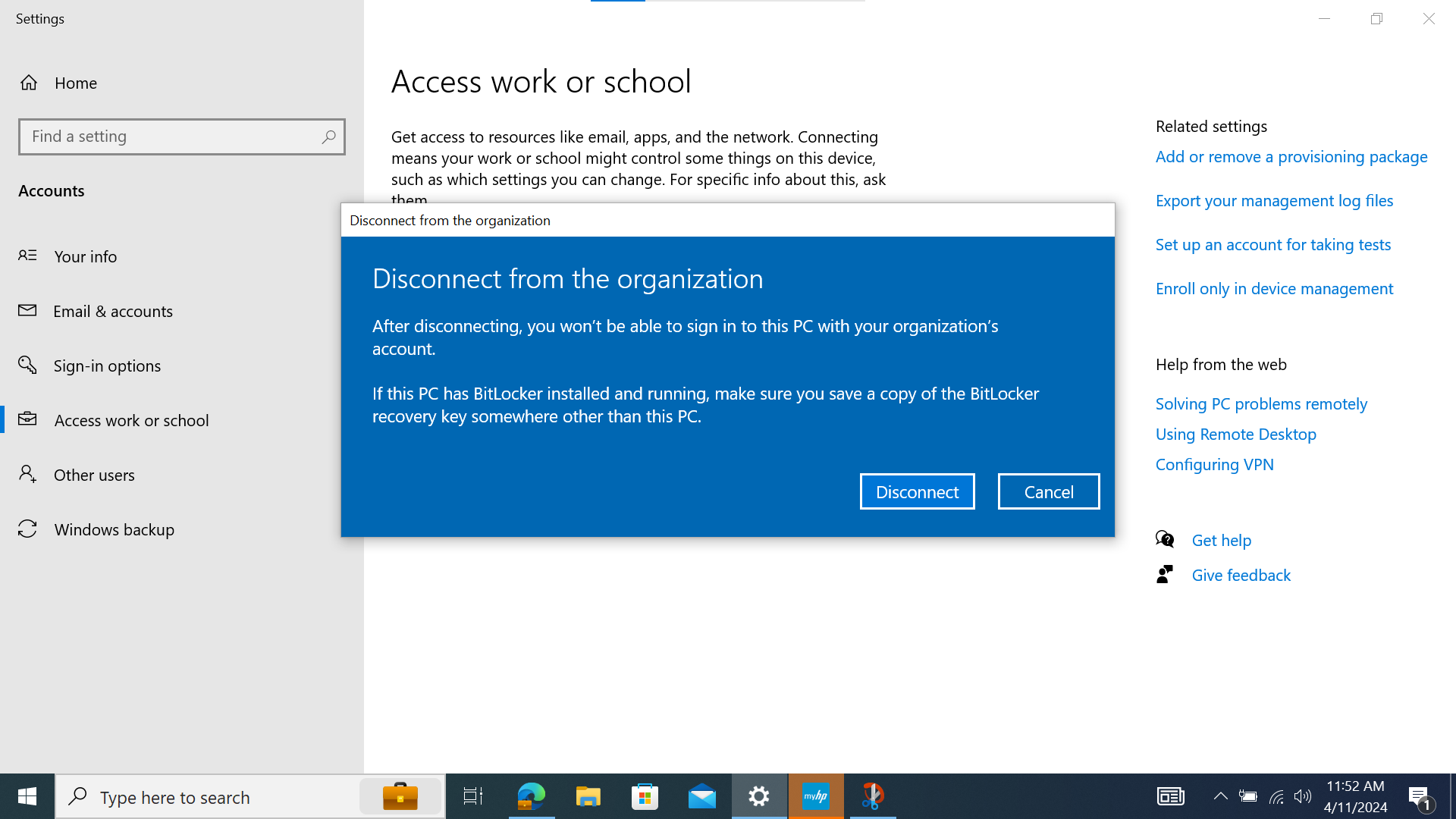
If the user has already enabled BitLocker, you should verify they have access to their recovery keys outside of the device in question (e.g., printout, Google Drive, email via a mobile device, etc). Failure to do so may result in irrecoverable customer data loss!
If the user was relying on the Google Workspace account to authenticate with apps on their device, then they will temporarily have to authenticate manually with those apps after un-joining the account. Make sure to test that all user sign in workflows are still available after disconnecting the Google Workspace account. Have the user attempt to sign in via browser and on an M365 application if applicable.
- Hit the Windows key, type "Access work or school" and select the "Access work or school (System settings)" result.
- On the "Access work or school" screen, click the dropdown arrow next to the federated Google Workspace "Work or school" account item, then click "Disconnect".
Screenshot
- You'll be prompted to confirm the disconnection, and warned about losing SSO access to accounts and company data once you do. Click "Yes" and then “Disconnect” to confirm the disconnection.
Screenshot
- You may be prompted to “Enter alternate account info”. If so, you’ll need to enter the local administrator account credentials on the device. Despite the form field implying that it wants an email address to be entered, this is simply the username for the account (which could be an email address, but is often not).
- You’ll be prompted to “Restart your PC”. Select “Restart now”.
From Entra portal: Confirm records for this device no longer exist
- Navigate to the Devices page within the Entra ID portal
- Search for records for this device, and if any are still present, delete them.
From device: Join the Microsoft account
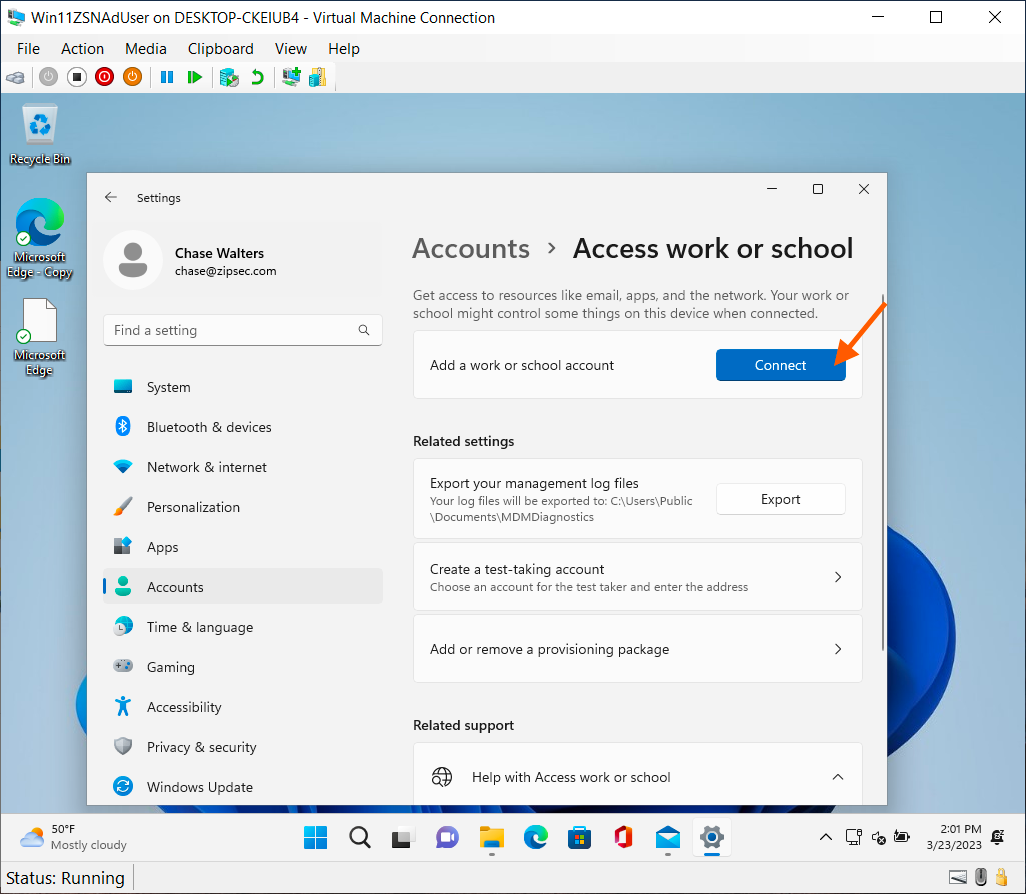
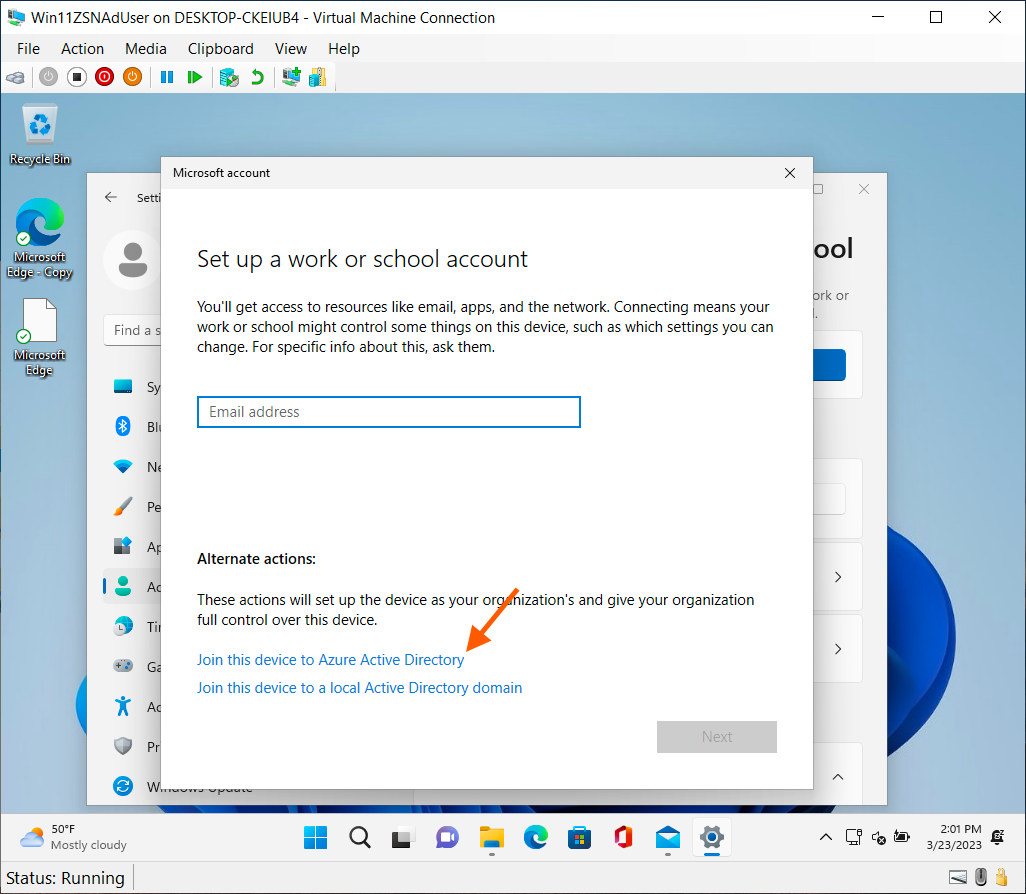
- Click "Connect", then click "Join this device to Microsoft Entra ID" and sign in with your Microsoft account.
Screenshots
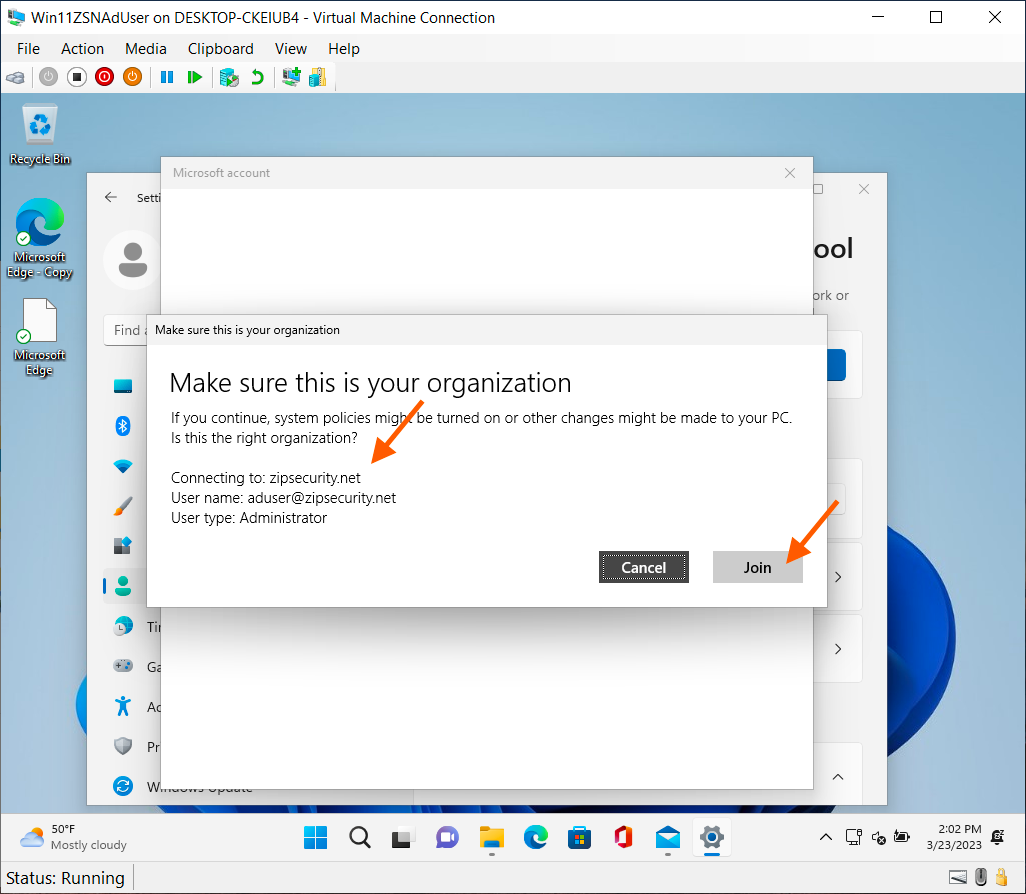
- When prompted, confirm that you are connecting to the correct organization and click "Join".
Screenshot
- If all goes well, you'll see a screen titled "You're all set!" where you can click "Done".
Screenshot
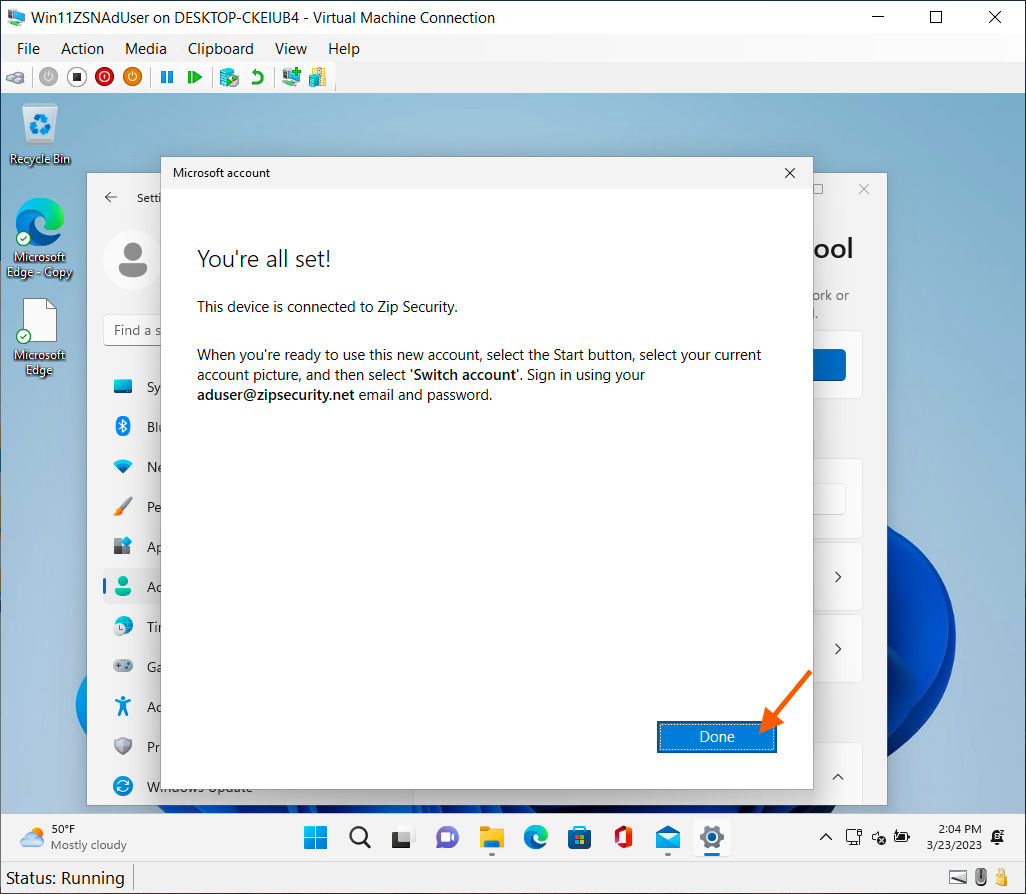
- A dialog will prompt you to switch away from your local account and sign into the device with your Microsoft account. This is not required for device management.