
Below we outline the guidance for connecting Okta to the Zip Console. Generally this step will be completed by the Zip team. If your organization already has Okta provisioned, you can follow the below instructions to connect it with the Zip console.
Connect Customer Okta to Zip Console
- Log in to Okta’s Admin dashboard as an Admin with the permissions that the token should have. The API token will inherit the permissions of the Admin that creates it. If you’re going to be using Jamf, the token should have Super Admin permissions, otherwise, Read-only admin suffices.
- In the Okta admin console, go to Security > Administrators > Resources. You’ll first create a resource set that the admin will be an admin off. Click
Create new resource set. - Name the resource set
All Apps, Users, Groups. Add all groups, all applications, and all users. - Click save.
- Navigate to Security > Administrators > Roles, then click
Create new role. - Role name: Zip Security Integration
- Permissions:
- User → Manage users
- Group → Edit groups’ application assignments
- Application → Manage applications
- Click
Save role - Back on the roles screen, scroll down to the role, then click
Edit→View or edit assignments. - Click
Add assignment, then search for the user that you’d like to grant the permission to. This user should not be a Super Admin. For the resource set, select the resource set created in step 2. - Log in with user that you granted the custom role to, and then proceed with the steps below

Prefer not to grant Super Admin permission? You can create a custom role in Okta that is scoped to just the permissions the Zip console needs.
- In the Okta Admin Console, navigate to Security > API.
- Click Create Token.
- Enter a name for the token.
- Document the Token value from the screen in a secure area like a password manager.
- Important: please be sure to document and store the API token value carefully, as it can not be retrieved later and can present a security risk if used in an unauthorized fashion.
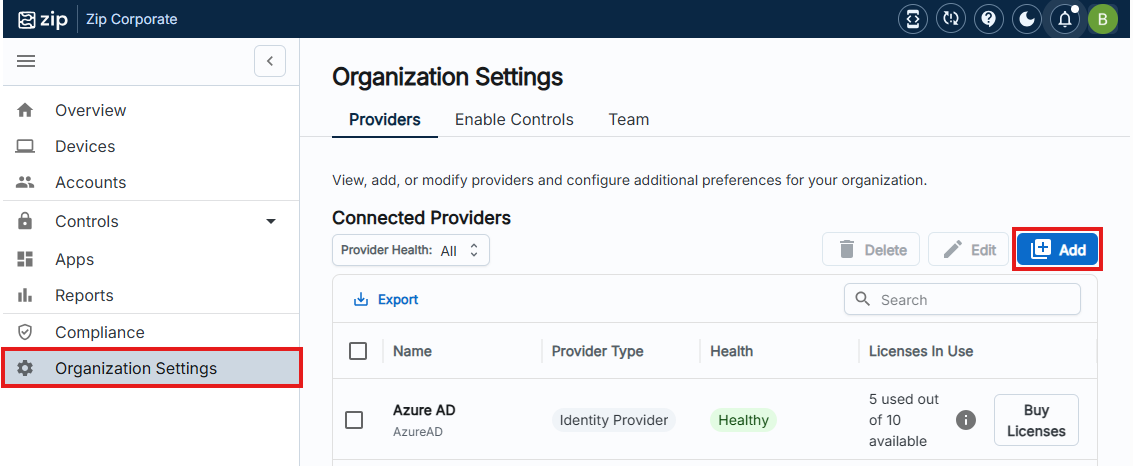
- Navigate to your Zip Console:
- On the Zip Console navigate to ‘Providers’ tab under Organization Settings:
- Click
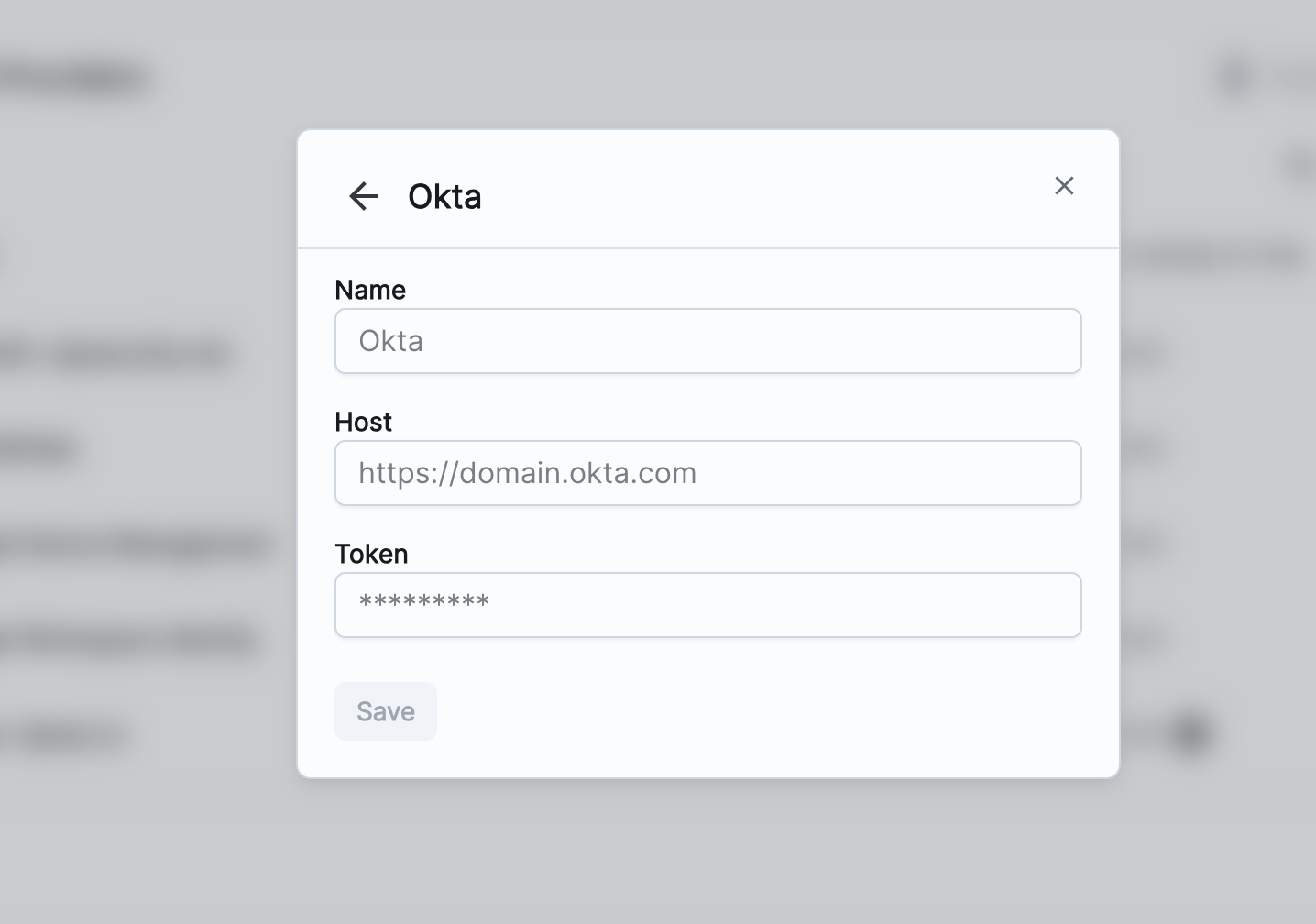
Add→ Okta. Copy the Okta credentials in to the form and hit save.
Questions? Here’s how to reach us:
- Email: info@zipsecinc.cc