
Within the Zip console, we report the frequency of devices ‘checking in’. Device Check In is the mechanism by which a device connects to its MDM (likely Intune) to share and receive information (e.g. a command, verification, or session / log data). This usually happens multiple times a day, when a device is connected to the internet.
Sometimes we see an issue where devices do not check in for hours, or days. It is important to investigate this to ensure that devices are staying up-to-date and compliant, and any underlying reason for the failed check in is addressed.
Below is guidance for how to check for device’s not checking in, and how to troubleshoot the issue:
How to Identify if Any Devices are not Checking In
You can identify devices not checking in by checking the Devices page in your Zip Console and filtering for “Not checking in with MDM” warnings.
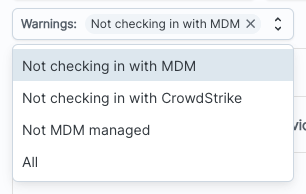
Warnings will appear with an error icon next to the device name.
You can also check your notifications. Zip will notify of any devices that have not recently checked in with their MDM provider in the past week and you will able to investigate further.
If you confirm there are devices that are not checking in, we can proceed with investigation and troubleshooting the root cause by following the below steps. If you are able to resolve the issue when trying a given step, you do not need to proceed to the next step:
STAGE 1: Investigate if the device is still being used by the user:
- Confirm the user is not on holiday — it may be as simple at this! A device hasn’t checked in, because the user is on a one or two week holiday!
- Confirm the user is still an active employee. If they have left, follow your normal off-boarding process for the device and user account.
- Confirm that the device is being actively used by someone. Is this a device that is used infrequently, and that explains the infrequent check ins? Has the device been returned to the IT team?
STAGE 2: Investigate the device’s connection to Intune
- Confirm that there are no issues with the device’s connection to the Intune servers
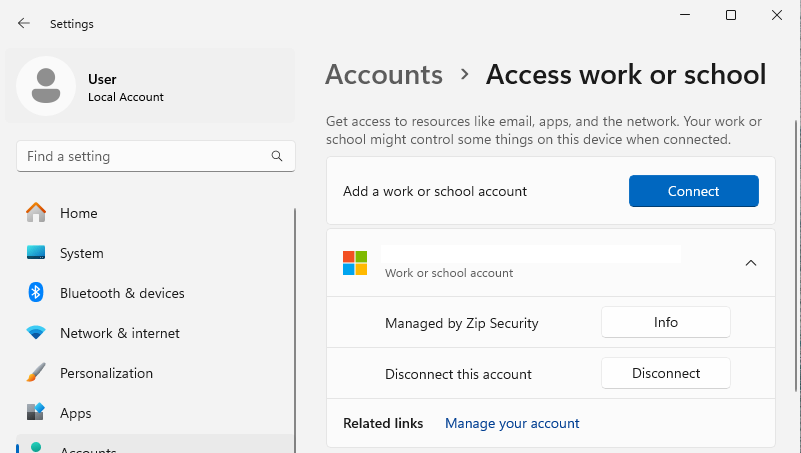
- Right click the Windows Start Button and select Settings
- Choose Accounts from the left side
- Scroll on the right side to select “Access work or school”
- This screen may display an error message if there are any problems authenticating with the Intune server
- Any such error can be cleared by re-entering the Microsoft Entra account credentials at the prompt
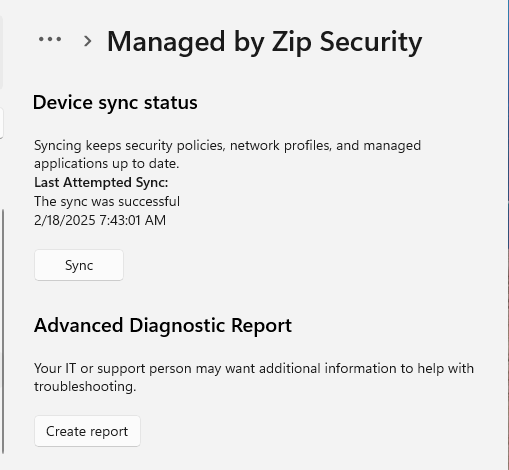
- Expand the details of the Intune management connection & click the Info button to access further diagnostic capabilities
- Within the Info button’s details page, there is a Sync button that will attempt a synchronization check in with the Intune server. This sync should only take a few seconds to validate the connection to the Intune server.
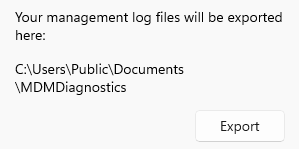
- If this does not correct the issue, clicking the Create Report button will allow further information to be exported that can assist with troubleshooting.
STAGE 3: Reach out to Support
- Please drop an email to info@zipsecinc.cc and we’ll be able to investigate the issue further for you.